Part 2d: Using VBA with JSON: OneNote

This is the second part of our two-part series on using VBA with JSON in OneNote. Today, we’ll learn how to delete pages, update them, copy to a section, and create sections and section groups.

Using VBA with JSON: OneNote, Part 1 on GitHub
Using VBA with JSON: OneNote, Part 1
Today’s Lesson on GitHub
Link to get token
OneNote API documentation
database sample
Final Code

Or skip down to explanations of how to do various things in OneNote:

Some of this content will be repeated from the previous post on how to interact with JSON. If you know how JSON works with VBA and you want to skip directly to the OneNote part, click here to go to “Explanation of Code“.

JSON

JSON stands for JavaScript Object Notation. It is a text string loaded with information that lots of places use to communicate over the internet. The important part is, it’s structured in a way that you can extract pieces of information out of it to use in coding. Many companies have an API that uses JSON that you probably work with every day such as Clio, CourtListener, PayPal, Wunderlist, OneNote, and many others. You can use it to communicate with these companies over the internet and automate the things you do in their software. We will be going over some in the coming weeks. For a more in-depth explanation, I recommend this site. I receive no remuneration for linking that (or anything here); I just like the explanation and think it is sufficient for this exercise.

References

We’ll be working in an empty database. I have provided an almost empty database for this article, which you can find here. It contains three modules and one empty table. Save the database so that you can hit Ctrl + S frequently and save all the time. Get into the habit of it if you can. If you use this database, you may skip down to the section “Security“. If you do not wish to download the sample, continue and we’ll go through setting up our database manually.

Open a new empty database in Access. Just open up Access and select “blank database”. Save it as any name. It’s just a sandbox or testing area, so don’t worry about what it’s called. Once you’ve saved your new empty database, go to Database Tools on the top row above the ribbon and hit ‘Visual Basic’. Now, you should see the following screen:
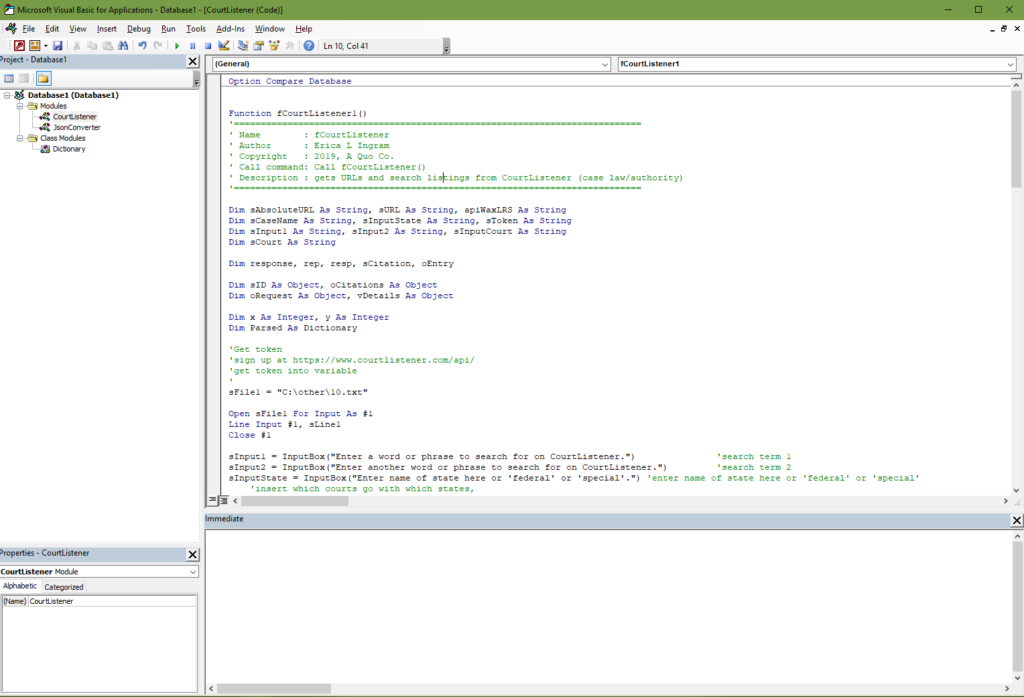
A module is the white screen you’re looking at in the VBA window. You can name your modules. You may have multiple modules within one file. This is where all your macros and code are stored. But yours will all be empty and we do not want that, so import the two modules from the following two links, VBA Dictionary & JSON Converter. Right click on the “Modules” folder, then import JSON Converter . Right click on “Class Modules”, then import VBA Dictionary. Next, you’ll want to create a third regular module, the one you’ll be editing code in. Mine is named ‘Wunderlist‘. Save again.

You will need to add the following references. References are like libraries that let you use the code we’re learning. These references are what allow ‘early binding’ to occur like we discuss in a little bit. But the more references you add, the bigger your application is and the longer it takes to load, so you only want to turn on the ones you are actually using. Here are the ones we will be using throughout the course of your journey here. The starred ones are the only ones we are actually using today and they are the only ones turned on in the sample database. So if you want to just turn those on, that’s sufficient for this post. But these unstarred ones, you’ll need in later weeks as we progress in the blog.

  • Visual Basic for Applications *
  • Microsoft Office 16.0 Access database engine Object Library *
  • OLE Automation *
  • Microsoft OneNote 15.0 Object Library *
  • Microsoft Access 16.0 Object Library
  • Microsoft XML, v6.0 *
  • Microsoft Office 16.0 Object Library *
  • Microsoft Scripting Runtime
  • Microsoft Word 16.0 Object Library
  • Microsoft Internet Controls
  • Microsoft Excel 16.0 Object Library
  • Microsoft Outlook 16.0 Object Library
  • Microsoft Publisher 16.0 Object Library
  • Microsoft Shell Controls and Automation
  • Microsoft HTML Object Library
  • Microsoft WinHTTP Services, version 5.1
  • Microsoft OneNote 15.0 Object Library

If you have Adobe Acrobat, you want to make sure these are checked on as well. We are not using any of these for this exercise, so you may leave them unchecked.

  • AFormAut 1.0 Type Library
  • Adobe Acrobat 9.0 Type Library
  • Acrobat Distiller
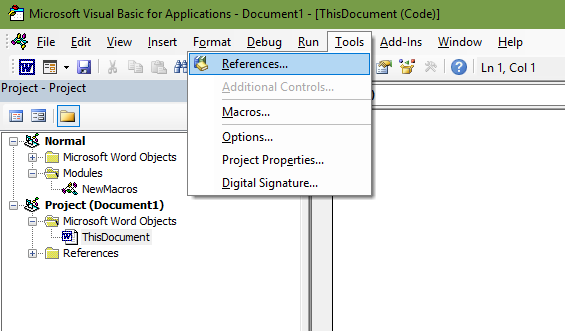
Select ‘Tools’, then ‘References’.
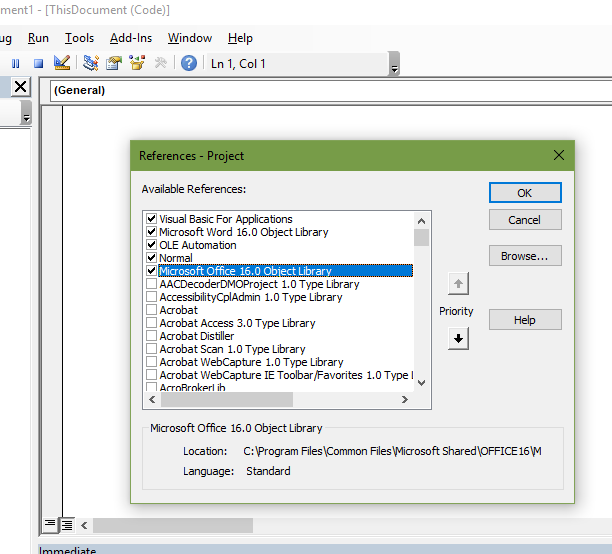
Select references in the list that look similar to the one shown here.

Security

You should never hard-code a token, password, username, client secret, secret I.D., or anything else you wish to keep safe right into your software or database, meaning you do NOT EVER write in your code something like this:

sToken = "2389407sejklfasdjl23908"

If you do this and someone breaks into your database, they will also have your various secret codes/passwords/etc. At the very least, you should store the various secret phrases, tokens, etc we’ll be discussing in a local text file on a local hard drive, NOT shared, and only give access to it from the current user. Then in theory, after you’ve done that, you could call on it as a variable when you need it and clear it out of memory as soon as you don’t.

Restrict the text file’s access to only your current user allowed or at the very least do not ‘share’ it or put it on a network drive, OneDrive, or a public repository on GitHub (yes, that really happens) or any place like that.

Always use HTTPS for URLs. Do NOT send data over http unless you do not care if the entire world sees it, actors good AND bad, so to speak.

Early Versus Late Binding

Early binding is where you declare a “reference”. As we talked about earlier, you can look at these references by going to Tools –> References in the menu up at the top. With early binding, because the function knows what each object will be doing at start, Intellisense can help you pick out the correct piece of code. It makes auto-fill suggestions for your code.

In late binding, you just declare an object and tell it at the last minute what it should do. But because the object doesn’t know what to do until after the function’s started, Intellisense doesn’t work, among other things. As opposed to the picture below, simply nothing would pop up as you type.

Most of the time, we will be using early binding with references because it is easier to do as a new person, but this exercise will be one example of late binding. Importantly, you do not need to turn on references with late binding. For our purposes, early binding is usually preferred to late.
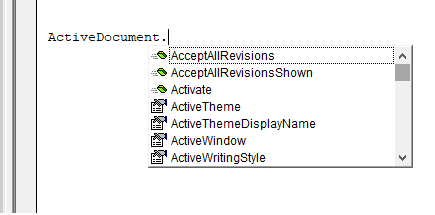
Intellisense in action with early binding.
In late binding, this will *never* pop up.

Explanation of Code

This exercise has an extra step or two, but it largely similar to the previous exercises we’ve gone through. The main extra step is an authentication step. You need a Microsoft account. Go here to create one if you don’t have one already.

Sign in with your Microsoft account to the Microsoft Dev Center.

Enter in a name, any name, for your app. Mine is named something like ‘accessdb’.

The Microsoft website will ask you or maybe has already if you want to view the app in Azure. Say yes and it will open a new window. For now, go back to the old window you were just at.

On the next page, in “Microsoft Graph Permissions”, click the box “Add” next to “Application Permissions”. Ensure the following four options are checked:

  • User.Export.All (Admin Only)
  • User.Invite.All (Admin Only)
  • User.Read.All (Admin Only)
  • User.ReadWrite.All (Admin Only)

Under “Application Secrets”, select “Generate New Password”, and copy+paste the key into its own text file with nothing else in the text file. Save the text file on your local hard drive. What you just saved is called your ‘secret’ in the Microsoft API.

Next, you should see on the same window where you got your ‘secret’ something towards the top called ‘Application ID’ under the ‘Properties’ heading. Copy and paste that into its own text file as well on your local hard drive.

Now, go to the Azure window you opened earlier from the prompt asking you to view the app on the Azure platform. You should see your app there with three pieces of information; the ‘object ID’, ‘application (client) ID’, and the ‘directory (tenant) ID’. You already have saved one of these. Save the remaining two in their own text files to your local drive (two numbers, two text files).

In the same Azure window, you should see the phrase “Managed application in local directory” with your app name. Click on the app name. Click on your ‘total users’, which should be ‘1’. Click on the user there, which should be you, and you will see a heading labeled ‘Identity’. See the ‘object ID’ there? Copy and paste that into its own text file on your local hard drive as well.

The last thing you will need to do is select a phrase which is called a ‘state’. It is simply a text value which can be anything you want and is used to “encode info about the user’s state in the app before the authentication request occurred, such as the page or view they were on”. If you want more info, go here.

For this exercise, I have selected “aqc” as my ‘state’, although that is not my real one. You may save this in a text file, too, if you wish, similar to the other text strings you’ve saved.

Next, you must request permissions by going to a URL constructed from the information we just got:

https://login.microsoftonline.com/{tenant}/adminconsent?client_id={app_id}&state={state}&redirect_uri=http://localhost/myapp/permissions

A dialog to accept/approve will come up and you should accept/approve.

Delete Pages From OneNote Notebook

Now we’re ready to go over the actual VBA code for this exercise. First exercise we’re going to go through is how to delete a page from one of your notebooks.

Here’s the info box at the beginning of the function, variable declarations:

Function fONDeletePage()
'====================================================
' Name        : fONDeletePage
' Author      : Erica L Ingram
' Copyright   : 2019, A Quo Co.
' Call command: Call fONDeletePage()
' Description : delete ON page by page ID
'====================================================
Dim sURL As String, sToken As String, sLine4 As String
Dim Parsed As Dictionary
Dim sFile1 As String, sFile2 As String, sFile3 As String
Dim sFile4 As String
Dim sLine1 As String, sLine2 As String, sLine3 As String
Dim apiWaxLRS As String, sGroupID As String
Dim sCBID As String, sPageID As String, sSiteID As String

Next, we’ll get our token as we’ve done before:

'preparing to get token
sFile1 = "C:\other\6.txt" 'object id / user ID
sFile2 = "C:\other\7.txt" 'directory tenant id
sFile3 = "C:\other\8.txt" 'application client id
sFile4 = "C:\other\9.txt" 'secret

'before auth if you make privilege changes you must visit
                 'this website and accept permissions.
'sState = ""
'"https://login.microsoftonline.com/" & sLine2 & 
 '"adminconsent?client_id=" & sLine3 & "&state=" & 
 'sState & 
 '"&redirect_uri=https://login.microsoftonline.com/common/oauth2/nativeclient"

Open sFile1 For Input As #1
Line Input #1, sLine1
Close #1

Open sFile2 For Input As #2
Line Input #2, sLine2
Close #2

Open sFile3 For Input As #3
Line Input #3, sLine3
Close #3

Open sFile4 For Input As #4
Line Input #4, sLine4
Close #4

sURL = "https://login.microsoftonline.com/" & sLine2 & "/oauth2/v2.0/token"

'getting token
With CreateObject("WinHttp.WinHttpRequest.5.1")
    .Open "POST", sURL, False
    .setRequestHeader "Content-Type", "application/x-www-form-urlencoded"
    .setRequestHeader "Host", "login.microsoftonline.com"
    .send ("client_id=" & sLine3 & "&scope=https%3A%2F%2Fgraph.microsoft.com%2F.default&client_secret=" & sLine4 & "&grant_type=client_credentials")
    .waitForResponse
    apiWaxLRS = .responseText
    Debug.Print "--------------------------------------------"
    .abort
End With

Set Parsed = JsonConverter.ParseJson(apiWaxLRS)
sToken = Parsed("access_token")

Now we’re to the new part. You should have gotten a page ID from a function covered in the previous blog post, and it goes in the variable in this chunk of code:

Set Parsed = JsonConverter.ParseJson(apiWaxLRS)
sToken = Parsed("access_token")

'fill this in with your page ID
sPageID = ""

Next, we construct the URL that we’ll call on to delete the page. The URL can be constructed in a couple different ways and i’ve suggested some here, but there is one uncommented by default.

'several URL options to choose from for deleting pages:
'personal account:
'DELETE https://graph.microsoft.com/v1.0/users/{id | userPrincipalName}/onenote/pages/{id}
sURL = "https://graph.microsoft.com/v1.0/users/" & sLine1 & "/onenote/pages/" & sPageID

'DELETE https://graph.microsoft.com/v1.0/groups/{id}/onenote/pages/{id}
'sURL = "https://graph.microsoft.com/v1.0/groups/" & sGroupID & "/onenote/pages/" & sPageID

'DELETE https://graph.microsoft.com/v1.0/sites/{id}/onenote/pages/{id}
'sURL = "https://graph.microsoft.com/v1.0/sites/" & sSiteID & "/onenote/pages/" & sPageID

Now, we’re calling on the URL to tell them to delete the page, assigning the response to a variable, and then clearing out information from the sensitive variables since we don’t need it anymore.

With CreateObject("WinHttp.WinHttpRequest.5.1")
    .Open "DELETE", sURL, False
    .setRequestHeader "Authorization", "Bearer " & sToken
    .setRequestHeader "Content-Type", "text/html"
    .send
    apiWaxLRS = .responseText
    If apiWaxLRS = "" Then
        apiWaxLRS = .status
    End If
    sToken = ""
    sFile2 = ""
    sFile3 = ""
    sFile4 = ""
    sURL = ""
    sLine1 = ""
    sLine2 = ""
    sLine3 = ""
    sLine4 = ""
    'Debug.Print apiWaxLRS
    'Debug.Print "--------------------------------------------"
    .abort
End With

Lastly, we’ll print some info to the debug window (Ctrl+G) so we know it deleted successfully. If it isn’t successful, you’ll see the response so you can troubleshoot it.

Debug.Print "Page Deleted, ID No.:  " & sPageID
Debug.Print "Status: " & apiWaxLRS & "   |   (204 means deleted successfully)"
Debug.Print "--------------------------------------------"

Update Pages From OneNote Notebook

Now, we want to update a page already in the OneNote notebook.

Here’s the info box at the beginning of the function, variable declarations:

Function fONUpdatePage()
'============================================================================
' Name        : fONUpdatePage
' Author      : Erica L Ingram
' Copyright   : 2019, A Quo Co.
' Call command: Call fONUpdatePage()
' Description : update ON page by page ID
'============================================================================
Dim sURL As String, sToken As String, sLine4 As String
Dim Parsed As Dictionary
Dim sFile1 As String, sFile2 As String, sFile3 As String, sFile4 As String
Dim sLine1 As String, sLine2 As String, sLine3 As String
Dim apiWaxLRS As String, sGroupID As String
Dim sCBID As String, sPageID As String, sSiteID As String

Next, we’ll get our token as we’ve done before:

'preparing to get token
sFile1 = "C:\other\6.txt" 'object id / user ID
sFile2 = "C:\other\7.txt" 'directory tenant id
sFile3 = "C:\other\8.txt" 'application client id
sFile4 = "C:\other\9.txt" 'secret

'before auth if you make privilege changes you must visit this website and accept permissions.
'sState = ""
'"https://login.microsoftonline.com/" & sLine2 & "adminconsent?client_id=" & sLine3 & "&state=" & sState & "&redirect_uri=https://login.microsoftonline.com/common/oauth2/nativeclient"

Open sFile1 For Input As #1
Line Input #1, sLine1
Close #1

Open sFile2 For Input As #2
Line Input #2, sLine2
Close #2

Open sFile3 For Input As #3
Line Input #3, sLine3
Close #3

Open sFile4 For Input As #4
Line Input #4, sLine4
Close #4

sURL = "https://login.microsoftonline.com/" & sLine2 & "/oauth2/v2.0/token"

'getting token
With CreateObject("WinHttp.WinHttpRequest.5.1")
    .Open "POST", sURL, False
    .setRequestHeader "Content-Type", "application/x-www-form-urlencoded"
    .setRequestHeader "Host", "login.microsoftonline.com"
    .send ("client_id=" & sLine3 & "&scope=https%3A%2F%2Fgraph.microsoft.com%2F.default&client_secret=" & sLine4 & "&grant_type=client_credentials")
    .waitForResponse
    apiWaxLRS = .responseText
    Debug.Print "--------------------------------------------"
    .abort
End With

Set Parsed = JsonConverter.ParseJson(apiWaxLRS)
sToken = Parsed("access_token")

Now, we put our page ID that we want to update into a variable and construct the URL we’ll be calling on to update the page. There is one default uncommented, but i have constructed and commented out a couple other versions if you have a need for them.

'fill this in with your page ID
sPageID = ""
        
'several URL options to choose from for updating pages:
'personal account:
'PATCH https://graph.microsoft.com/v1.0/users/{id | userPrincipalName}/onenote/pages/{id}/content
sURL = "https://graph.microsoft.com/v1.0/users/" & sLine1 & "/onenote/pages/" & sPageID & "/content"

'PATCH https://graph.microsoft.com/v1.0/groups/{id}/onenote/pages/{id}/content
'sURL = "https://graph.microsoft.com/v1.0/groups/" & sGroupID & "/onenote/pages/" & sPageID & "/content"

'PATCH https://graph.microsoft.com/v1.0/sites/{id}/onenote/pages/{id}/content
'sURL = "https://graph.microsoft.com/v1.0/sites/" & sSiteID & "/onenote/pages/" & sPageID & "/content"

Next, we’ll need to construct the JSON string we’ll be sending to tell Microsoft what updates you are making. I have provided an example modified from an example on Microsoft’s site, but you may edit this as necessary.

'update request follows json format:
sUpdateJSON = "[{" & _
    "'target':'#para-id'," & _
    "'action':'insert'," & _
    "'position':'before'," & _
    "'content':'<img src=" & Chr(34) & "image-url-or-part-name" & Chr(34) & "alt=" & Chr(34) & "image-alt-text" & Chr(34) & " />'" & _
  "},{" & _
    "'target':'#list-id'," & _
    "'action':'append'," & _
    "'content':'<li>new-page-content</li>'" & _
  "}]"
  

Next, we’ll call on the URL, send the JSON string we constructed with the required request headers, wait for a response, and clear out the sensitive information from their variables.

'call on URL to delete page
With CreateObject("WinHttp.WinHttpRequest.5.1")
    .Open "PATCH", sURL, False
    .setRequestHeader "Authorization", "Bearer " & sToken
    .setRequestHeader "Content-Type", "application/json"
    .send sUpdateJSON
    apiWaxLRS = .responseText
    If apiWaxLRS = "" Then
        apiWaxLRS = .status
    End If
    sToken = ""
    sFile2 = ""
    sFile3 = ""
    sFile4 = ""
    sURL = ""
    sLine1 = ""
    sLine2 = ""
    sLine3 = ""
    sLine4 = ""
    'Debug.Print apiWaxLRS
    'Debug.Print "--------------------------------------------"
    .abort
End With

Lastly, we’ll print some info to the debug window (Ctrl+G) so we know it updated successfully. If it isn’t successful, you’ll see the response so you can troubleshoot it.

'print status on successful update
Debug.Print "Page Updated, ID No.:  " & sPageID
Debug.Print "Status: " & apiWaxLRS & "   |   (204 means updated successfully)"
Debug.Print "--------------------------------------------"
End Function

Copy Pages to Section of OneNote Notebook

Now, we want to copy a page already in the OneNote notebook to a certain section.

Here’s the info box at the beginning of the function, variable declarations:

Function fONCopyPageToSection()
'============================================================================
' Name        : fONCopyPageToSection
' Author      : Erica L Ingram
' Copyright   : 2019, A Quo Co.
' Call command: Call fONCopyPageToSection()
' Description : copy ON page by page ID to section
'============================================================================
Dim sURL As String, sToken As String, sLine4 As String
Dim Parsed As Dictionary
Dim sFile1 As String, sFile2 As String, sFile3 As String, sFile4 As String
Dim sLine1 As String, sLine2 As String, sLine3 As String
Dim apiWaxLRS As String, sGroupID As String
Dim sCBID As String, sPageID As String, sSiteID As String

Next, we’ll get our token as we’ve done before:

'preparing to get token
sFile1 = "C:\other\6.txt" 'object id / user ID
sFile2 = "C:\other\7.txt" 'directory tenant id
sFile3 = "C:\other\8.txt" 'application client id
sFile4 = "C:\other\9.txt" 'secret

'before auth if you make privilege changes you must visit this website and accept permissions.
'sState = ""
'"https://login.microsoftonline.com/" & sLine2 & "adminconsent?client_id=" & sLine3 & "&state=" & sState & "&redirect_uri=https://login.microsoftonline.com/common/oauth2/nativeclient"

Open sFile1 For Input As #1
Line Input #1, sLine1
Close #1

Open sFile2 For Input As #2
Line Input #2, sLine2
Close #2

Open sFile3 For Input As #3
Line Input #3, sLine3
Close #3

Open sFile4 For Input As #4
Line Input #4, sLine4
Close #4

sURL = "https://login.microsoftonline.com/" & sLine2 & "/oauth2/v2.0/token"

'getting token
With CreateObject("WinHttp.WinHttpRequest.5.1")
    .Open "POST", sURL, False
    .setRequestHeader "Content-Type", "application/x-www-form-urlencoded"
    .setRequestHeader "Host", "login.microsoftonline.com"
    .send ("client_id=" & sLine3 & "&scope=https%3A%2F%2Fgraph.microsoft.com%2F.default&client_secret=" & sLine4 & "&grant_type=client_credentials")
    .waitForResponse
    apiWaxLRS = .responseText
    Debug.Print "--------------------------------------------"
    .abort
End With

Set Parsed = JsonConverter.ParseJson(apiWaxLRS)
sToken = Parsed("access_token")

Next, we’ll fill in our page ID/section IDs and construct our URL:

'fill this in with your page ID & desired section ID to copy to
sPageID = ""
sSectionID = ""

'several URL options to choose from for copying pages:

'personal account:
'POST https://graph.microsoft.com/v1.0/users/{id | userPrincipalName}/onenote/pages/{id}/copyToSection
sURL = "https://graph.microsoft.com/v1.0/users/" & sLine1 & "/onenote/pages/" & sPageID & "/copyToSection"

'POST https://graph.microsoft.com/v1.0/groups/{id}/onenote/pages/{id}/copyToSection
'sURL = "https://graph.microsoft.com/v1.0/groups/" & sGroupID & "/onenote/pages/" & sPageID & "/copyToSection"

'POST https://graph.microsoft.com/v1.0/me/onenote/pages/{id}/copyToSection
'sURL = "https://graph.microsoft.com/v1.0/me/onenote/pages/" & sPageID & "/copyToSection"

Next we’ll construct a JSON request string to send to Microsoft:

'Here, we're constructing the JSON string we need to send so Microsoft knows which page to copy and to which section to copy.
sCopyJSON = "{" & _
  Chr(34) & "id" & Chr(34) & ": " & Chr(34) & sPageID & Chr(34) & "," & _
  Chr(34) & "groupId" & Chr(34) & ": " & Chr(34) & sSectionID & Chr(34) & _
    "}"

So now we’re calling on the URL with some required headers and sending the JSON string we just made. Then we put the response in a variable and clear out the sensitive information from their respective variables.

'call on URL to copy page to desired section
With CreateObject("WinHttp.WinHttpRequest.5.1")
    .Open "POST", sURL, False
    .setRequestHeader "Authorization", "Bearer " & sToken
    .setRequestHeader "Content-Type", "application/json"
    .setRequestHeader "Content-Length", "52"
    .send sCopyJSON
    apiWaxLRS = .responseText
    If apiWaxLRS = "" Then
        apiWaxLRS = .status
    End If
    sToken = ""
    sFile2 = ""
    sFile3 = ""
    sFile4 = ""
    sURL = ""
    sLine1 = ""
    sLine2 = ""
    sLine3 = ""
    sLine4 = ""
    'Debug.Print apiWaxLRS
    'Debug.Print "--------------------------------------------"
    .abort
End With

Lastly, we’ll print some info to the debug window so we know it was successful or, if unsuccessful, an error message that will help you troubleshoot.

'print status on successful update
Debug.Print "Page ID No.:  " & sPageID & "   |   Section ID No.:  " & sSectionID
Debug.Print "Status: " & apiWaxLRS & "   |   (202 means updated successfully)"
Debug.Print "--------------------------------------------"

End Function

Create Section in OneNote Notebook

Last function we’ll go over is how to create a section in OneNote.

This part is probably familiar to you; we have our info box and variable declaration, followed by getting some sensitive necessary info into variables and getting our token. So i won’t go over this since this part is the same in every function we’ve gone over in OneNote.

Function fONCreateSection()
'============================================================================
' Name        : fONCreateSection
' Author      : Erica L Ingram
' Copyright   : 2019, A Quo Co.
' Call command: Call fONCreateSection()
' Description : create ON section
'============================================================================
Dim sURL As String, sToken As String, sLine4 As String
Dim Parsed As Dictionary
Dim sFile1 As String, sFile2 As String, sFile3 As String, sFile4 As String
Dim sLine1 As String, sLine2 As String, sLine3 As String
Dim sResponseText As String, apiWaxLRS As String
Dim sONID As String, sSelfLink As String, sCreatedDateTime As String
Dim sDisplayName As String, sLastModifiedDateTime As String, isDefault As String
Dim sUserRole As String, sIsShared As String, sSectionsUrl As String, sSectionGroupsUrl As String
Dim sCBDisplayName As String, sCBLastModifiedName As String
Dim sCBLWebURL As String, sIsDefault As String
Dim sCBID As String
Dim rep
Dim sCBLastModifiedID As String, sCBLClientURL As String
Dim sJSONRequest As String, sNotebookID As String

sFile1 = "C:\other\6.txt" 'object id / user ID
sFile2 = "C:\other\7.txt" 'directory tenant id
sFile3 = "C:\other\8.txt" 'application client id
sFile4 = "C:\other\9.txt" 'secret

'before auth if you make privilege changes you must visit this website and accept permissions.
'sState = ""
'"https://login.microsoftonline.com/" & sLine2 & "adminconsent?client_id=" & sLine3 & "&state=" & sState & "&redirect_uri=https://login.microsoftonline.com/common/oauth2/nativeclient"

Open sFile1 For Input As #1
Line Input #1, sLine1
Close #1

Open sFile2 For Input As #2
Line Input #2, sLine2
Close #2

Open sFile3 For Input As #3
Line Input #3, sLine3
Close #3

Open sFile4 For Input As #4
Line Input #4, sLine4
Close #4

sURL = "https://login.microsoftonline.com/" & sLine2 & "/oauth2/v2.0/token"

With CreateObject("WinHttp.WinHttpRequest.5.1")
    .Open "POST", sURL, False
    .setRequestHeader "Content-Type", "application/x-www-form-urlencoded"
    .setRequestHeader "Host", "login.microsoftonline.com"
    .send ("client_id=" & sLine3 & "&scope=https%3A%2F%2Fgraph.microsoft.com%2F.default&client_secret=" & sLine4 & "&grant_type=client_credentials")
    .waitForResponse
    apiWaxLRS = .responseText
    Debug.Print "--------------------------------------------"
    .abort
End With

Set Parsed = JsonConverter.ParseJson(apiWaxLRS)
sToken = Parsed("access_token")

Next, we’ll put the notebook ID where we want the new section in a variable and name our new section.

'notebook id where you want your new section to go
sNotebookID = ""
'set new section name here
sSectionName = "Testing VBA New Section 1"
'sGroupID = ""

Now we need a URL to call on. I have commented several examples, but the default one is first and uncommented.

'POST https://graph.microsoft.com/v1.0/users/{id | userPrincipalName}/onenote/notebooks/{id}/sections
sURL = "https://graph.microsoft.com/v1.0/users/" & sLine1 & "/onenote/notebooks/" & sNotebookID & "/sections"

'POST https://graph.microsoft.com/v1.0/groups/{id}/onenote/notebooks/{id}/sections
'sURL = "https://graph.microsoft.com/v1.0/groups/" & sGroupID & "/onenote/notebooks/" & sNotebookID & "/sections"

'POST https://graph.microsoft.com/v1.0/sites/{id}/onenote/notebooks/{id}/sections
'sURL = "https://graph.microsoft.com/v1.0/sites/" & sGroupID & "/onenote/notebooks/" & sNotebookID & "/sections"

'POST https://graph.microsoft.com/v1.0/me/onenote/notebooks/{id}/sections
'sURL = "https://graph.microsoft.com/v1.0/me/onenote/notebooks/" & sNotebookID & "/sections"

Now, we have a very small JSON string we need to construct to send with our request when we call on the URL. Notice your section name goes in here.

sJSONRequest = "{" & Chr(34) & "displayName" & Chr(34) & ": " & Chr(34) & sSectionName & Chr(34) & "}"

Now, we’ll call on the URL and send with it the JSON string we just constructed, put the response into a variable, and clear out the sensitive information.

With CreateObject("WinHttp.WinHttpRequest.5.1")
    .Open "POST", sURL, False
    .setRequestHeader "Authorization", "Bearer " & sToken
    .setRequestHeader "Content-type", "application/json"
    .setRequestHeader "Content-length", "27"
    .send sJSONRequest
    apiWaxLRS = .responseText
    sToken = ""
    sFile2 = ""
    sFile3 = ""
    sFile4 = ""
    sURL = ""
    sLine1 = ""
    sLine2 = ""
    sLine3 = ""
    sLine4 = ""
    Debug.Print apiWaxLRS
    Debug.Print "--------------------------------------------"
    .abort
End With

Now, similar to our other functions, we’re going to parse the response into variables and print it out in the debug window.

Set Parsed = JsonConverter.ParseJson(apiWaxLRS)

sIsShared = Parsed("@odata.context")
sONID = Parsed("id")
sSelfLink = Parsed("self")

sCreatedDateTime = Parsed("createdDateTime")
sTitle = Parsed("displayName")
scontentUrl = Parsed("pagesUrl")
sLastModifiedDateTime = Parsed("lastModifiedDateTime")
Set rep1 = Parsed("links")
Set rep2 = rep1("oneNoteClientUrl")
sCBLClientURL = rep2("href")
Set rep3 = rep1("oneNoteWebUrl")
sCBLWebURL = rep3("href")
    
Debug.Print "sIsShared = " & sIsShared
Debug.Print "sONID = " & sONID
Debug.Print "sTitle = " & sTitle
Debug.Print "scontentUrl = " & scontentUrl
Debug.Print "sSelfLink = " & sSelfLink
Debug.Print "sCreatedDateTime = " & sCreatedDateTime
Debug.Print "sLastModifiedDateTime = " & sLastModifiedDateTime
Debug.Print "sCBLClientURL = " & sCBLClientURL
Debug.Print "sCBLWebURL = " & sCBLWebURL
Debug.Print "--------------------------------------------"


'print status on successful section create
Debug.Print "Section ID No.:  " & sONID & "   |   Section Name:  " & sSectionName
Debug.Print "Status: " & apiWaxLRS
Debug.Print "201 updated successfully"
Debug.Print "--------------------------------------------"

End Function
Final Code

Update Pages From OneNote Notebook

Function fONUpdatePage()
'============================================================================
' Name        : fONUpdatePage
' Author      : Erica L Ingram
' Copyright   : 2019, A Quo Co.
' Call command: Call fONUpdatePage()
' Description : update ON page by page ID
'============================================================================
Dim sURL As String, sToken As String, sLine4 As String
Dim Parsed As Dictionary
Dim sFile1 As String, sFile2 As String, sFile3 As String, sFile4 As String
Dim sLine1 As String, sLine2 As String, sLine3 As String
Dim apiWaxLRS As String, sGroupID As String
Dim sCBID As String, sPageID As String, sSiteID As String
Dim sUpdateJSON As String
'preparing to get token
sFile1 = "C:\other\6.txt" 'object id / user ID
sFile2 = "C:\other\7.txt" 'directory tenant id
sFile3 = "C:\other\8.txt" 'application client id
sFile4 = "C:\other\9.txt" 'secret

'before auth if you make privilege changes you must visit this website and accept permissions.
'sState = ""
'"https://login.microsoftonline.com/" & sLine2 & "adminconsent?client_id=" & sLine3 & "&state=" & sState & "&redirect_uri=https://login.microsoftonline.com/common/oauth2/nativeclient"

Open sFile1 For Input As #1
Line Input #1, sLine1
Close #1

Open sFile2 For Input As #2
Line Input #2, sLine2
Close #2

Open sFile3 For Input As #3
Line Input #3, sLine3
Close #3

Open sFile4 For Input As #4
Line Input #4, sLine4
Close #4

sURL = "https://login.microsoftonline.com/" & sLine2 & "/oauth2/v2.0/token"

'getting token
With CreateObject("WinHttp.WinHttpRequest.5.1")
    .Open "POST", sURL, False
    .setRequestHeader "Content-Type", "application/x-www-form-urlencoded"
    .setRequestHeader "Host", "login.microsoftonline.com"
    .send ("client_id=" & sLine3 & "&scope=https%3A%2F%2Fgraph.microsoft.com%2F.default&client_secret=" & sLine4 & "&grant_type=client_credentials")
    .waitForResponse
    apiWaxLRS = .responseText
    Debug.Print "--------------------------------------------"
    .abort
End With

Set Parsed = JsonConverter.ParseJson(apiWaxLRS)
sToken = Parsed("access_token")

'fill this in with your page ID
sPageID = ""
        
'several URL options to choose from for updating pages:
'personal account:
'PATCH https://graph.microsoft.com/v1.0/users/{id | userPrincipalName}/onenote/pages/{id}/content
sURL = "https://graph.microsoft.com/v1.0/users/" & sLine1 & "/onenote/pages/" & sPageID & "/content"

'PATCH https://graph.microsoft.com/v1.0/groups/{id}/onenote/pages/{id}/content
'sURL = "https://graph.microsoft.com/v1.0/groups/" & sGroupID & "/onenote/pages/" & sPageID & "/content"

'PATCH https://graph.microsoft.com/v1.0/sites/{id}/onenote/pages/{id}/content
'sURL = "https://graph.microsoft.com/v1.0/sites/" & sSiteID & "/onenote/pages/" & sPageID & "/content"


'update request follows json format:
sUpdateJSON = "[{" & _
    "'target':'#para-id'," & _
    "'action':'insert'," & _
    "'position':'before'," & _
    "'content':'<img src=" & Chr(34) & "image-url-or-part-name" & Chr(34) & "alt=" & Chr(34) & "image-alt-text" & Chr(34) & " />'" & _
  "},{" & _
    "'target':'#list-id'," & _
    "'action':'append'," & _
    "'content':'<li>new-page-content</li>'" & _
  "}]"
  

'call on URL to delete page
With CreateObject("WinHttp.WinHttpRequest.5.1")
    .Open "PATCH", sURL, False
    .setRequestHeader "Authorization", "Bearer " & sToken
    .setRequestHeader "Content-Type", "application/json"
    .send sUpdateJSON
    apiWaxLRS = .responseText
    If apiWaxLRS = "" Then
        apiWaxLRS = .status
    End If
    sToken = ""
    sFile2 = ""
    sFile3 = ""
    sFile4 = ""
    sURL = ""
    sLine1 = ""
    sLine2 = ""
    sLine3 = ""
    sLine4 = ""
    'Debug.Print apiWaxLRS
    'Debug.Print "--------------------------------------------"
    .abort
End With


'print status on successful update
Debug.Print "Page Updated, ID No.:  " & sPageID
Debug.Print "Status: " & apiWaxLRS & "   |   (204 means updated successfully)"
Debug.Print "--------------------------------------------"


End Function

Delete Pages From OneNote Notebook

Function fONDeletePage()
'============================================================================
' Name        : fONDeletePage
' Author      : Erica L Ingram
' Copyright   : 2019, A Quo Co.
' Call command: Call fONDeletePage()
' Description : delete ON page by page ID
'============================================================================
Dim sURL As String, sToken As String, sLine4 As String
Dim Parsed As Dictionary
Dim sFile1 As String, sFile2 As String, sFile3 As String, sFile4 As String
Dim sLine1 As String, sLine2 As String, sLine3 As String
Dim apiWaxLRS As String, sGroupID As String
Dim sCBID As String, sPageID As String, sSiteID As String

'preparing to get token
sFile1 = "C:\other\6.txt" 'object id / user ID
sFile2 = "C:\other\7.txt" 'directory tenant id
sFile3 = "C:\other\8.txt" 'application client id
sFile4 = "C:\other\9.txt" 'secret

'before auth if you make privilege changes you must visit this website and accept permissions.
'sState = ""
'"https://login.microsoftonline.com/" & sLine2 & "adminconsent?client_id=" & sLine3 & "&state=" & sState & "&redirect_uri=https://login.microsoftonline.com/common/oauth2/nativeclient"

Open sFile1 For Input As #1
Line Input #1, sLine1
Close #1

Open sFile2 For Input As #2
Line Input #2, sLine2
Close #2

Open sFile3 For Input As #3
Line Input #3, sLine3
Close #3

Open sFile4 For Input As #4
Line Input #4, sLine4
Close #4

sURL = "https://login.microsoftonline.com/" & sLine2 & "/oauth2/v2.0/token"

'getting token
With CreateObject("WinHttp.WinHttpRequest.5.1")
    .Open "POST", sURL, False
    .setRequestHeader "Content-Type", "application/x-www-form-urlencoded"
    .setRequestHeader "Host", "login.microsoftonline.com"
    .send ("client_id=" & sLine3 & "&scope=https%3A%2F%2Fgraph.microsoft.com%2F.default&client_secret=" & sLine4 & "&grant_type=client_credentials")
    .waitForResponse
    apiWaxLRS = .responseText
    Debug.Print "--------------------------------------------"
    .abort
End With

Set Parsed = JsonConverter.ParseJson(apiWaxLRS)
sToken = Parsed("access_token")

'fill this in with your page ID
sPageID = ""
'sGroupID = ""
'sSiteID = ""
        
'several URL options to choose from for deleting pages:
'personal account:
'DELETE https://graph.microsoft.com/v1.0/users/{id | userPrincipalName}/onenote/pages/{id}
sURL = "https://graph.microsoft.com/v1.0/users/" & sLine1 & "/onenote/pages/" & sPageID

'DELETE https://graph.microsoft.com/v1.0/groups/{id}/onenote/pages/{id}
'sURL = "https://graph.microsoft.com/v1.0/groups/" & sGroupID & "/onenote/pages/" & sPageID

'DELETE https://graph.microsoft.com/v1.0/sites/{id}/onenote/pages/{id}
'sURL = "https://graph.microsoft.com/v1.0/sites/" & sSiteID & "/onenote/pages/" & sPageID

'call on URL to delete page
With CreateObject("WinHttp.WinHttpRequest.5.1")
    .Open "DELETE", sURL, False
    .setRequestHeader "Authorization", "Bearer " & sToken
    .setRequestHeader "Content-Type", "text/html"
    .send
    apiWaxLRS = .responseText
    If apiWaxLRS = "" Then
        apiWaxLRS = .status
    End If
    sToken = ""
    sFile2 = ""
    sFile3 = ""
    sFile4 = ""
    sURL = ""
    sLine1 = ""
    sLine2 = ""
    sLine3 = ""
    sLine4 = ""
    'Debug.Print apiWaxLRS
    'Debug.Print "--------------------------------------------"
    .abort
End With

'print status on successful delete
Debug.Print "Page Deleted, ID No.:  " & sPageID
Debug.Print "Status: " & apiWaxLRS & "   |   (204 means deleted successfully)"
Debug.Print "--------------------------------------------"

End Function

Copy Pages to Section of OneNote Notebook

Function fONCopyPageToSection()
'============================================================================
' Name        : fONCopyPageToSection
' Author      : Erica L Ingram
' Copyright   : 2019, A Quo Co.
' Call command: Call fONCopyPageToSection()
' Description : copy ON page by page ID to section
'============================================================================
Dim sURL As String, sToken As String, sLine4 As String
Dim Parsed As Dictionary
Dim sFile1 As String, sFile2 As String, sFile3 As String, sFile4 As String
Dim sLine1 As String, sLine2 As String, sLine3 As String
Dim apiWaxLRS As String, sGroupID As String
Dim sCBID As String, sPageID As String, sSiteID As String
Dim sCopyJSON As String, sSectionID As String
'preparing to get token
sFile1 = "C:\other\6.txt" 'object id / user ID
sFile2 = "C:\other\7.txt" 'directory tenant id
sFile3 = "C:\other\8.txt" 'application client id
sFile4 = "C:\other\9.txt" 'secret

'before auth if you make privilege changes you must visit this website and accept permissions.
'sState = ""
'"https://login.microsoftonline.com/" & sLine2 & "adminconsent?client_id=" & sLine3 & "&state=" & sState & "&redirect_uri=https://login.microsoftonline.com/common/oauth2/nativeclient"

Open sFile1 For Input As #1
Line Input #1, sLine1
Close #1

Open sFile2 For Input As #2
Line Input #2, sLine2
Close #2

Open sFile3 For Input As #3
Line Input #3, sLine3
Close #3

Open sFile4 For Input As #4
Line Input #4, sLine4
Close #4

sURL = "https://login.microsoftonline.com/" & sLine2 & "/oauth2/v2.0/token"

'getting token
With CreateObject("WinHttp.WinHttpRequest.5.1")
    .Open "POST", sURL, False
    .setRequestHeader "Content-Type", "application/x-www-form-urlencoded"
    .setRequestHeader "Host", "login.microsoftonline.com"
    .send ("client_id=" & sLine3 & "&scope=https%3A%2F%2Fgraph.microsoft.com%2F.default&client_secret=" & sLine4 & "&grant_type=client_credentials")
    .waitForResponse
    apiWaxLRS = .responseText
    Debug.Print "--------------------------------------------"
    .abort
End With

Set Parsed = JsonConverter.ParseJson(apiWaxLRS)
sToken = Parsed("access_token")


'fill this in with your page ID & desired section ID to copy to
sPageID = ""
sSectionID = ""

'several URL options to choose from for copying pages:

'personal account:
'POST https://graph.microsoft.com/v1.0/users/{id | userPrincipalName}/onenote/pages/{id}/copyToSection
sURL = "https://graph.microsoft.com/v1.0/users/" & sLine1 & "/onenote/pages/" & sPageID & "/copyToSection"

'POST https://graph.microsoft.com/v1.0/groups/{id}/onenote/pages/{id}/copyToSection
'sURL = "https://graph.microsoft.com/v1.0/groups/" & sGroupID & "/onenote/pages/" & sPageID & "/copyToSection"

'POST https://graph.microsoft.com/v1.0/me/onenote/pages/{id}/copyToSection
'sURL = "https://graph.microsoft.com/v1.0/me/onenote/pages/" & sPageID & "/copyToSection"

'Here, we're constructing the JSON string we need to send so Microsoft knows which page to copy and to which section to copy.
sCopyJSON = "{" & _
  Chr(34) & "id" & Chr(34) & ": " & Chr(34) & sPageID & Chr(34) & "," & _
  Chr(34) & "groupId" & Chr(34) & ": " & Chr(34) & sSectionID & Chr(34) & _
    "}"


'call on URL to copy page to desired section
With CreateObject("WinHttp.WinHttpRequest.5.1")
    .Open "POST", sURL, False
    .setRequestHeader "Authorization", "Bearer " & sToken
    .setRequestHeader "Content-Type", "application/json"
    .setRequestHeader "Content-Length", "52"
    .send sCopyJSON
    apiWaxLRS = .responseText
    If apiWaxLRS = "" Then
        apiWaxLRS = .status
    End If
    sToken = ""
    sFile2 = ""
    sFile3 = ""
    sFile4 = ""
    sURL = ""
    sLine1 = ""
    sLine2 = ""
    sLine3 = ""
    sLine4 = ""
    'Debug.Print apiWaxLRS
    'Debug.Print "--------------------------------------------"
    .abort
End With


'print status on successful update
Debug.Print "Page ID No.:  " & sPageID & "   |   Section ID No.:  " & sSectionID
Debug.Print "Status: " & apiWaxLRS & "   |   (202 means updated successfully)"
Debug.Print "--------------------------------------------"

End Function

Create Section in OneNote Notebook

Function fONCreateSection()
'============================================================================
' Name        : fONCreateSection
' Author      : Erica L Ingram
' Copyright   : 2019, A Quo Co.
' Call command: Call fONCreateSection()
' Description : create ON section
'============================================================================
Dim sURL As String, sToken As String, sLine4 As String
Dim Parsed As Dictionary
Dim sFile1 As String, sFile2 As String, sFile3 As String, sFile4 As String
Dim sLine1 As String, sLine2 As String, sLine3 As String
Dim sResponseText As String, apiWaxLRS As String
Dim sONID As String, sSelfLink As String, sCreatedDateTime As String
Dim sDisplayName As String, sLastModifiedDateTime As String, isDefault As String
Dim sUserRole As String, sIsShared As String, sSectionsUrl As String, sSectionGroupsUrl As String
Dim sCBDisplayName As String, sCBLastModifiedName As String
Dim sCBLWebURL As String, sIsDefault As String
Dim sCBID As String
Dim rep
Dim sCBLastModifiedID As String, sCBLClientURL As String
Dim sJSONRequest As String, sNotebookID As String

sFile1 = "C:\other\6.txt" 'object id / user ID
sFile2 = "C:\other\7.txt" 'directory tenant id
sFile3 = "C:\other\8.txt" 'application client id
sFile4 = "C:\other\9.txt" 'secret

'before auth if you make privilege changes you must visit this website and accept permissions.
'sState = ""
'"https://login.microsoftonline.com/" & sLine2 & "adminconsent?client_id=" & sLine3 & "&state=" & sState & "&redirect_uri=https://login.microsoftonline.com/common/oauth2/nativeclient"

Open sFile1 For Input As #1
Line Input #1, sLine1
Close #1

Open sFile2 For Input As #2
Line Input #2, sLine2
Close #2

Open sFile3 For Input As #3
Line Input #3, sLine3
Close #3

Open sFile4 For Input As #4
Line Input #4, sLine4
Close #4

sURL = "https://login.microsoftonline.com/" & sLine2 & "/oauth2/v2.0/token"

With CreateObject("WinHttp.WinHttpRequest.5.1")
    .Open "POST", sURL, False
    .setRequestHeader "Content-Type", "application/x-www-form-urlencoded"
    .setRequestHeader "Host", "login.microsoftonline.com"
    .send ("client_id=" & sLine3 & "&scope=https%3A%2F%2Fgraph.microsoft.com%2F.default&client_secret=" & sLine4 & "&grant_type=client_credentials")
    .waitForResponse
    apiWaxLRS = .responseText
    Debug.Print "--------------------------------------------"
    .abort
End With

Set Parsed = JsonConverter.ParseJson(apiWaxLRS)
sToken = Parsed("access_token")

'notebook id where you want your new section to go
sNotebookID = ""
'set new section name here
sSectionName = "Testing VBA New Section 1"
'sGroupID = ""

'POST https://graph.microsoft.com/v1.0/users/{id | userPrincipalName}/onenote/notebooks/{id}/sections
sURL = "https://graph.microsoft.com/v1.0/users/" & sLine1 & "/onenote/notebooks/" & sNotebookID & "/sections"

'POST https://graph.microsoft.com/v1.0/groups/{id}/onenote/notebooks/{id}/sections
'sURL = "https://graph.microsoft.com/v1.0/groups/" & sGroupID & "/onenote/notebooks/" & sNotebookID & "/sections"

'POST https://graph.microsoft.com/v1.0/sites/{id}/onenote/notebooks/{id}/sections
'sURL = "https://graph.microsoft.com/v1.0/sites/" & sGroupID & "/onenote/notebooks/" & sNotebookID & "/sections"

'POST https://graph.microsoft.com/v1.0/me/onenote/notebooks/{id}/sections
'sURL = "https://graph.microsoft.com/v1.0/me/onenote/notebooks/" & sNotebookID & "/sections"

sJSONRequest = "{" & Chr(34) & "displayName" & Chr(34) & ": " & Chr(34) & sSectionName & Chr(34) & "}"

With CreateObject("WinHttp.WinHttpRequest.5.1")
    .Open "POST", sURL, False
    .setRequestHeader "Authorization", "Bearer " & sToken
    .setRequestHeader "Content-type", "application/json"
    .setRequestHeader "Content-length", "27"
    .send sJSONRequest
    apiWaxLRS = .responseText
    sToken = ""
    sFile2 = ""
    sFile3 = ""
    sFile4 = ""
    sURL = ""
    sLine1 = ""
    sLine2 = ""
    sLine3 = ""
    sLine4 = ""
    Debug.Print apiWaxLRS
    Debug.Print "--------------------------------------------"
    .abort
End With

Set Parsed = JsonConverter.ParseJson(apiWaxLRS)

sIsShared = Parsed("@odata.context")
sONID = Parsed("id")
sCreatedDateTime = Parsed("createdDateTime")
sTitle = Parsed("displayName")
scontentUrl = Parsed("pagesUrl")
sLastModifiedDateTime = Parsed("lastModifiedDateTime")
Set rep1 = Parsed("links")
Set rep2 = rep1("oneNoteClientUrl")
sCBLClientURL = rep2("href")
Set rep3 = rep1("oneNoteWebUrl")
sCBLWebURL = rep3("href")
    
Debug.Print "sIsShared = " & sIsShared
Debug.Print "sONID = " & sONID
Debug.Print "sTitle = " & sTitle
Debug.Print "scontentUrl = " & scontentUrl
Debug.Print "sCreatedDateTime = " & sCreatedDateTime
Debug.Print "sLastModifiedDateTime = " & sLastModifiedDateTime
Debug.Print "sCBLClientURL = " & sCBLClientURL
Debug.Print "sCBLWebURL = " & sCBLWebURL
Debug.Print "--------------------------------------------"


'print status on successful section create
Debug.Print "Section ID No.:  " & sONID & "   |   Section Name:  " & sSectionName
Debug.Print "Status: " & apiWaxLRS
Debug.Print "201 updated successfully"
Debug.Print "--------------------------------------------"

End Function
Part 2c: Using VBA with JSON: OneNote

Today, we’ll cover OneNote in our series on using VBA and JSON. You can download the database sample I’ve provided and skip to “Explanation of Code” or you can create the modules manually.

Today’s Lesson on GitHub
Link to get token
OneNote API documentation
database sample
Final Code

Or skip down to explanations of how to do various things in OneNote:

Some of this content will be repeated from the previous post on how to interact with JSON. If you know how JSON works with VBA and you want to skip directly to the OneNote part, click here to go to “Explanation of Code“.

JSON

JSON stands for JavaScript Object Notation. It is a text string loaded with information that lots of places use to communicate over the internet. The important part is, it’s structured in a way that you can extract pieces of information out of it to use in coding. Many companies have an API that uses JSON that you probably work with every day such as Clio, CourtListener, PayPal, Wunderlist, OneNote, and many others. You can use it to communicate with these companies over the internet and automate the things you do in their software. We will be going over some in the coming weeks. For a more in-depth explanation, I recommend this site. I receive no remuneration for linking that (or anything here); I just like the explanation and think it is sufficient for this exercise.

References

We’ll be working in an empty database. I have provided an almost empty database for this article, which you can find here. It contains three modules and one empty table. Save the database so that you can hit Ctrl + S frequently and save all the time. Get into the habit of it if you can. If you use this database, you may skip down to the section “Security“. If you do not wish to download the sample, continue and we’ll go through setting up our database manually.

Open a new empty database in Access. Just open up Access and select “blank database”. Save it as any name. It’s just a sandbox or testing area, so don’t worry about what it’s called. Once you’ve saved your new empty database, go to Database Tools on the top row above the ribbon and hit ‘Visual Basic’. Now, you should see the following screen:

A module is the white screen you’re looking at in the VBA window. You can name your modules. You may have multiple modules within one file. This is where all your macros and code are stored. But yours will all be empty and we do not want that, so import the two modules from the following two links, VBA Dictionary & JSON Converter. Right click on the “Modules” folder, then import JSON Converter . Right click on “Class Modules”, then import VBA Dictionary. Next, you’ll want to create a third regular module, the one you’ll be editing code in. Mine is named ‘Wunderlist‘. Save again.

You will need to add the following references. References are like libraries that let you use the code we’re learning. These references are what allow ‘early binding’ to occur like we discuss in a little bit. But the more references you add, the bigger your application is and the longer it takes to load, so you only want to turn on the ones you are actually using. Here are the ones we will be using throughout the course of your journey here. The starred ones are the only ones we are actually using today and they are the only ones turned on in the sample database. So if you want to just turn those on, that’s sufficient for this post. But these unstarred ones, you’ll need in later weeks as we progress in the blog.

  • Visual Basic for Applications *
  • Microsoft Office 16.0 Access database engine Object Library *
  • OLE Automation *
  • Microsoft OneNote 15.0 Object Library *
  • Microsoft Access 16.0 Object Library
  • Microsoft XML, v6.0 *
  • Microsoft Office 16.0 Object Library *
  • Microsoft Scripting Runtime
  • Microsoft Word 16.0 Object Library
  • Microsoft Internet Controls
  • Microsoft Excel 16.0 Object Library
  • Microsoft Outlook 16.0 Object Library
  • Microsoft Publisher 16.0 Object Library
  • Microsoft Shell Controls and Automation
  • Microsoft HTML Object Library
  • Microsoft WinHTTP Services, version 5.1
  • Microsoft OneNote 15.0 Object Library

If you have Adobe Acrobat, you want to make sure these are checked on as well. We are not using any of these for this exercise, so you may leave them unchecked.

  • AFormAut 1.0 Type Library
  • Adobe Acrobat 9.0 Type Library
  • Acrobat Distiller
Select ‘Tools’, then ‘References’.
Select references in the list that look similar to the one shown here.

Security

You should never hard-code a token, password, username, client secret, secret I.D., or anything else you wish to keep safe right into your software or database, meaning you do NOT EVER write in your code something like this:

sToken = "2389407sejklfasdjl23908"

If you do this and someone breaks into your database, they will also have your various secret codes/passwords/etc. At the very least, you should store the various secret phrases, tokens, etc we’ll be discussing in a local text file on a local hard drive, NOT shared, and only give access to it from the current user. Then in theory, after you’ve done that, you could call on it as a variable when you need it and clear it out of memory as soon as you don’t.

Restrict the text file’s access to only your current user allowed or at the very least do not ‘share’ it or put it on a network drive, OneDrive, or a public repository on GitHub (yes, that really happens) or any place like that.

Always use HTTPS for URLs. Do NOT send data over http unless you do not care if the entire world sees it, actors good AND bad, so to speak.

Early Versus Late Binding

Early binding is where you declare a “reference”. As we talked about earlier, you can look at these references by going to Tools –> References in the menu up at the top. With early binding, because the function knows what each object will be doing at start, Intellisense can help you pick out the correct piece of code. It makes auto-fill suggestions for your code.

In late binding, you just declare an object and tell it at the last minute what it should do. But because the object doesn’t know what to do until after the function’s started, Intellisense doesn’t work, among other things. As opposed to the picture below, simply nothing would pop up as you type.

Most of the time, we will be using early binding with references because it is easier to do as a new person, but this exercise will be one example of late binding. Importantly, you do not need to turn on references with late binding. For our purposes, early binding is usually preferred to late.

Intellisense in action with early binding.
In late binding, this will *never* pop up.

Explanation of Code

This exercise has an extra step or two, but it largely similar to the previous exercises we’ve gone through. The main extra step is an authentication step. You need a Microsoft account. Go here to create one if you don’t have one already.

Sign in with your Microsoft account to the Microsoft Dev Center.

Enter in a name, any name, for your app. Mine is named something like ‘accessdb’.

The Microsoft website will ask you or maybe has already if you want to view the app in Azure. Say yes and it will open a new window. For now, go back to the old window you were just at.

On the next page, in “Microsoft Graph Permissions”, click the box “Add” next to “Application Permissions”. Ensure the following four options are checked:

  • User.Export.All (Admin Only)
  • User.Invite.All (Admin Only)
  • User.Read.All (Admin Only)
  • User.ReadWrite.All (Admin Only)

Under “Application Secrets”, select “Generate New Password”, and copy+paste the key into its own text file with nothing else in the text file. Save the text file on your local hard drive. What you just saved is called your ‘secret’ in the Microsoft API.

Next, you should see on the same window where you got your ‘secret’ something towards the top called ‘Application ID’ under the ‘Properties’ heading. Copy and paste that into its own text file as well on your local hard drive.

Now, go to the Azure window you opened earlier from the prompt asking you to view the app on the Azure platform. You should see your app there with three pieces of information; the ‘object ID’, ‘application (client) ID’, and the ‘directory (tenant) ID’. You already have saved one of these. Save the remaining two in their own text files to your local drive (two numbers, two text files).

In the same Azure window, you should see the phrase “Managed application in local directory” with your app name. Click on the app name. Click on your ‘total users’, which should be ‘1’. Click on the user there, which should be you, and you will see a heading labeled ‘Identity’. See the ‘object ID’ there? Copy and paste that into its own text file on your local hard drive as well.

The last thing you will need to do is select a phrase which is called a ‘state’. It is simply a text value which can be anything you want and is used to “encode info about the user’s state in the app before the authentication request occurred, such as the page or view they were on”. If you want more info, go here.

For this exercise, I have selected “aqc” as my ‘state’, although that is not my real one. You may save this in a text file, too, if you wish, similar to the other text strings you’ve saved.

Next, you must request permissions by going to a URL constructed from the information we just got:

https://login.microsoftonline.com/{tenant}/adminconsent?client_id={app_id}&state={state}&redirect_uri=http://localhost/myapp/permissions

A dialog to accept/approve will come up and you should accept/approve.

Get A List of OneNote Notebooks

Now we’re ready to go over the actual VBA code for this exercise. First exercise we’re going to go through is how to get a list of your notebooks.

Here’s the info box at the beginning of the function, variable declarations:

Function fONGetNotebooks()

'============================================================================
' Name        : fONGetNotebooks
' Author      : Erica L Ingram
' Copyright   : 2019, A Quo Co.
' Call command: Call fONGetNotebooks()
' Description : get ON notebooks
'============================================================================
Dim sURL As String, sToken As String, sLine4 As String
Dim Parsed As Dictionary
Dim sFile1 As String, sFile2 As String, sFile3 As String, sFile4 As String
Dim sLine1 As String, sLine2 As String, sLine3 As String
Dim sResponseText As String, apiWaxLRS As String
Dim sONID As String, sSelfLink As String, sCreatedDateTime As String
Dim sDisplayName As String, sLastModifiedDateTime As String, isDefault As String
Dim sUserRole As String, sIsShared As String, sSectionsUrl As String, sSectionGroupsUrl As String
Dim sCBDisplayName As String, sCBLastModifiedName As String
Dim sCBLWebURL As String, sIsDefault As String
Dim sJSONResponse As String, sCBID As String
Dim sResponseSplit() As String, sResponseSplit1() As String, sJSONResponse1 As String
Dim rep
Dim sCBLastModifiedID As String, sCBLClientURL As String

Next, there’s a note here about accepting permissions, but you can disregard that because we’ve already done it. It’s just in there for a reminder that it must be done.

'before auth if you make privilege changes you must visit this website and accept permissions.
'https://login.microsoftonline.com/" & sLine2 & "adminconsent?client_id=" & sLine3 & "&state=" & sState & "&redirect_uri=https://login.microsoftonline.com/common/oauth2/nativeclient"'

Now we’ll pull your various text strings you acquired into our function:

sFile1 = "C:\other\6.txt" 'object id
sFile2 = "C:\other\7.txt" 'directory tenant id
sFile3 = "C:\other\8.txt" 'application client id
sFile4 = "C:\other\9.txt" 'secret
sState = "aqc"

Open sFile1 For Input As #1
Line Input #1, sLine1
Close #1

Open sFile2 For Input As #2
Line Input #2, sLine2
Close #2

Open sFile3 For Input As #3
Line Input #3, sLine3
Close #3

Open sFile4 For Input As #4
Line Input #4, sLine4
Close #4

We need to construct the URL we’ll be calling to get a token. Use your ‘directory tenant ID’ here.

sURL = "https://login.microsoftonline.com/" & sLine2 & "/oauth2/v2.0/token"

And we get our token data. The second line calls on the URL. The third and fourth lines set a couple of request headers you need. The fifth line submits the request with the required text strings you saved. The sixth line tells Microsoft you’re waiting for a response. The seventh line stores the response in a variagble and the eighth line aborts the connection. The last several lines clears out the sensitive data since we don’t need it anymore.

You will need to use your secret and your app ID here with the URL that we just constructed.

With CreateObject("WinHttp.WinHttpRequest.5.1")
.Open "POST", sURL, False
.setRequestHeader "Content-Type", "application/x-www-form-urlencoded"
.setRequestHeader "Host", "login.microsoftonline.com"
.send ("client_id=" & sLine3 & "&scope=https%3A%2F%2Fgraph.microsoft.com%2F.default&client_secret=" & sLine4 & "&grant_type=client_credentials")
.waitForResponse
apiWaxLRS = .responseText
.abort
sToken = ""
sFile2 = ""
sFile3 = ""
sFile4 = ""
sURL = ""
End With

Now we’ll parse the response to actually store the token in a variable:

Set Parsed = JsonConverter.ParseJson(apiWaxLRS)
sToken = Parsed("access_token")

Next we need to construct the URL which we’ll call on to get a list of our notebooks. Use your ‘object ID’ here.

sURL = "https://graph.microsoft.com/v1.0/users/" & sLine1 & "/onenote/notebooks"

Next, we’ll call on it to get our list of notebooks. The second line calls on the URL. The third and fourth lines set a couple of request headers you need. The fifth line submits the request with the required text strings you saved. The sixth line stores the response in a variable and the seventh line prints it to the debug window. The ninth line aborts the connection.

With CreateObject("WinHttp.WinHttpRequest.5.1")
.Open "GET", sURL, False
.setRequestHeader "Host", "graph.microsoft.com"
.setRequestHeader "Authorization", "Bearer " & sToken
.send
apiWaxLRS = .responseText
Debug.Print apiWaxLRS
Debug.Print "--------------------------------------------"
.abort
End With

So now we got a response and we need to parse it:

Set Parsed = JsonConverter.ParseJson(apiWaxLRS)
Set vDetails = Parsed("value")

Next, we’re going to loop through the various available fields, assign them to variables, and print them in the debug window.

For Each rep In vDetails
sONID = rep("id")
sSelfLink = rep("self")
sCreatedDateTime = rep("createdDateTime")
sDisplayName = rep("displayName")
sLastModifiedDateTime = rep("lastModifiedDateTime")
sIsDefault = rep("isDefault")
sUserRole = rep("userRole")
sIsShared = rep("isShared")
sSectionsUrl = rep("sectionsUrl")
sSectionGroupsUrl = rep("sectionGroupsUrl")
Set rep1 = rep("createdBy")
Set rep2 = rep1("user")
sCBID = rep2("id")
sCBDisplayName = rep2("displayName")
Set rep3 = rep("lastModifiedBy")
Set rep4 = rep1("user")
sCBLastModifiedID = rep4("id")
sCBLastModifiedName = rep4("displayName")
Set rep5 = rep("links")
Set rep6 = rep5("oneNoteClientUrl")
sCBLClientURL = rep6("href")
Set rep7 = rep("links")
Set rep8 = rep5("oneNoteWebUrl")
sCBLWebURL = rep8("href")
<pre><code>    Debug.Print "sONID = " & sONID
    Debug.Print "sSelfLink = " & sSelfLink
    Debug.Print "sCreatedDateTime = " & sCreatedDateTime
    Debug.Print "sDisplayName = " & sDisplayName
    Debug.Print "sLastModifiedDateTime = " & sLastModifiedDateTime
    Debug.Print "sIsDefault = " & sIsDefault
    Debug.Print "sUserRole = " & sUserRole
    Debug.Print "sIsShared = " & sIsShared
    Debug.Print "sSectionsUrl = " & sSectionsUrl
    Debug.Print "sSectionGroupsUrl = " & sSectionGroupsUrl
    Debug.Print "sCBID = " & sCBID
    Debug.Print "sCBDisplayName = " & sCBDisplayName
    Debug.Print "sCBLastModifiedName = " & sCBLastModifiedName
    Debug.Print "sCBLastModifiedID = " & sCBLastModifiedID
    Debug.Print "sCBLClientURL = " & sCBLClientURL
    Debug.Print "sCBLWebURL = " & sCBLWebURL
    Debug.Print "--------------------------------------------"
Next
End Function

Get A List of Sections from a OneNote Notebook

Now that we’ve got our notebooks, we need to get sections from a notebook. This one will look a lot like the previous one with some pretty minor modifications. So in the name of brevity, we’re going to section off the part that’s the same and then explain beginning at the part that’s different. Here’s the part of the code that’s the same:

Function fONGetSections()
'============================================================================
' Name        : fONGetSections
' Author      : Erica L Ingram
' Copyright   : 2019, A Quo Co.
' Call command: Call fOneNote()
' Description : get ON sections
'============================================================================
Dim sURL As String, sToken As String, sLine4 As String
Dim Parsed As Dictionary
Dim sFile1 As String, sFile2 As String, sFile3 As String, sFile4 As String
Dim sLine1 As String, sLine2 As String, sLine3 As String
Dim sResponseText As String, apiWaxLRS As String
Dim sONID As String, sSelfLink As String, sCreatedDateTime As String
Dim sDisplayName As String, sLastModifiedDateTime As String, isDefault As String
Dim sUserRole As String, sIsShared As String, sSectionsUrl As String, sSectionGroupsUrl As String
Dim sCBDisplayName As String, sCBLastModifiedName As String
Dim sCBLWebURL As String, sIsDefault As String
Dim rep, vDetails, rep1, rep2, rep3, rep4, rep5, rep6, rep7, rep8
Dim sJSONResponse As String, sCBID As String
Dim sCBLastModifiedID As String, sCBLClientURL As String
Dim sPNID As String, sPNDisplayName As String
Dim sPNSelf As String, sPSGODContext As String, sPSG As String

'before auth if you make privilege changes you must visit this website and accept permissions.
'"https://login.microsoftonline.com/" & sLine2 & "adminconsent?client_id=" & sLine3 & "&state=" & sState & "&redirect_uri=https://login.microsoftonline.com/common/oauth2/nativeclient"
'
sFile1 = "C:\other\6.txt" 'object id / user ID 'display name "Erica Ingram"
sFile2 = "C:\other\7.txt" 'directory tenant id
sFile3 = "C:\other\8.txt" 'application client id
sFile4 = "C:\other\9.txt" 'secret

Open sFile1 For Input As #1
Line Input #1, sLine1
Close #1

Open sFile2 For Input As #2
Line Input #2, sLine2
Close #2

Open sFile3 For Input As #3
Line Input #3, sLine3
Close #3

Open sFile4 For Input As #4
Line Input #4, sLine4
Close #4

sURL = "https://login.microsoftonline.com/" & sLine2 & "/oauth2/v2.0/token"

With CreateObject("WinHttp.WinHttpRequest.5.1")
.Open "POST", sURL, False
.setRequestHeader "Content-Type", "application/x-www-form-urlencoded"
.setRequestHeader "Host", "login.microsoftonline.com"
.send ("client_id=" & sLine3 & "&scope=https%3A%2F%2Fgraph.microsoft.com%2F.default&client_secret=" & sLine4 & "&grant_type=client_credentials")
.waitForResponse
apiWaxLRS = .responseText
Debug.Print "RESPONSETEXT-------------------------------------------"
.abort
End With

Set Parsed = JsonConverter.ParseJson(apiWaxLRS)
sToken = Parsed("access_token")

Now to the different part. We’ve got our token and we want to construct the URL we’re going to call on. You’ll need the ID of the notebook you want to use, so if you don’t know it, run the previous function to get the ID of the notebook you want to use.

sNotebookID = ""
sURL = "https://graph.microsoft.com/v1.0/users/" & sLine1 & "/onenote/notebooks/" & sNotebookID & "/sections" '

Much like the last function, the second line calls on the URL. The third and fourth lines set request headers, including our token. The fifth line sends the request. The sixth line stores the response in a variable. Lines 7 through 11 clear out the sensitive information from their corresponding variables. Lines 12 and 13 print it to the debug window. Line 14 aborts the connection.

With CreateObject("WinHttp.WinHttpRequest.5.1")
.Open "GET", sURL, False
.setRequestHeader "Host", "graph.microsoft.com"
.setRequestHeader "Authorization", "Bearer " & sToken
.send
apiWaxLRS = .responseText
sToken = ""
sFile2 = ""
sFile3 = ""
sFile4 = ""
sURL = ""
Debug.Print apiWaxLRS
Debug.Print "--------------------------------------------"
.abort
End With

Now that we have a response, we can parse it:

    Set Parsed = JsonConverter.ParseJson(apiWaxLRS)
Set vDetails = Parsed("value")

Lastly, we can store this information in variables and loop through each result:

For Each rep In vDetails
sONID = rep("id")
sCreatedDateTime = rep("createdDateTime")
sSelfLink = rep("self")
sDisplayName = rep("displayName")
sLastModifiedDateTime = rep("lastModifiedDateTime")
sIsDefault = rep("isDefault")
sUserRole = rep("pagesUrl")
sPSGODContext = rep("parentSectionGroup@odata.context")
sIsShared = rep("parentNotebook@odata.context")
Set rep1 = rep("createdBy")
    Set rep2 = rep1("user")
    sCBID = rep2("id")
    sCBDisplayName = rep2("displayName")
    Set rep3 = rep("lastModifiedBy")
    Set rep4 = rep1("user")
    sCBLastModifiedID = rep4("id")
    sCBLastModifiedName = rep4("displayName")
    Set rep5 = rep("links")
    Set rep6 = rep5("oneNoteClientUrl")
    sCBLClientURL = rep6("href")
    Set rep7 = rep("links")
    Set rep8 = rep5("oneNoteWebUrl")
    sCBLWebURL = rep8("href")
    Set rep9 = rep("parentNotebook")
    sPNID = rep9("id")
    sPNDisplayName = rep9("displayName")
    sPNSelf = rep9("self")

    Debug.Print "sONID = " & sONID
    Debug.Print "sSelfLink = " & sSelfLink
    Debug.Print "sCreatedDateTime = " & sCreatedDateTime
    Debug.Print "sDisplayName = " & sDisplayName
    Debug.Print "sLastModifiedDateTime = " & sLastModifiedDateTime
    Debug.Print "sIsDefault = " & sIsDefault
    Debug.Print "sUserRole = " & sUserRole
    Debug.Print "sCBID = " & sCBID
    Debug.Print "sCBDisplayName = " & sCBDisplayName
    Debug.Print "sCBLastModifiedName = " & sCBLastModifiedName
    Debug.Print "sCBLastModifiedID = " & sCBLastModifiedID
    Debug.Print "sCBLClientURL = " & sCBLClientURL
    Debug.Print "sCBLWebURL = " & sCBLWebURL
    Debug.Print "sPNID = " & sPNID
    Debug.Print "sPNDisplayName = " & sPNDisplayName
    Debug.Print "sPNSelf = " & sPNSelf
    Debug.Print "sPSGODContext = " & sPSGODContext
    Debug.Print "sIsShared = " & sIsShared
    Debug.Print "--------------------------------------------"
Next
End Function

Get A List of Section Groups from a OneNote Notebook

Same as before; in the interests of time here, I’m going to totally skip the identical part.

Now to the different part. We’ve got our token and we want to construct the URL we’re going to call on. You’ll need the ID of the notebook you want to use, so if you don’t know it, run the previous function to get the ID of the notebook you want to use.

sNotebookID = ""
sURL = "https://graph.microsoft.com/v1.0/users/" & sLine1 & "/onenote/notebooks/" & sNotebookID & "/sectionGroups" '

Much like the last function, the second line calls on the URL. The third and fourth lines set request headers, including our token. The fifth line sends the request. The sixth line stores the response in a variable. Lines 7 through 11 clear out the sensitive information from their corresponding variables. Lines 12 and 13 print it to the debug window. Line 14 aborts the connection.

With CreateObject("WinHttp.WinHttpRequest.5.1")
.Open "GET", sURL, False
.setRequestHeader "Host", "graph.microsoft.com"
.setRequestHeader "Authorization", "Bearer " & sToken
.send
apiWaxLRS = .responseText
sToken = ""
sFile2 = ""
sFile3 = ""
sFile4 = ""
sURL = ""
Debug.Print apiWaxLRS
Debug.Print "--------------------------------------------"
.abort
End With

Now that we have a response, we can parse it:

Set Parsed = JsonConverter.ParseJson(apiWaxLRS)
Set vDetails = Parsed("value")

And like last time, we need a loop with a lot of variables to loop through the result and parse out the info from the fields we need:

For Each rep In vDetails
sONID = rep("id")
sSelfLink = rep("self")
sCreatedDateTime = rep("createdDateTime")
sDisplayName = rep("displayName")
sLastModifiedDateTime = rep("lastModifiedDateTime")
sIsDefault = rep("isDefault")
sUserRole = rep("userRole")
sIsShared = rep("isShared")
sSectionsUrl = rep("sectionsUrl")
sSectionGroupsUrl = rep("sectionGroupsUrl")
sPSGODContext = rep("parentSectionGroup@odata.context")
sPSG = Parsed("parentSectionGroup")

Set rep1 = rep("createdBy")
Set rep2 = rep1("user")
sCBID = rep2("id")
sCBLClientURL = rep1("links")
sCBDisplayName = rep2("displayName")
Set rep3 = rep("lastModifiedBy")
Set rep4 = rep1("user")
sCBLastModifiedID = rep4("id")
sCBLastModifiedName = rep4("displayName")
Set rep9 = rep("parentNotebook")
sPNID = rep9("id")
sPNDisplayName = rep9("displayName")
sPNSelf = rep9("self")


Debug.Print "sONID = " & sONID
Debug.Print "sSelfLink = " & sSelfLink
Debug.Print "sCreatedDateTime = " & sCreatedDateTime
Debug.Print "sDisplayName = " & sDisplayName
Debug.Print "sLastModifiedDateTime = " & sLastModifiedDateTime
Debug.Print "sSectionsUrl = " & sSectionsUrl
Debug.Print "sSectionGroupsUrl = " & sSectionGroupsUrl
Debug.Print "sCBID = " & sCBID
Debug.Print "sCBDisplayName = " & sCBDisplayName
Debug.Print "sCBLastModifiedName = " & sCBLastModifiedName
Debug.Print "sCBLastModifiedID = " & sCBLastModifiedID
Debug.Print "sPNID = " & sPNID
Debug.Print "sPNDisplayName = " & sPNDisplayName
Debug.Print "sPNSelf = " & sPNSelf
Debug.Print "sPSGODContext = " & sPSGODContext
Debug.Print "--------------------------------------------"
Next

End Function

Get A List of Pages from a OneNote Notebook/Section

Now we’ll get pages. In the interests of time here, I’m going to totally skip the identical part.

Now to the different part. We’ve got our token and we want to construct the URL we’re going to call on. You’ll need the ID of the notebook you want to use, so if you don’t know it, run the previous function to get the ID of the notebook you want to use.

sNotebookID = ""
sURL = "https://graph.microsoft.com/v1.0/users/" & sLine1 & "/onenote/pages"

Much like the last function, the second line calls on the URL. The third and fourth lines set request headers, including our token. The fifth line sends the request. The sixth line stores the response in a variable. Lines 7 through 11 clear out the sensitive information from their corresponding variables. Lines 12 and 13 print it to the debug window. Line 14 aborts the connection.

With CreateObject("WinHttp.WinHttpRequest.5.1")
.Open "GET", sURL, False
.setRequestHeader "Host", "graph.microsoft.com"
.setRequestHeader "Authorization", "Bearer " & sToken
.send
apiWaxLRS = .responseText
sToken = ""
sFile2 = ""
sFile3 = ""
sFile4 = ""
sURL = ""
Debug.Print apiWaxLRS
Debug.Print "--------------------------------------------"
.abort
End With

Now that we have a response, we can parse it:

Set Parsed = JsonConverter.ParseJson(apiWaxLRS)
Set vDetails = Parsed("value")

And lastly, we’ll store this info in variables and print it to the debug window.

For Each rep In vDetails
sONID = rep("id")
sSelfLink = rep("self")
sCreatedDateTime = rep("createdDateTime")
sTitle = rep("title")
scontentUrl = rep("contentUrl")
sIsShared = rep("parentNotebook@odata.context")

sLastModifiedDateTime = rep("lastModifiedDateTime")

Set rep1 = rep("links")
Set rep2 = rep1("oneNoteClientUrl")
sCBLClientURL = rep2("href")
Set rep3 = rep1("oneNoteWebUrl")
sCBLWebURL = rep3("href")

Set rep9 = rep("parentSection")
sPNID = rep9("id")
sPNDisplayName = rep9("displayName")
sPNSelf = rep9("self")

Debug.Print "sONID = " & sONID
Debug.Print "sTitle = " & sTitle
Debug.Print "scontentUrl = " & scontentUrl
Debug.Print "sSelfLink = " & sSelfLink
Debug.Print "sCreatedDateTime = " & sCreatedDateTime
Debug.Print "sLastModifiedDateTime = " & sLastModifiedDateTime
Debug.Print "sCBLClientURL = " & sCBLClientURL
Debug.Print "sCBLWebURL = " & sCBLWebURL
Debug.Print "sPNID = " & sPNID
Debug.Print "sPNDisplayName = " & sPNDisplayName
Debug.Print "sPNSelf = " & sPNSelf
Debug.Print "--------------------------------------------"
Next

End Function

Searching OneNote Page Titles for Phrase & Returning Page ID

First, we need an extremely short function to call the function and pass the search phrase or word we want to search for to the function:

Function test()
Call fONGetPageID("a") ''a' is your search phrase.

End Function

The phrase we’re searching for is just the letter a, and we’ll be searching for it in page titles. In the interests of time here, I’m going to totally skip the portion of the code identical to the other functions listed here and skip to the relevant section.

Let’s start by parsing out the token from the response.

Set Parsed = JsonConverter.ParseJson(apiWaxLRS)
sToken = Parsed("access_token")

Then we need to construct the URL:

sURL = "https://graph.microsoft.com/v1.0/users/" & sLine1 & "/onenote/pages"

Following that, we set up and send the request to get all pages from OneNote. Much like the last function, the second line calls on the URL. The third and fourth lines set request headers, including our token. The fifth line sends the request. The sixth line stores the response in a variable. Lines 7 through 11 clear out the sensitive information from their corresponding variables. Lines 12 and 13 print it to the debug window. Line 14 aborts the connection.

With CreateObject("WinHttp.WinHttpRequest.5.1")
.Open "GET", sURL, False
.setRequestHeader "Host", "graph.microsoft.com"
.setRequestHeader "Authorization", "Bearer " & sToken
.send
apiWaxLRS = .responseText
sToken = ""
sFile2 = ""
sFile3 = ""
sFile4 = ""
sURL = ""
Debug.Print apiWaxLRS
Debug.Print "--------------------------------------------"
.abort
End With

Next, we’ll begin to parse the response:

Set Parsed = JsonConverter.ParseJson(apiWaxLRS)
Set vDetails = Parsed("value")

Now, when we parse our response, we’re going to start by getting the page title of the ‘first’ page in the search results:

For Each rep In vDetails
sTitle = rep("title")

Next, we’ll put in an if statement that says, “Starting at character 1, if the title contains string, do the following.” Then it completes everything indented underneath the if statement. At the end, it loops to the next search result. If there is no “a” in the title, it will move on to the next one without telling you. You will only see results in the debug window that have a match for your search result.

If InStr(1, sTitle, sSearchInTitle) Then
sONID = rep("id")
sSelfLink = rep("self")
sCreatedDateTime = rep("createdDateTime")
sTitle = rep("title")
scontentUrl = rep("contentUrl")
sIsShared = rep("parentNotebook@odata.context")
sLastModifiedDateTime = rep("lastModifiedDateTime")
Set rep1 = rep("links")
Set rep2 = rep1("oneNoteClientUrl")
sCBLClientURL = rep2("href")
Set rep3 = rep1("oneNoteWebUrl")
sCBLWebURL = rep3("href")
Set rep9 = rep("parentSection")
sPNID = rep9("id")
sPNDisplayName = rep9("displayName")
sPNSelf = rep9("self")

Debug.Print "sONID = " & sONID
    Debug.Print "sTitle = " & sTitle
    Debug.Print "scontentUrl = " & scontentUrl
    Debug.Print "sSelfLink = " & sSelfLink
    Debug.Print "sCreatedDateTime = " & sCreatedDateTime
    Debug.Print "sLastModifiedDateTime = " & sLastModifiedDateTime
    Debug.Print "sCBLClientURL = " & sCBLClientURL
    Debug.Print "sCBLWebURL = " & sCBLWebURL
    Debug.Print "sPNID = " & sPNID
    Debug.Print "sPNDisplayName = " & sPNDisplayName
    Debug.Print "sPNSelf = " & sPNSelf
    Debug.Print "--------------------------------------------"
    'return id of title
    Debug.Print "Page with Title " & Chr(34) & sTitle & Chr(34) & " has page ID number " & sONID & "."

    Debug.Print "--------------------------------------------"

Else

End If
Next

End Function

Creating OneNote Pages in OneNote Notebooks

This is the last function I’ll be covering today. Next post, we’ll finish going over interacting with OneNote, including how to delete pages, update them, copy to sections, and create sections and section groups. If you’re feeling adventurous, you are able to do this on your own if you consult the Microsoft Graph Rest API for the various fill-ins you need (like the URL you call on, the data you send to Microsoft with your request, the headers).

So like all the others, the first half of the code is the same, followed by parsing the response and acquiring the token out of the response. You need a section ID to create a page, so you may need to go back and run previously provided functions before you can move forward.

Set Parsed = JsonConverter.ParseJson(apiWaxLRS)
sToken = Parsed("access_token")
sSectionID = ""

Next is the body of the OneNote page you want to create. You’re going to want to make an text string of HTML code; one has been provided here as a test. Alternatively, you could use the file-read method we’ve been using to get tokens from the local text files and have VBA read the file contents of an HTML file into a text string instead of the token file. That’s not in the final code down below; you’ll have to edit it to do so, but you have everything you need provided for you here if you want to try that.

Open sFile1 For Input As #1
Line Input #1, sLine1
Close #1

Moving on, here’s the HTML string. i suggest waiting to really look at this closely until you’ve had a chance to get the code working and then come back and edit the string to see how it works with OneNote.

sHTMLPage = "<!DOCTYPE html><html><head>" & _
"<title>A page with <i>rendered</i> <b>images</b></title>" & _
"<meta name=" & Chr(34) & "created" & Chr(34) & " content=" & Chr(34) & "2015-07-22T09:00:00-08:00" & Chr(34) & " />" & _
"</head><body>

Here's an image from an online source:

" & "<img src=" & Chr(34) & _
    "https://www.aquoco.co/SQUARELOGO.jpg" & Chr(34) & " alt=" & Chr(34) & "an image on the page" & Chr(34) & _
    " width=" & Chr(34) & "500" & Chr(34) & " />" & "</body></html>"

Now, here we need to construct our URL that we’re going to call on to create the page, using the section ID you got.

sURL = "https://graph.microsoft.com/v1.0/users/" & sLine1 & "/onenote/sections/" & sSectionID & "/pages"

Much like the last function, the second line calls on the URL. The third and fourth lines set request headers, including our token. The sixth line sends the request. The seventh line stores the response in a variable. Lines 8 through 12 clear out the sensitive information from their corresponding variables. Lines 13 and 14 print it to the debug window. Line 15 aborts the connection. The last line parses the response we receive.

With CreateObject("WinHttp.WinHttpRequest.5.1")
.Open "POST", sURL, False
.setRequestHeader "Authorization", "Bearer " & sToken
.setRequestHeader "Content-Type", "text/html"
.setRequestHeader "Content-Disposition", "form-data", "name", "Presentation"
.send sHTMLPage
apiWaxLRS = .responseText
sToken = ""
sFile2 = ""
sFile3 = ""
sFile4 = ""
sURL = ""
Debug.Print apiWaxLRS
Debug.Print "--------------------------------------------"
.abort
End With

Set Parsed = JsonConverter.ParseJson(apiWaxLRS)

Similar to the others, we’re going to separate out the info we need into different variables from the response and print them to the debug window:

sIsShared = Parsed("@odata.context")
sONID = Parsed("id")
sSelfLink = Parsed("self")
sCreatedDateTime = Parsed("createdDateTime")
sTitle = Parsed("title")
scontentUrl = Parsed("contentUrl")
sLastModifiedDateTime = Parsed("lastModifiedDateTime")
Set rep1 = Parsed("links")
Set rep2 = rep1("oneNoteClientUrl")
sCBLClientURL = rep2("href")
Set rep3 = rep1("oneNoteWebUrl")
sCBLWebURL = rep3("href")

Debug.Print "sIsShared = " & sIsShared
Debug.Print "sONID = " & sONID
Debug.Print "sTitle = " & sTitle
Debug.Print "scontentUrl = " & scontentUrl
Debug.Print "sSelfLink = " & sSelfLink
Debug.Print "sCreatedDateTime = " & sCreatedDateTime
Debug.Print "sLastModifiedDateTime = " & sLastModifiedDateTime
Debug.Print "sCBLClientURL = " & sCBLClientURL
Debug.Print "sCBLWebURL = " & sCBLWebURL
Debug.Print "--------------------------------------------"

End Function
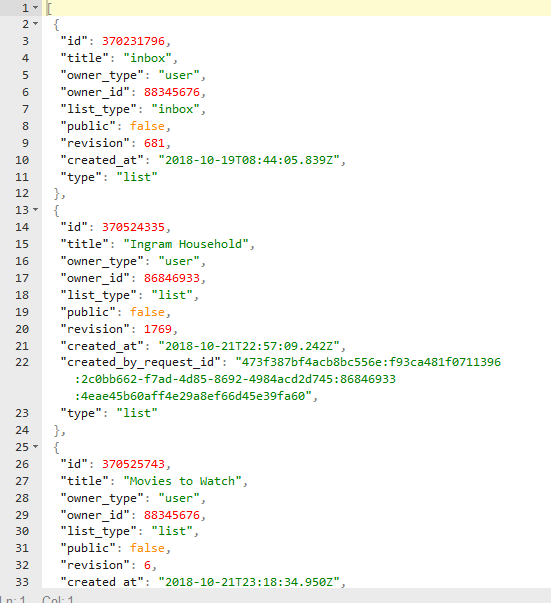
That’s it for now. Next week, we’ll finish up OneNote and learn how to delete pages, update them, copy to a section, and create sections and section groups.

Resources

Explanations

Final Code

Get List of OneNote Notebooks

Function fONGetNotebooks()

'============================================================================
' Name        : fONGetNotebooks
' Author      : Erica L Ingram
' Copyright   : 2019, A Quo Co.
' Call command: Call fONGetNotebooks()
' Description : get ON notebooks
'============================================================================
Dim sURL As String, sToken As String, sLine4 As String
Dim Parsed As Dictionary
Dim sFile1 As String, sFile2 As String, sFile3 As String, sFile4 As String
Dim sLine1 As String, sLine2 As String, sLine3 As String
Dim sResponseText As String, apiWaxLRS As String
Dim sONID As String, sSelfLink As String, sCreatedDateTime As String
Dim sDisplayName As String, sLastModifiedDateTime As String, isDefault As String
Dim sUserRole As String, sIsShared As String, sSectionsUrl As String, sSectionGroupsUrl As String
Dim sCBDisplayName As String, sCBLastModifiedName As String
Dim sCBLWebURL As String, sIsDefault As String
Dim sJSONResponse As String, sCBID As String
Dim rep, vDetails, rep1, rep2, rep3, rep4, rep5, rep6, rep7, rep8
Dim sCBLastModifiedID As String, sCBLClientURL As String
Dim sState As String

sFile1 = "C:\other\6.txt" 'object id
sFile2 = "C:\other\7.txt" 'directory tenant id
sFile3 = "C:\other\8.txt" 'application client id
sFile4 = "C:\other\9.txt" 'secret

'before auth if you make privilege changes you must visit this website and accept permissions.
'sState = ""
'"https://login.microsoftonline.com/" & sLine2 & "adminconsent?client_id=" & sLine3 & "&state=" & sState & "&redirect_uri=https://login.microsoftonline.com/common/oauth2/nativeclient"

Open sFile1 For Input As #1
Line Input #1, sLine1
Close #1

Open sFile2 For Input As #2
Line Input #2, sLine2
Close #2

Open sFile3 For Input As #3
Line Input #3, sLine3
Close #3

Open sFile4 For Input As #4
Line Input #4, sLine4
Close #4

sURL = "https://login.microsoftonline.com/" & sLine2 & "/oauth2/v2.0/token"
With CreateObject("WinHttp.WinHttpRequest.5.1")
.Open "POST", sURL, False
.setRequestHeader "Content-Type", "application/x-www-form-urlencoded"
.setRequestHeader "Host", "login.microsoftonline.com"
.send ("client_id=" & sLine3 & "&scope=https%3A%2F%2Fgraph.microsoft.com%2F.default&client_secret=" & sLine4 & "&grant_type=client_credentials")
.waitForResponse
apiWaxLRS = .responseText
.abort
sToken = ""
sFile2 = ""
sFile3 = ""
sFile4 = ""
sURL = ""
sLine1 = ""
sLine2 = ""
sLine3 = ""
sLine4 = ""
End With
Set Parsed = JsonConverter.ParseJson(apiWaxLRS)
sToken = Parsed("access_token")

sURL = "https://graph.microsoft.com/v1.0/users/" & sLine6 & "/onenote/notebooks"
With CreateObject("WinHttp.WinHttpRequest.5.1")
    .Open "GET", sURL, False
    .setRequestHeader "Host", "graph.microsoft.com"
    .setRequestHeader "Authorization", "Bearer " & sToken
    .send
    apiWaxLRS = .responseText
    Debug.Print apiWaxLRS
    Debug.Print "--------------------------------------------"
    .abort
End With
Set Parsed = JsonConverter.ParseJson(apiWaxLRS)
Set vDetails = Parsed("value")
For Each rep In vDetails
    sONID = rep("id")
    sSelfLink = rep("self")
    sCreatedDateTime = rep("createdDateTime")
    sDisplayName = rep("displayName")
    sLastModifiedDateTime = rep("lastModifiedDateTime")
    sIsDefault = rep("isDefault")
    sUserRole = rep("userRole")
    sIsShared = rep("isShared")
    sSectionsUrl = rep("sectionsUrl")
    sSectionGroupsUrl = rep("sectionGroupsUrl")
    Set rep1 = rep("createdBy")
    Set rep2 = rep1("user")
    sCBID = rep2("id")
    sCBDisplayName = rep2("displayName")
    Set rep3 = rep("lastModifiedBy")
    Set rep4 = rep1("user")
    sCBLastModifiedID = rep4("id")
    sCBLastModifiedName = rep4("displayName")
    Set rep5 = rep("links")
    Set rep6 = rep5("oneNoteClientUrl")
    sCBLClientURL = rep6("href")
    Set rep7 = rep("links")
    Set rep8 = rep5("oneNoteWebUrl")
    sCBLWebURL = rep8("href")

    Debug.Print "sONID = " & sONID
    Debug.Print "sSelfLink = " & sSelfLink
    Debug.Print "sCreatedDateTime = " & sCreatedDateTime
    Debug.Print "sDisplayName = " & sDisplayName
    Debug.Print "sLastModifiedDateTime = " & sLastModifiedDateTime
    Debug.Print "sIsDefault = " & sIsDefault
    Debug.Print "sUserRole = " & sUserRole
    Debug.Print "sIsShared = " & sIsShared
    Debug.Print "sSectionsUrl = " & sSectionsUrl
    Debug.Print "sSectionGroupsUrl = " & sSectionGroupsUrl
    Debug.Print "sCBID = " & sCBID
    Debug.Print "sCBDisplayName = " & sCBDisplayName
    Debug.Print "sCBLastModifiedName = " & sCBLastModifiedName
    Debug.Print "sCBLastModifiedID = " & sCBLastModifiedID
    Debug.Print "sCBLClientURL = " & sCBLClientURL
    Debug.Print "sCBLWebURL = " & sCBLWebURL
    Debug.Print "--------------------------------------------"
Next
End Function

Explanations

Get A List of Sections from a OneNote Notebook

Function fONGetSections()
'============================================================================
' Name        : fONGetSections
' Author      : Erica L Ingram
' Copyright   : 2019, A Quo Co.
' Call command: Call fONGetSections()
' Description : get ON sections
'============================================================================
Dim sURL As String, sToken As String, sLine4 As String
Dim Parsed As Dictionary
Dim sFile1 As String, sFile2 As String, sFile3 As String, sFile4 As String
Dim sLine1 As String, sLine2 As String, sLine3 As String
Dim sResponseText As String, apiWaxLRS As String
Dim sONID As String, sSelfLink As String, sCreatedDateTime As String
Dim sDisplayName As String, sLastModifiedDateTime As String, isDefault As String
Dim sUserRole As String, sIsShared As String, sSectionsUrl As String, sSectionGroupsUrl As String
Dim sCBDisplayName As String, sCBLastModifiedName As String
Dim sCBLWebURL As String, sIsDefault As String
Dim rep, vDetails, rep1, rep2, rep3, rep4, rep5, rep6, rep7, rep8
Dim sJSONResponse As String, sCBID As String
Dim sCBLastModifiedID As String, sCBLClientURL As String
Dim sPNID As String, sPNDisplayName As String
Dim sPNSelf As String, sPSGODContext As String, sPSG As String
Dim sNotebookID As String, sState As String

'before auth if you make privilege changes you must visit this website and accept permissions.
'sState = ""
'"https://login.microsoftonline.com/" & sLine2 & "adminconsent?client_id=" & sLine3 & "&state=" & sState & "&redirect_uri=https://login.microsoftonline.com/common/oauth2/nativeclient"
'

sFile1 = "C:\other\6.txt" 'object id / user ID 'display name "Erica Ingram"
sFile2 = "C:\other\7.txt" 'directory tenant id
sFile3 = "C:\other\8.txt" 'application client id
sFile4 = "C:\other\9.txt" 'secret

Open sFile1 For Input As #1
Line Input #1, sLine1
Close #1

Open sFile2 For Input As #2
Line Input #2, sLine2
Close #2

Open sFile3 For Input As #3
Line Input #3, sLine3
Close #3

Open sFile4 For Input As #4
Line Input #4, sLine4
Close #4

sURL = "https://login.microsoftonline.com/" & sLine2 & "/oauth2/v2.0/token"

With CreateObject("WinHttp.WinHttpRequest.5.1")
.Open "POST", sURL, False
.setRequestHeader "Content-Type", "application/x-www-form-urlencoded"
.setRequestHeader "Host", "login.microsoftonline.com"
.send ("client_id=" & sLine3 & "&scope=https%3A%2F%2Fgraph.microsoft.com%2F.default&client_secret=" & sLine4 & "&grant_type=client_credentials")
.waitForResponse
apiWaxLRS = .responseText
Debug.Print "RESPONSETEXT-------------------------------------------"
.abort
End With

Set Parsed = JsonConverter.ParseJson(apiWaxLRS)
sToken = Parsed("access_token")
sNotebookID = ""

sURL = "https://graph.microsoft.com/v1.0/users/" & sLine1 & "/onenote/notebooks/" & sNotebookID & "/sections" '
With CreateObject("WinHttp.WinHttpRequest.5.1")
    .Open "GET", sURL, False
    .setRequestHeader "Host", "graph.microsoft.com"
    .setRequestHeader "Authorization", "Bearer " & sToken
    .send
    apiWaxLRS = .responseText
    sToken = ""
    sFile2 = ""
    sFile3 = ""
    sFile4 = ""
    sURL = ""
    sLine1 = ""
    sLine2 = ""
    sLine3 = ""
    sLine4 = ""
    apiWaxLRS = .responseText
    Debug.Print apiWaxLRS
    Debug.Print "--------------------------------------------"
    .abort
End With

Set Parsed = JsonConverter.ParseJson(apiWaxLRS)
Set vDetails = Parsed("value")
For Each rep In vDetails
    sONID = rep("id")
    sCreatedDateTime = rep("createdDateTime")
    sSelfLink = rep("self")
    sDisplayName = rep("displayName")
    sLastModifiedDateTime = rep("lastModifiedDateTime")
    sIsDefault = rep("isDefault")
    sUserRole = rep("pagesUrl")
    sPSGODContext = rep("parentSectionGroup@odata.context")
    sIsShared = rep("parentNotebook@odata.context")

    Set rep1 = rep("createdBy")
    Set rep2 = rep1("user")
    sCBID = rep2("id")
    sCBDisplayName = rep2("displayName")
    Set rep3 = rep("lastModifiedBy")
    Set rep4 = rep1("user")
    sCBLastModifiedID = rep4("id")
    sCBLastModifiedName = rep4("displayName")
    Set rep5 = rep("links")
    Set rep6 = rep5("oneNoteClientUrl")
    sCBLClientURL = rep6("href")
    Set rep7 = rep("links")
    Set rep8 = rep5("oneNoteWebUrl")
    sCBLWebURL = rep8("href")
    Set rep9 = rep("parentNotebook")
    sPNID = rep9("id")
    sPNDisplayName = rep9("displayName")
    sPNSelf = rep9("self")

    Debug.Print "sONID = " & sONID
    Debug.Print "sSelfLink = " & sSelfLink
    Debug.Print "sCreatedDateTime = " & sCreatedDateTime
    Debug.Print "sDisplayName = " & sDisplayName
    Debug.Print "sLastModifiedDateTime = " & sLastModifiedDateTime
    Debug.Print "sIsDefault = " & sIsDefault
    Debug.Print "sUserRole = " & sUserRole
    Debug.Print "sCBID = " & sCBID
    Debug.Print "sCBDisplayName = " & sCBDisplayName
    Debug.Print "sCBLastModifiedName = " & sCBLastModifiedName
    Debug.Print "sCBLastModifiedID = " & sCBLastModifiedID
    Debug.Print "sCBLClientURL = " & sCBLClientURL
    Debug.Print "sCBLWebURL = " & sCBLWebURL
    Debug.Print "sPNID = " & sPNID
    Debug.Print "sPNDisplayName = " & sPNDisplayName
    Debug.Print "sPNSelf = " & sPNSelf
    Debug.Print "sPSGODContext = " & sPSGODContext
    Debug.Print "sIsShared = " & sIsShared
    Debug.Print "--------------------------------------------"
Next
End Function


Explanations


Get A List of Section Groups from a OneNote Notebook

Function fONGetSectionGroups()
'============================================================================
' Name        : fONGetSectionGroups
' Author      : Erica L Ingram
' Copyright   : 2019, A Quo Co.
' Call command: Call fONGetSectionGroups()
' Description : get ON section groups
'============================================================================
Dim sURL As String, sToken As String, sLine4 As String
Dim Parsed As Dictionary
Dim sFile1 As String, sFile2 As String, sFile3 As String, sFile4 As String
Dim sLine1 As String, sLine2 As String, sLine3 As String
Dim sResponseText As String, apiWaxLRS As String
Dim sONID As String, sSelfLink As String, sCreatedDateTime As String
Dim sDisplayName As String, sLastModifiedDateTime As String, isDefault As String
Dim sUserRole As String, sIsShared As String, sSectionsUrl As String, sSectionGroupsUrl As String
Dim sCBDisplayName As String, sCBLastModifiedName As String
Dim sCBLWebURL As String, sIsDefault As String
Dim sJSONResponse As String, sCBID As String
Dim rep
Dim sCBLastModifiedID As String, sCBLClientURL As String
Dim sPNID As String, sPNDisplayName As String
Dim sPNSelf As String, sPSGODContext As String, sPSG As String

'before auth if you make privilege changes you must visit this website and accept permissions.
'sState = ""
'"https://login.microsoftonline.com/" & sLine2 & "adminconsent?client_id=" & sLine3 & "&state=" & sState & "&redirect_uri=https://login.microsoftonline.com/common/oauth2/nativeclient"
'
sFile1 = "C:\other\6.txt" 'object id / user ID 'display name "Erica Ingram"
sFile2 = "C:\other\7.txt" 'directory tenant id
sFile3 = "C:\other\8.txt" 'application client id
sFile4 = "C:\other\9.txt" 'secret

Open sFile1 For Input As #1
Line Input #1, sLine1
Close #1

Open sFile2 For Input As #2
Line Input #2, sLine2
Close #2

Open sFile3 For Input As #3
Line Input #3, sLine3
Close #3

Open sFile4 For Input As #4
Line Input #4, sLine4
Close #4

sURL = "https://login.microsoftonline.com/" & sLine2 & "/oauth2/v2.0/token"

With CreateObject("WinHttp.WinHttpRequest.5.1")
.Open "POST", sURL, False
.setRequestHeader "Content-Type", "application/x-www-form-urlencoded"
.setRequestHeader "Host", "login.microsoftonline.com"
.send ("client_id=" & sLine3 & "&scope=https%3A%2F%2Fgraph.microsoft.com%2F.default&client_secret=" & sLine4 & "&grant_type=client_credentials")
.waitForResponse
apiWaxLRS = .responseText
Debug.Print "--------------------------------------------"
.abort
End With

Set Parsed = JsonConverter.ParseJson(apiWaxLRS)
sToken = Parsed("access_token")

sNotebookID = ""

sURL = "https://graph.microsoft.com/v1.0/users/" & sLine1 & "/onenote/notebooks/" & sNotebookID & "/sectionGroups" '

With CreateObject("WinHttp.WinHttpRequest.5.1")
.Open "GET", sURL, False
.setRequestHeader "Host", "graph.microsoft.com"
.setRequestHeader "Authorization", "Bearer " & sToken
.send
apiWaxLRS = .responseText
sToken = ""
sFile2 = ""
sFile3 = ""
sFile4 = ""
sURL = ""
sLine1 = ""
sLine2 = ""
sLine3 = ""
sLine4 = ""
apiWaxLRS = .responseText
Debug.Print apiWaxLRS
Debug.Print "--------------------------------------------"
.abort
End With
Set Parsed = JsonConverter.ParseJson(apiWaxLRS)
Set vDetails = Parsed("value")
For Each rep In vDetails
sONID = rep("id")
sSelfLink = rep("self")
sCreatedDateTime = rep("createdDateTime")
sDisplayName = rep("displayName")
sLastModifiedDateTime = rep("lastModifiedDateTime")
sIsDefault = rep("isDefault")
sUserRole = rep("userRole")
sIsShared = rep("isShared")
sSectionsUrl = rep("sectionsUrl")
sSectionGroupsUrl = rep("sectionGroupsUrl")
sPSGODContext = rep("parentSectionGroup@odata.context")
sPSG = Parsed("parentSectionGroup")

Set rep1 = rep("createdBy")
Set rep2 = rep1("user")
sCBID = rep2("id")
sCBLClientURL = rep1("links")
sCBDisplayName = rep2("displayName")
Set rep3 = rep("lastModifiedBy")
Set rep4 = rep1("user")
sCBLastModifiedID = rep4("id")
sCBLastModifiedName = rep4("displayName")
Set rep9 = rep("parentNotebook")
sPNID = rep9("id")
sPNDisplayName = rep9("displayName")
sPNSelf = rep9("self")

Debug.Print "sONID = " & sONID
Debug.Print "sSelfLink = " & sSelfLink
Debug.Print "sCreatedDateTime = " & sCreatedDateTime
Debug.Print "sDisplayName = " & sDisplayName
Debug.Print "sLastModifiedDateTime = " & sLastModifiedDateTime
Debug.Print "sSectionsUrl = " & sSectionsUrl
Debug.Print "sSectionGroupsUrl = " & sSectionGroupsUrl
Debug.Print "sCBID = " & sCBID
Debug.Print "sCBDisplayName = " & sCBDisplayName
Debug.Print "sCBLastModifiedName = " & sCBLastModifiedName
Debug.Print "sCBLastModifiedID = " & sCBLastModifiedID
Debug.Print "sPNID = " & sPNID
Debug.Print "sPNDisplayName = " & sPNDisplayName
Debug.Print "sPNSelf = " & sPNSelf
Debug.Print "sPSGODContext = " & sPSGODContext
Debug.Print "--------------------------------------------"
Next

End Function

Explanations

Get A List of Pages from a OneNote Notebook/Section

Function fONGetPages()
'============================================================================
' Name        : fONGetPages
' Author      : Erica L Ingram
' Copyright   : 2019, A Quo Co.
' Call command: Call fONGetPages()
' Description : get ON pages
'============================================================================
Dim sURL As String, sToken As String, sLine4 As String
Dim Parsed As Dictionary
Dim sFile1 As String, sFile2 As String, sFile3 As String, sFile4 As String
Dim sLine1 As String, sLine2 As String, sLine3 As String
Dim sResponseText As String, apiWaxLRS As String
Dim sONID As String, sSelfLink As String, sCreatedDateTime As String
Dim sDisplayName As String, sLastModifiedDateTime As String, isDefault As String
Dim sUserRole As String, sIsShared As String, sSectionsUrl As String, sSectionGroupsUrl As String
Dim sCBDisplayName As String, sCBLastModifiedName As String
Dim sCBLWebURL As String, sIsDefault As String
Dim sJSONResponse As String, sCBID As String
Dim rep
Dim sCBLastModifiedID As String, sCBLClientURL As String
Dim sPNID As String, sPNDisplayName As String
Dim sPNSelf As String, sPSGODContext As String, sPSG As String

'before auth if you make privilege changes you must visit this website and accept permissions.
'sState = ""
'"https://login.microsoftonline.com/" & sLine2 & "adminconsent?client_id=" & sLine3 & "&state=" & sState & "&redirect_uri=https://login.microsoftonline.com/common/oauth2/nativeclient"
'
sFile1 = "C:\other\6.txt" 'object id / user ID 'display name "Erica Ingram"
sFile2 = "C:\other\7.txt" 'directory tenant id
sFile3 = "C:\other\8.txt" 'application client id
sFile4 = "C:\other\9.txt" 'secret

Open sFile1 For Input As #1
Line Input #1, sLine1
Close #1

Open sFile2 For Input As #2
Line Input #2, sLine2
Close #2

Open sFile3 For Input As #3
Line Input #3, sLine3
Close #3

Open sFile4 For Input As #4
Line Input #4, sLine4
Close #4

sURL = "https://login.microsoftonline.com/" & sLine2 & "/oauth2/v2.0/token"

With CreateObject("WinHttp.WinHttpRequest.5.1")
.Open "POST", sURL, False
.setRequestHeader "Content-Type", "application/x-www-form-urlencoded"
.setRequestHeader "Host", "login.microsoftonline.com"
.send ("client_id=" & sLine3 & "&scope=https%3A%2F%2Fgraph.microsoft.com%2F.default&client_secret=" & sLine4 & "&grant_type=client_credentials")
.waitForResponse
apiWaxLRS = .responseText
Debug.Print "--------------------------------------------"
.abort
End With

Set Parsed = JsonConverter.ParseJson(apiWaxLRS)
sToken = Parsed("access_token")

sNotebookID = ""

sURL = "https://graph.microsoft.com/v1.0/users/" & sLine1 & "/onenote/pages"

With CreateObject("WinHttp.WinHttpRequest.5.1")
.Open "GET", sURL, False
.setRequestHeader "Host", "graph.microsoft.com"
.setRequestHeader "Authorization", "Bearer " & sToken
.send
apiWaxLRS = .responseText
sToken = ""
sFile2 = ""
sFile3 = ""
sFile4 = ""
sURL = ""
sLine1 = ""
sLine2 = ""
sLine3 = ""
sLine4 = ""
Debug.Print "RESPONSETEXT-------------------------------------------"
Debug.Print apiWaxLRS
Debug.Print "--------------------------------------------"
.abort
End With

Set Parsed = JsonConverter.ParseJson(apiWaxLRS)
Set vDetails = Parsed("value")

For Each rep In vDetails
sONID = rep("id")
sSelfLink = rep("self")
sCreatedDateTime = rep("createdDateTime")
sTitle = rep("title")
scontentUrl = rep("contentUrl")
sIsShared = rep("parentNotebook@odata.context")

sLastModifiedDateTime = rep("lastModifiedDateTime")

Set rep1 = rep("links")
Set rep2 = rep1("oneNoteClientUrl")
sCBLClientURL = rep2("href")
Set rep3 = rep1("oneNoteWebUrl")
sCBLWebURL = rep3("href")

Set rep9 = rep("parentSection")
sPNID = rep9("id")
sPNDisplayName = rep9("displayName")
sPNSelf = rep9("self")

Debug.Print "sONID = " & sONID
Debug.Print "sTitle = " & sTitle
Debug.Print "scontentUrl = " & scontentUrl
Debug.Print "sSelfLink = " & sSelfLink
Debug.Print "sCreatedDateTime = " & sCreatedDateTime
Debug.Print "sLastModifiedDateTime = " & sLastModifiedDateTime
Debug.Print "sCBLClientURL = " & sCBLClientURL
Debug.Print "sCBLWebURL = " & sCBLWebURL
Debug.Print "sPNID = " & sPNID
Debug.Print "sPNDisplayName = " & sPNDisplayName
Debug.Print "sPNSelf = " & sPNSelf
Debug.Print "--------------------------------------------"
Next

End Function

Explanations

Get A Page ID from a OneNote Notebook Page

Function test()
Call fONGetPageID("a") '"a" is your search phrase.
End Function
Function fONGetPageID(sSearchInTitle As String)
'============================================================================
' Name        : fONGetSections
' Author      : Erica L Ingram
' Copyright   : 2019, A Quo Co.
' Call command: Call fONGetPageID()
' Description : get ON page by searching title
'============================================================================
Dim sURL As String, sToken As String, sLine4 As String
Dim Parsed As Dictionary
Dim sFile1 As String, sFile2 As String, sFile3 As String, sFile4 As String
Dim sLine1 As String, sLine2 As String, sLine3 As String
Dim sResponseText As String, apiWaxLRS As String
Dim sONID As String, sSelfLink As String, sCreatedDateTime As String
Dim sDisplayName As String, sLastModifiedDateTime As String, isDefault As String
Dim sUserRole As String, sIsShared As String, sSectionsUrl As String, sSectionGroupsUrl As String
Dim sCBDisplayName As String, sCBLastModifiedName As String
Dim sCBLWebURL As String, sIsDefault As String
Dim sJSONResponse As String, sCBID As String
Dim rep
Dim sCBLastModifiedID As String, sCBLClientURL As String
Dim sPNID As String, sPNDisplayName As String
Dim sPNSelf As String, sPSGODContext As String, sPSG As String

'before auth if you make privilege changes you must visit this website and accept permissions.
'sState = ""
'"https://login.microsoftonline.com/" & sLine2 & "adminconsent?client_id=" & sLine3 & "&state=" & sState & "&redirect_uri=https://login.microsoftonline.com/common/oauth2/nativeclient"

sFile1 = "C:\other\6.txt" 'object id / user ID 'display name "Erica Ingram"
sFile2 = "C:\other\7.txt" 'directory tenant id
sFile3 = "C:\other\8.txt" 'application client id
sFile4 = "C:\other\9.txt" 'secret

Open sFile1 For Input As #1
Line Input #1, sLine1
Close #1

Open sFile2 For Input As #2
Line Input #2, sLine2
Close #2

Open sFile3 For Input As #3
Line Input #3, sLine3
Close #3

Open sFile4 For Input As #4
Line Input #4, sLine4
Close #4

sURL = "https://login.microsoftonline.com/" & sLine2 & "/oauth2/v2.0/token"

With CreateObject("WinHttp.WinHttpRequest.5.1")
.Open "POST", sURL, False
.setRequestHeader "Content-Type", "application/x-www-form-urlencoded"
.setRequestHeader "Host", "login.microsoftonline.com"
.send ("client_id=" & sLine3 & "&scope=https%3A%2F%2Fgraph.microsoft.com%2F.default&client_secret=" & sLine4 & "&grant_type=client_credentials")
.waitForResponse
apiWaxLRS = .responseText
Debug.Print "--------------------------------------------"
.abort
End With

Set Parsed = JsonConverter.ParseJson(apiWaxLRS)
sToken = Parsed("access_token")

sNotebookID = ""

sURL = "https://graph.microsoft.com/v1.0/users/" & sLine1 & "/onenote/pages"

With CreateObject("WinHttp.WinHttpRequest.5.1")
.Open "GET", sURL, False
.setRequestHeader "Host", "graph.microsoft.com"
.setRequestHeader "Authorization", "Bearer " & sToken
.send
apiWaxLRS = .responseText
sToken = ""
sFile2 = ""
sFile3 = ""
sFile4 = ""
sURL = ""
sLine1 = ""
sLine2 = ""
sLine3 = ""
sLine4 = ""
Debug.Print apiWaxLRS
Debug.Print "--------------------------------------------"
.abort
End With

Set Parsed = JsonConverter.ParseJson(apiWaxLRS)
Set vDetails = Parsed("value")

For Each rep In vDetails
sTitle = rep("title")
If InStr(1, sTitle, sSearchInTitle) Then
    sONID = rep("id")
    sSelfLink = rep("self")
    sCreatedDateTime = rep("createdDateTime")
    sTitle = rep("title")
    scontentUrl = rep("contentUrl")
    sIsShared = rep("parentNotebook@odata.context")
    sLastModifiedDateTime = rep("lastModifiedDateTime")
    Set rep1 = rep("links")
    Set rep2 = rep1("oneNoteClientUrl")
    sCBLClientURL = rep2("href")
    Set rep3 = rep1("oneNoteWebUrl")
    sCBLWebURL = rep3("href")
    Set rep9 = rep("parentSection")
    sPNID = rep9("id")
    sPNDisplayName = rep9("displayName")
    sPNSelf = rep9("self")

    Debug.Print "sONID = " & sONID
    Debug.Print "sTitle = " & sTitle
    Debug.Print "scontentUrl = " & scontentUrl
    Debug.Print "sSelfLink = " & sSelfLink
    Debug.Print "sCreatedDateTime = " & sCreatedDateTime
    Debug.Print "sLastModifiedDateTime = " & sLastModifiedDateTime
    Debug.Print "sCBLClientURL = " & sCBLClientURL
    Debug.Print "sCBLWebURL = " & sCBLWebURL
    Debug.Print "sPNID = " & sPNID
    Debug.Print "sPNDisplayName = " & sPNDisplayName
    Debug.Print "sPNSelf = " & sPNSelf
    Debug.Print "--------------------------------------------"
    'return id of title
    Debug.Print "Page with Title " & Chr(34) & sTitle & Chr(34) & " has page ID number " & sONID & "."

    Debug.Print "--------------------------------------------"

Else

End If
Next

End Function

Explanations

Creating OneNote Pages in OneNote Notebooks

Function fONCreatePage()
'============================================================================
' Name        : fONGetSections
' Author      : Erica L Ingram
' Copyright   : 2019, A Quo Co.
' Call command: Call fONGetPageID()
' Description : get ON page by searching title
'============================================================================
Dim sURL As String, sToken As String, sLine4 As String
Dim Parsed As Dictionary
Dim sFile1 As String, sFile2 As String, sFile3 As String, sFile4 As String
Dim sLine1 As String, sLine2 As String, sLine3 As String
Dim sResponseText As String, apiWaxLRS As String
Dim sONID As String, sSelfLink As String, sCreatedDateTime As String
Dim sDisplayName As String, sLastModifiedDateTime As String, isDefault As String
Dim sUserRole As String, sIsShared As String, sSectionsUrl As String, sSectionGroupsUrl As String
Dim sCBDisplayName As String, sCBLastModifiedName As String
Dim sCBLWebURL As String, sIsDefault As String
Dim sCBID As String
Dim rep
Dim sCBLastModifiedID As String, sCBLClientURL As String
Dim sHTMLPage As String
'
sFile1 = "C:\other\6.txt" 'object id / user ID
sFile2 = "C:\other\7.txt" 'directory tenant id
sFile3 = "C:\other\8.txt" 'application client id
sFile4 = "C:\other\9.txt" 'secret

'before auth if you make privilege changes you must visit this website and accept permissions.
'sState = ""
'"https://login.microsoftonline.com/" & sLine2 & "adminconsent?client_id=" & sLine3 & "&state=" & sState & "&redirect_uri=https://login.microsoftonline.com/common/oauth2/nativeclient"

Open sFile1 For Input As #1
Line Input #1, sLine1
Close #1

Open sFile2 For Input As #2
Line Input #2, sLine2
Close #2

Open sFile3 For Input As #3
Line Input #3, sLine3
Close #3

Open sFile4 For Input As #4
Line Input #4, sLine4
Close #4

sURL = "https://login.microsoftonline.com/" & sLine2 & "/oauth2/v2.0/token"

With CreateObject("WinHttp.WinHttpRequest.5.1")
.Open "POST", sURL, False
.setRequestHeader "Content-Type", "application/x-www-form-urlencoded"
.setRequestHeader "Host", "login.microsoftonline.com"
.send ("client_id=" & sLine3 & "&scope=https%3A%2F%2Fgraph.microsoft.com%2F.default&client_secret=" & sLine4 & "&grant_type=client_credentials")
.waitForResponse
apiWaxLRS = .responseText
Debug.Print "--------------------------------------------"
.abort
End With

Set Parsed = JsonConverter.ParseJson(apiWaxLRS)
sToken = Parsed("access_token")
sSectionID = ""

sHTMLPage = "<!DOCTYPE html><html><head>" & _
"<title>A page with <i>rendered</i> <b>images</b></title>" & _
"<meta name=" & Chr(34) & "created" & Chr(34) & " content=" & Chr(34) & "2015-07-22T09:00:00-08:00" & Chr(34) & " />" & _
"</head><body>

Here's an image from an online source:

" & "<img src=" & Chr(34) & _
    "https://www.aquoco.co/SQUARELOGO.jpg" & Chr(34) & " alt=" & Chr(34) & "an image on the page" & Chr(34) & _
    " width=" & Chr(34) & "500" & Chr(34) & " />" & "</body></html>"

sURL = "https://graph.microsoft.com/v1.0/users/" & sLine1 & "/onenote/sections/" & sSectionID & "/pages"

With CreateObject("WinHttp.WinHttpRequest.5.1")
.Open "POST", sURL, False
.setRequestHeader "Authorization", "Bearer " & sToken
.setRequestHeader "Content-Type", "text/html"
.setRequestHeader "Content-Disposition", "form-data", "name", "Presentation"
.send sHTMLPage
apiWaxLRS = .responseText
sToken = ""
sFile2 = ""
sFile3 = ""
sFile4 = ""
sURL = ""
sLine1 = ""
sLine2 = ""
sLine3 = ""
sLine4 = ""
Debug.Print apiWaxLRS
Debug.Print "--------------------------------------------"
.abort
End With

Set Parsed = JsonConverter.ParseJson(apiWaxLRS)

sIsShared = Parsed("@odata.context")
sONID = Parsed("id")
sSelfLink = Parsed("self")
sCreatedDateTime = Parsed("createdDateTime")
sTitle = Parsed("title")
scontentUrl = Parsed("contentUrl")
sLastModifiedDateTime = Parsed("lastModifiedDateTime")
Set rep1 = Parsed("links")
Set rep2 = rep1("oneNoteClientUrl")
sCBLClientURL = rep2("href")
Set rep3 = rep1("oneNoteWebUrl")
sCBLWebURL = rep3("href")

Debug.Print "sIsShared = " & sIsShared
Debug.Print "sONID = " & sONID
Debug.Print "sTitle = " & sTitle
Debug.Print "scontentUrl = " & scontentUrl
Debug.Print "sSelfLink = " & sSelfLink
Debug.Print "sCreatedDateTime = " & sCreatedDateTime
Debug.Print "sLastModifiedDateTime = " & sLastModifiedDateTime
Debug.Print "sCBLClientURL = " & sCBLClientURL
Debug.Print "sCBLWebURL = " & sCBLWebURL
Debug.Print "--------------------------------------------"

End Function

Part 2b: Using VBA with JSON: Wunderlist

This Lesson’s Code on Github
Sample Database
Or skip down to explanations of how to do various things in Wunderlist:

Some of this content will be repeated from the previous post on how to interact with JSON. If you know how JSON works with VBA and you want to skip directly to the Wunderlist part, click here to go to “Explanation of Code“.

Today, we’re going to go over how to use VBA to interact with JSON around the web, so you’ll need one piece of software for now, Microsoft Office. When we get to PDFs later, you will need Acrobat (not Reader, but Acrobat). We’ll learn how to get information off the internet via JSON parsing in VBA into variables.

So you might already know what Wunderlist is. It’s a fairly popular task management website and they have an API you can interact with to automate things you want to do on Wunderlist. You can even include custom information in your automated task and list generation.

A possible application for this in the legal industry is, every time you put a new case into your workflow, a certain checklist is generated on Wunderlist without your having to manually enter anything. You could even write code to have different checklists based on different pieces of information, such as one checklist for a certain jurisdiction or state and another checklist for another state or jurisdiction. You could write code to calculate deadlines or a whole list of deadlines automatically and the code will automatically add the tasks and/or lists with the deadlines you wanted.

JSON

JSON stands for JavaScript Object Notation. It is a text string loaded with information that lots of places use to communicate over the internet. The important part is, it’s structured in a way that you can extract pieces of information out of it to use in coding. Many companies have an API that uses JSON that you probably work with every day such as Clio, CourtListener, PayPal, Wunderlist, OneNote, and many others. You can use it to communicate with these companies over the internet and automate the things you do in their software. We will be going over some in the coming weeks. For a more in-depth explanation, I recommend this site. I receive no remuneration for linking that (or anything here); I just like the explanation and think it is sufficient for this exercise.

References

We’ll be working in an empty database. I have provided an almost empty database for this article, which you can find here. It contains three modules and one empty table. Save the database so that you can hit Ctrl + S frequently and save all the time. Get into the habit of it if you can. If you use this database, you may skip down to the section “Security“. If you do not wish to download the sample, continue and we’ll go through setting up our database manually.

Open a new empty database in Access. Just open up Access and select “blank database”. Save it as any name. It’s just a sandbox or testing area, so don’t worry about what it’s called. Once you’ve saved your new empty database, go to Database Tools on the top row above the ribbon and hit ‘Visual Basic’. Now, you should see the following screen:

A module is the white screen you’re looking at in the VBA window. You can name your modules. You may have multiple modules within one file. This is where all your macros and code are stored. But yours will all be empty and we do not want that, so import the two modules from the following two links, VBA Dictionary & JSON Converter. Right click on the “Modules” folder, then import JSON Converter . Right click on “Class Modules”, then import VBA Dictionary. Next, you’ll want to create a third regular module, the one you’ll be editing code in. Mine is named ‘Wunderlist‘. Save again.

You will need to add the following references. References are like libraries that let you use the code we’re learning. These references are what allow ‘early binding’ to occur like we discuss in a little bit. But the more references you add, the bigger your application is and the longer it takes to load, so you only want to turn on the ones you are actually using. Here are the ones we will be using throughout the course of your journey here. The starred ones are the only ones we are actually using today and they are the only ones turned on in the sample database. So if you want to just turn those on, that’s sufficient for this post. But these unstarred ones, you’ll need in later weeks as we progress in the blog.

  • Visual Basic for Applications *
  • Microsoft Office 16.0 Access database engine Object Library *
  • OLE Automation *
  • Microsoft Scripting Runtime *
  • Microsoft Access 16.0 Object Library
  • Microsoft Word 16.0 Object Library
  • Microsoft Internet Controls
  • Microsoft Excel 16.0 Object Library
  • Microsoft XML, v6.0
  • Microsoft Office 16.0 Object Library
  • Microsoft Outlook 16.0 Object Library
  • Microsoft Publisher 16.0 Object Library
  • Microsoft Shell Controls and Automation
  • Microsoft HTML Object Library
  • Microsoft WinHTTP Services, version 5.1
  • Microsoft OneNote 15.0 Object Library

If you have Adobe Acrobat, you want to make sure these are checked on as well. We are not using any of these for this exercise, so you may leave them unchecked.

  • AFormAut 1.0 Type Library
  • Adobe Acrobat 9.0 Type Library
  • Acrobat Distiller
Select ‘Tools’, then ‘References’.
Select references in the list that look similar to the one shown here.

Security

You should never hard-code a token, password, username, client secret, secret I.D., or anything else you wish to keep safe right into your software or database, meaning you do NOT EVER write in your code something like this:

sToken = "2389407sejklfasdjl23908"

If you do this and someone breaks into your database, they will also have your various secret codes/passwords/etc. At the very least, you should store the various secret phrases, tokens, etc we’ll be discussing in a local text file on a local hard drive, NOT shared, and only give access to it from the current user. Then in theory, after you’ve done that, you could call on it as a variable when you need it and clear it out of memory as soon as you don’t.

Restrict the text file’s access to only your current user allowed or at the very least do not ‘share’ it or put it on a network drive, OneDrive, or a public repository on GitHub (yes, that really happens) or any place like that.

Always use HTTPS for URLs. Do NOT send data over http unless you do not care if the entire world sees it, actors good AND bad, so to speak.

Early Versus Late Binding

Early binding is where you declare a “reference”. As we talked about earlier, you can look at these references by going to Tools –> References in the menu up at the top. With early binding, because the function knows what each object will be doing at start, Intellisense can help you pick out the correct piece of code. It makes auto-fill suggestions for your code.

In late binding, you just declare an object and tell it at the last minute what it should do. But because the object doesn’t know what to do until after the function’s started, Intellisense doesn’t work, among other things. As opposed to the picture below, simply nothing would pop up as you type.

Most of the time, we will be using early binding with references because it is easier to do as a new person, but this exercise will be one example of late binding. Importantly, you do not need to turn on references with late binding. For our purposes, early binding is usually preferred to late.

Intellisense in action with early binding.
In late binding, this will *never* pop up.

VBA and JSON, WunderList:

For now, we’re just going to learn about how to get the information from the internet, Wunderlist in our example, to your Visual Basic for Applications screen. We will go over how to add, delete, and update tasks and lists automatically. In a later post, we will discuss how to gather information you might put in your Wunderlist item.

Now, if you are using my sample database, you may go to the next headline, “Explanation of Code“. If you are using your own empty database, next you should get the entire code, all five functions, from below the headline “Final Code“, found towards the bottom of this post, paste it into your “third” module, save again, and then continue from here. The “third” module in my sample is named ‘‘Wunderlist‘. Save again. If you click the link “Final Code“, there will be another link to come back up here once you’ve copied the code.

Explanation of Code


Pro Tip: Put your insertion point on a line and click the tan area to the left of the line in your VBA window. See the red circle that comes up? Now, when you run your function, it will run the code to that specific line and stop. If you hit ‘run’ subsequently once, it will continue the code, but if you want it to stop entirely, you must hit the ‘stop’ button once more. You will find this extremely useful for debugging your code. Left click on the red circle to remove it.

For this exercise, place a break on the line “Debug.Print “——————————————–“.

Get a List of Wunderlist Lists


We’re going to cover a couple of functions in this post. Again, a lot of this is going to look similar to CourtListener code. In the first function, we will make a list of your Wunderlist lists print in the debug window. Go down to “Final Code” if you need it, but if you’ve been following along, you have it already.

First thing you want to do is get a token and your client ID. You will need a client ID and a token from Wunderlist to communicate with them. For that, go to this link, sign in, and fill out the fields with anything you like. For “App Url” and “Auth Callback URL” fields, enter “http://localhost/” without the quotes.

Again, my earlier warnings about security and regular disclaimer at the end of each article apply. When you hit “Create Access Token”, the window will spit a token back out at you. Copy your token (highlight it and hit Ctrl+C) and put it in a text file on your LOCAL hard drive. Save the text file and close it. Restrict its access as necessary or secure it as necessary. Note the path to the text file or the directory you saved it in. Do the same for the “Client ID”.

Here’s the opener of this code. You’ll see the info box I wrote and then some variable declarations.

Function fWunderlistGetLists()
'===========================================================
' Name        : fWunderlistGetLists
' Author      : Erica L Ingram
' Copyright   : 2019, A Quo Co.
' Call command: Call fWunderlistGetLists()
' Description : gets all Wunderlist lists
'===========================================================

Dim sURL As String, sUserName As String
Dim apiWaxLRS As String, vErrorIssue As String
Dim sToken As String, json1 As String
Dim vErrorName As String, vErrorMessage As String
Dim vErrorILink As String
Dim sFile1 As String, sFile3 As String, sLine1 As String
Dim Parsed As Dictionary

Now, we are going to edit the code you pasted. Locate the portion shown below in your pasted code. It should be the ‘next’ portion, immediately following the blurb I just explained. On the first and second lines of this portion, you specify the string of the path to your text file that you just made with the variable sFile1. You should edit the part between the quotes to reflect where your text file is and its name. The fourth line of code reads the file contents. The fifth line saves the file contents into the variable sToken. The final line closes it. We’re going to do this twice, once for the “Client ID” and once for the token.

sFile1 = "C:\other\3.txt"
sFile3 = "C:\other\5.txt"

Open sFile1 For Input As #1
Line Input #1, sLine1
Close #1

Dim sLine3 As String
Open sFile3 For Input As #3
Line Input #3, sLine3
Close #3

sUserName = sLine1
sToken = sLine3

Now, in the next couple lines, we’ll assign the URL we’re going to call on to a variable. In the CourtListener example, we constructed it because it had some dynamic aspects to it. This one is simpler and no construction is necessary. You may find other URLs for different tasks at the Wunderlist developer documentation here, but for now I suggest following along because I am going to cover several of these URLs. Then when you understand what’s going on, you can modify your code as you see fit.

Debug.Print  _
     "RESPONSETEXT-----------------------------------------"
    sURL = "https://a.wunderlist.com/api/v1/lists"

Next, we create the object which will call on the URL and establishes that, with the following lines until ‘End With’, do all the actions listed with the object we just made. This is where you put your red dot/break earlier.

With CreateObject("WinHttp.WinHttpRequest.5.1")
      .Open "GET", sURL, False
      .setRequestHeader "X-Access-Token", sToken
      .setRequestHeader "X-Client-ID", sUserName
      .setRequestHeader "Content-Type", "application/json"
      .send json1
      apiWaxLRS = .RESPONSETEXT
      sToken = ""
      .abort
      Debug.Print apiWaxLRS
      Debug.Print "-------------------------------------"
End With

The second line is the actual call on the URL string. There are several other options you can put here in place of “GET”, which you will see when you go try this on other JSON APIs, such as “HEAD”, “POST”, or “OPTIONS”. Use whatever the API tells you to use in the way it tells you to use it. In this case, we’re using “GET”. You do not edit this part now, but when you modify this for your own use, you might.

.Open "GET", sURL, False 'Alternatives to GET:  POST or DELETE

The next three lines are what are called headers. They tell the URL how to handle the request. Each API requires different values for these headers and, just like you did with GET, you should follow the API. The API will tell you how to handle this part. In this case, notice there are three headers. One of them is our token. Another one is our “Client ID”.

        .setRequestHeader "X-Access-Token", sToken
        .setRequestHeader "X-Client-ID", sUserName
        .setRequestHeader "Content-Type", "application/json"

Here’s the send request.

.send

Next, we store the response from the URL we called into a variable, clear our token variable, and abort the connection.

        apiWaxLRS = .responseText
        sToken = ""
        .abort

Next, we’re going to print the response text in the debug/immediate window so you can see what you got back from Wunderlist. Hit Ctrl + G to pull up the debug/immediate window if it’s not open already.

        Debug.Print apiWaxLRS
        Debug.Print "--------------------------------------"
End With

You may run this code. After running this code, it will stop or break at the red break point you made and you will see a response from Wunderlist. It will not look like this exactly because you are getting your own lists, but it will have the same structure, only with your list info in it.

Now, we’re going to ‘parse’ that mess we got back from the Wunderlist URL, because it’s actually not a mess at all. It’s a text string with a ton of information organized very tightly in a structured way. We can break down that string into usable chunks. This is where VBA Dictionary & JSON Converter comes in. These are already in the sample database and/or you downloaded and added them earlier. VBA Dictionary & JSON Converter are additional modules that will break up the JSON string at appropriate points and allow us to stash pieces of that string or pieces of information in a variable. Each piece of information is called a ‘field’. Later in this post, we will discuss the fields Wunderlist has in their JSON strings so that you can get your desired pieces of information. You’ve already installed these two modules, so we can just move right along.


For now, note each list is a search result, with each search result having the same fields, but different information in each of the fields. The following picture is to make the big unformatted string easier to read and explain what’s going on here, for illustrative purposes only. You will not find it or be able to see it in the database or your code.

  • In the following code which parses the JSON response or extracts the needed information from the string and assigns it to variables, the first two lines remove the brackets, [], from the string. The third line parses the response.
  • In the fourth through sixth line, I assign the relevant fields to a variable. In this case, we’re just printing all this to the immediate/debug window.

    apiWaxLRS = Left(apiWaxLRS, Len(apiWaxLRS) - 1)
    apiWaxLRS = Right(apiWaxLRS, Len(apiWaxLRS) - 1)
    Set Parsed = JsonConverter.ParseJson(apiWaxLRS)
sID = Parsed("id") '("value") 'second level array
sTitle = Parsed("title") '("value") 'second level array
sOwnerID = Parsed("owner_id") '("value") 'second level array

Debug.Print "List Name:  " & sTitle & "   |   List ID:  " & sID & " " & sOwnerID
Debug.Print "--------------------------------------------"

If you are confused, that’s okay. Let it run and visually match up what ‘prints’ in the debug window with the fields. A visual is sometimes easier. That link is to a nicely formatted but identical JSON string, a sample response from Wunderlist, and you can see other ‘field’ names you may use. These three fields I listed are probably the most important in this function because those fields are what you need to use other functions I’ll be explaining in a moment.

Get List of Wunderlist Folders

This next one is pretty similar, so I won’t explain it much. Similar to how the previous function got lists, this one gets folders instead. The only two real differences are the URL used to call and the field names. Click here to go to the bottom of this post and copy the appropriate Final Code. There will be a link there to come back to this spot.

Function fWunderlistGetFolders()
'============================================================================
' Name        : fWunderlistGetFolders
' Author      : Erica L Ingram
' Copyright   : 2019, A Quo Co.
' Call command: Call fWunderlistGetFolders()
' Description : gets list of Wunderlist folders or folder revisions
'============================================================================

Dim sURL As String, sUserName As String
Dim apiWaxLRS As String, sRevision As String
Dim sToken As String, sCurrentList As String
Dim sFolderID As String, sTitle As String
Dim sFile1 As String, sFile3 As String, sLine1 As String
Dim Parsed As Dictionary
Dim vListIDs, rep

sFile1 = "C:\other\3.txt"
sFile3 = "C:\other\5.txt"

Open sFile1 For Input As #1
Line Input #1, sLine1
Close #1

Dim sLine3 As String
Open sFile3 For Input As #3
Line Input #3, sLine3
Close #3

sUserName = sLine1
sToken = sLine3

Debug.Print "RESPONSETEXT--------------------------------------------"

sURL = "https://a.wunderlist.com/api/v1/folders"
'sURL = "https://a.wunderlist.com/api/v1/folder_revisions"
With CreateObject("WinHttp.WinHttpRequest.5.1")
    .Open "GET", sURL, False
    .setRequestHeader "X-Access-Token", sToken
    .setRequestHeader "X-Client-ID", sUserName
    .setRequestHeader "Content-Type", "application/json"
    .send
    apiWaxLRS = .RESPONSETEXT
    sToken = ""
    .abort
    Debug.Print apiWaxLRS
    Debug.Print "--------------------------------------------"
End With
    apiWaxLRS = Left(apiWaxLRS, Len(apiWaxLRS) - 1)
    apiWaxLRS = Right(apiWaxLRS, Len(apiWaxLRS) - 1)
Set Parsed = JsonConverter.ParseJson(apiWaxLRS)
sFolderID = Parsed("id")
sTitle = Parsed("title")
Set vListIDs = Parsed("list_ids")
For Each rep In vListIDs
    sCurrentList = rep
    Debug.Print "List IDs in Folder:  "
    Debug.Print (sCurrentList)
Next
sRevision = Parsed("revision")
Debug.Print "--------------------------------------------"
Debug.Print "Folder ID:  " & sFolderID & "   |   " & "Folder Title:  " & sTitle
Debug.Print "Revision No.:  " & sRevision
Debug.Print "--------------------------------------------"
End Function
Get Tasks on a Wunderlist List

Click here to go to the bottom of this post and copy the appropriate Final Code. There will be a link there to come back to this spot.

Seeing a pattern yet? Similar to how the previous functions got lists and folders, this one gets tasks from a list instead. There are several differences between this function and the last two. Namely, you must have a list ID, acquired from either of the previous functions, to get a list of tasks. Once you have this list ID number, it’s a good idea to comment it into all your Wunderlist functions in the ‘info box’ at the beginning so you have it for future reference and don’t have to look it up constantly. The following code is largely the same as the other two functions we’ve gone over; info box followed by variable declaration followed by bringing the token value into the function.

Function fWunderlistGetTasksOnList()
'=========================================================
' Name        : fWunderlistGetTasksOnList
' Author      : Erica L Ingram
' Copyright   : 2019, A Quo Co.
' Call command: Call fWunderlistGetTasksOnList()
' Description : gets tasks on Wunderlist list
'               List Names/IDs here
'               Assignee Names/IDs here too
'=========================================================

Dim sURL As String, sUserName As String
Dim sID As String
Dim apiWaxLRS As String, sWLListID As String
Dim sToken As String, json1 As String
Dim sFile1 As String, sFile3 As String
Dim sLine1 As String, sLine3 As String
Dim lAssigneeID As String, bCompleted As String
Dim sDueDate As String, sTitle As String

Dim rep, vDetails As Object
Dim Parsed As Dictionary

sFile1 = "C:\other\3.txt"
sFile3 = "C:\other\5.txt"

Open sFile1 For Input As #1
Line Input #1, sLine1
Close #1

Open sFile3 For Input As #3
Line Input #3, sLine3
Close #3

sUserName = sLine1
sToken = sLine3

The next part is very important. The variable sWLListID is your list ID number that we talked about earlier and the string json1 is a string we are constructing to pass to Wunderlist when we call on the URL in a moment. Now, this number will not be zero or the same as the one in the sample. With the variable json1, we are constructing a very short json string to send with the URL. Notice the list ID number is contained within it. The last two lines print it in the debug window.

sWLListID = 999999999
json1 = "{" & Chr(34) & "list_id" & Chr(34) &  _
     ": " & sWLListID & "}"
Debug.Print "JSON1--------------------------------------"
Debug.Print json1

I’m going to bundle this one up a little more than the previous two functions because you guys probably can read and understand what’s going on in this portion. We are constructing the URL, calling on it with the token and username, sending the json string we just constructed to the URL, receiving the response and status in variables, and printing them to the debug window.

Debug.Print "RESPONSETEXT-------------------------------"
sURL = "https://a.wunderlist.com/api/v1/tasks?list_id="  _
   & sWLListID
With CreateObject("WinHttp.WinHttpRequest.5.1")
     '.Visible = True
     'alternatives to GET:  POST, PATCH, DELETE
    .Open "GET", sURL, False 
    .setRequestHeader "X-Access-Token", sToken
    .setRequestHeader "X-Client-ID", sUserName
    .setRequestHeader "Content-Type", "application/json"
    .send json1
    apiWaxLRS = .RESPONSETEXT
    sToken = ""
    Debug.Print apiWaxLRS
    Debug.Print "-------------------------------------"
    Debug.Print .Status & " " & .StatusText
    .abort
End With

Next, we parse the response we get from Wunderlist, which is our list of tasks. This portion of the code will loop through each task and print that info in the debug window.

The first line needs to be constructed in this fashion so that you may parse correctly. The third line assigns the result to a variable. The fourth line assigns the parsed result to a new variable. The next line begins a loop to loop through each parsed result. Lines six through 10 assign the parsed result’s values to a variable. Lines 11 through 14 print them in the debug window. Line 15 goes to the next result and the last line ends the function.

apiWaxLRS =  _
    "{" & Chr(34) & "List" & Chr(34) & ":" & apiWaxLRS & "}"
'Debug.Print apiWaxLRS
Set Parsed = JsonConverter.ParseJson(apiWaxLRS)
Set vDetails = Parsed("List") 
For Each rep In vDetails 
    bCompleted = rep("completed")
    sID = rep("id")
    sDueDate = rep("due_date")
    sTitle = rep("title")
    lAssigneeID = rep("assignee_id")
    Debug.Print "----------------------------------------"
    Debug.Print "Task Title:  " & sTitle &  _
     "   |   List ID:  " & sWLListID & " " & lAssigneeID
    Debug.Print "Completed:  " & bCompleted &  _
     "   |   Due Date:  " & sDueDate
    Debug.Print "----------------------------------------"
Next
End Function

Add Tasks to a Wunderlist List

Click here to go to the bottom of this post and copy the appropriate Final Code. There will be a link there to come back to this spot.

Last thing we’re going to go over is how to add a task to a Wunderlist list. The first difference you will notice between this function and the previous functions is that you must pass values to it or you are unable to run it. Here is how you do that. The first function is going to call on the function that actually adds the task and will supply “test” without the quotes as the value for sTitle and “2019-04-29” without the quotes as the value for sDueDate.

Function test()
Call fWLAdd("test", "2019-04-29")
End Function
Function fWLAdd(sTitle As String, sDueDate As String)
'==============================================================
' Name        : fWunderlistAdd
' Author      : Erica L Ingram
' Copyright   : 2019, A Quo Co.
' Call command: Call fWunderlistAdd()
' Description : adds task to Wunderlist
'=============================================================

Dim sURL As String, sUserName As String
Dim apiWaxLRS As String, sURL As String
Dim sToken As String, sJSON As String
Dim lAssigneeID As Long, bStarred As String
Dim bCompleted As String, sWLListID As String

Dim rep, vDetails As Object
Dim Parsed As Dictionary
Dim sFile1 As String, sFile3 As String
Dim sLine1 As String, sLine3 As String

sFile1 = "C:\other\3.txt"
sFile3 = "C:\other\5.txt"

Open sFile1 For Input As #1
Line Input #1, sLine1
Close #1

Open sFile3 For Input As #3
Line Input #3, sLine3
Close #3

Now, the next portion are the variables you might want to change per task sWLListID is the list ID number you want to add this task to. lAssigneeID is the ID number of the person you want this task assigned to (optional value; you may leave it out), and bStarred/bCompleted are strings for the word “false” in lowercase. You cannot use the boolean variable in VBA for this because the first letter of a boolean version is capitalized. These two can also be set to “true” without the quotes.

sWLListID = 999999999
lAssigneeID = 99999999
sUserName = sLine1
sToken = sLine3
bStarred = "false"
bCompleted = "false"

In the next portion, we use what we just assigned to variables to construct a json string to send when we call the URL, followed by some familiar-by-now code. We call on the URL, use “POST” instead of “GET”, use our token, send the JSON string we constructed with it, store the response in a variable, clear the token variable, print out the response to the window, and abort the connection.

    sJSON = "{" & Chr(34) & _
        "list_id" & Chr(34) & ": " & sWLListID & "," & Chr(34) & _
        "title" & Chr(34) & ": " & Chr(34) & sTitle & Chr(34) & "," & Chr(34) & _
        "assignee_id" & Chr(34) & ": " & lAssigneeID & "," & Chr(34) & _
        "completed" & Chr(34) & ": " & bCompleted & "," & Chr(34) & _
        "due_date" & Chr(34) & ": " & Chr(34) & sDueDate & Chr(34) & "," & Chr(34) & _
        "starred" & Chr(34) & ": " & bStarred & _
        "}"
        
Debug.Print "sJSON--------------------------------------------"
Debug.Print sJSON
Debug.Print "RESPONSETEXT--------------------------------------------"
    sURL = "https://a.wunderlist.com/api/v1/tasks"
    With CreateObject("WinHttp.WinHttpRequest.5.1")
        .Open "POST", sURL, False
        .setRequestHeader "X-Access-Token", sToken
        .setRequestHeader "X-Client-ID", sUserName
        .setRequestHeader "Content-Type", "application/json"
        .send sJSON
        apiWaxLRS = .RESPONSETEXT
        sToken = ""
        Debug.Print apiWaxLRS
        Debug.Print "--------------------------------------------"
        Debug.Print "Status:  " & .Status
        Debug.Print "--------------------------------------------"
        Debug.Print "StatusText:  " & .StatusText
        Debug.Print "--------------------------------------------"
        Debug.Print "ResponseBody:  " & .responseBody
        Debug.Print "--------------------------------------------"
        .abort
    End With
Debug.Print "--------------------------------------------"
Debug.Print "Task Title:  " & sTitle & "   |   List ID:  " & sWLListID & " " & lAssigneeID
Debug.Print "Completed:  " & bCompleted & "   |   Due Date:  " & sDueDate
Debug.Print "--------------------------------------------"

End Function
Bonus content: If you check out the last function in my sample database, called “fWunderlistAddNewJob”, that is the actual function I use in my company’s database to create a list within a certain folder and then static tasks with calculated due dates within it for each job. I provide that to show you what’s possible in applications with this knowledge. You can also delete tasks with “DELETE and update current tasks with “PATCH” instead of “GET”. You will want to follow the API exactly because doing these different functions requires you to supply different information to Wunderlist before it will work. For example, you need to supply a revision ID when deleting or updating a task.

Resources

Github
JSON Placeholder
JSON Parser
Database File
Wunderlist API docs
VBA Dictionary & JSON Converter

Epilogue

So, now you can get JSON information from the internet into your debug/immediate window. Soon, we’ll learn how to put it in other places. For now, you’re able to automate your Wunderlist task and list management.

If you made it this far, congratulations and thanks for reading. I hope your mind is spinning with all the things you could do with this newfound information! For the next few posts, we’ll be covering how to use JSON with other popular APIs geared towards the legal profession. I have received no remuneration of any kind for this post or any other on this website.

Final Code

Double-click anywhere in the following code area and press Ctrl + C to copy the entire code.


Get Lists from Wunderlist

Click here after you’ve pasted your final code to pick up where you left off with “Get Lists“.

Function fWunderlistGetLists()
'============================================================================
' Name        : fWunderlistGetLists
' Author      : Erica L Ingram
' Copyright   : 2019, A Quo Co.
' Call command: Call fWunderlistGetLists()
' Description : gets all Wunderlist lists
'============================================================================

Dim sURL As String, sUserName As String
Dim apiWaxLRS As String, vErrorIssue As String
Dim sToken As String
Dim sLine1 As String, sLine1 As String
Dim sFile3 As String, sLine3 As String
Dim Parsed As Dictionary


sFile1 = "C:\other\3.txt"
sFile3 = "C:\other\5.txt"

Open sFile1 For Input As #1
Line Input #1, sLine1
Close #1

Open sFile3 For Input As #3
Line Input #3, sLine3
Close #3

sUserName = sLine1
sToken = sLine3
    
Debug.Print "RESPONSETEXT--------------------------------------------"
    sURL = "https://a.wunderlist.com/api/v1/lists"
    With CreateObject("WinHttp.WinHttpRequest.5.1")
        .Open "GET", sURL, False
        .setRequestHeader "X-Access-Token", sToken
        .setRequestHeader "X-Client-ID", sUserName
        .setRequestHeader "Content-Type", "application/json"
        .send
        apiWaxLRS = .RESPONSETEXT
        sToken = ""
        .abort
        Debug.Print apiWaxLRS
Debug.Print "--------------------------------------------"
    End With
    apiWaxLRS = Left(apiWaxLRS, Len(apiWaxLRS) - 1)
    apiWaxLRS = Right(apiWaxLRS, Len(apiWaxLRS) - 1)
    Set Parsed = JsonConverter.ParseJson(apiWaxLRS)
sID = Parsed("id") '("value") 'second level array
sTitle = Parsed("title") '("value") 'second level array
sOwnerID = Parsed("owner_id") '("value") 'second level array

Debug.Print "List Name:  " & sTitle & "   |   List ID:  " & sID & " " & sOwnerID
Debug.Print "--------------------------------------------"

End Function
Click here after you’ve copied+pasted your final code to pick up where you left off with “Get Lists“.

Get Folders from Wunderlist

Click here after you’ve copied+pasted your final code to pick up where you left off with “Get Folders“.

Double-click anywhere in the following code area and press Ctrl + C to copy the entire code.

Function fWunderlistGetFolders()
'============================================================================
' Name        : fWunderlistGetFolders
' Author      : Erica L Ingram
' Copyright   : 2019, A Quo Co.
' Call command: Call fWunderlistGetFolders()
' Description : gets list of Wunderlist folders or folder revisions
'============================================================================

Dim sURL As String, sUserName As String
Dim apiWaxLRS As String, sRevision As String
Dim sToken As String, sCurrentList As String
Dim sFolderID As String, sTitle As String
Dim sFile1 As String, sFile3 As String, sLine1 As String
Dim Parsed As Dictionary
Dim vListIDs, rep

sFile1 = "C:\other\3.txt"
sFile3 = "C:\other\5.txt"

Open sFile1 For Input As #1
Line Input #1, sLine1
Close #1

Dim sLine3 As String
Open sFile3 For Input As #3
Line Input #3, sLine3
Close #3

sUserName = sLine1
sToken = sLine3

Debug.Print "RESPONSETEXT--------------------------------------------"

sURL = "https://a.wunderlist.com/api/v1/folders"
'sURL = "https://a.wunderlist.com/api/v1/folder_revisions"
With CreateObject("WinHttp.WinHttpRequest.5.1")
    .Open "GET", sURL, False
    .setRequestHeader "X-Access-Token", sToken
    .setRequestHeader "X-Client-ID", sUserName
    .setRequestHeader "Content-Type", "application/json"
    .send
    apiWaxLRS = .RESPONSETEXT
    sToken = ""
    .abort
    Debug.Print apiWaxLRS
    Debug.Print "--------------------------------------------"
End With
    apiWaxLRS = Left(apiWaxLRS, Len(apiWaxLRS) - 1)
    apiWaxLRS = Right(apiWaxLRS, Len(apiWaxLRS) - 1)
Set Parsed = JsonConverter.ParseJson(apiWaxLRS)
sFolderID = Parsed("id")
sTitle = Parsed("title")
Set vListIDs = Parsed("list_ids")
For Each rep In vListIDs
    sCurrentList = rep
    Debug.Print "List IDs in Folder:  "
    Debug.Print (sCurrentList)
Next
sRevision = Parsed("revision")
Debug.Print "--------------------------------------------"
Debug.Print "Folder ID:  " & sFolderID & "   |   " & "Folder Title:  " & sTitle
Debug.Print "Revision No.:  " & sRevision
Debug.Print "--------------------------------------------"
End Function
Click here after you’ve copied+pasted your final code to pick up where you left off with “Get Folders“.

Get Tasks from a Wunderlist List

Click here after you’ve pasted your final code to pick up where you left off with “Get Tasks“.

Double-click anywhere in the following code area and press Ctrl + C to copy the entire code.

Function fWunderlistGetTasksOnList()
'============================================================================
' Name        : fWunderlistGetTasksOnList
' Author      : Erica L Ingram
' Copyright   : 2019, A Quo Co.
' Call command: Call fWunderlistGetTasksOnList()
' Description : gets tasks on Wunderlist list
'============================================================================

Dim sURL As String, sUserName As String, sID As String
Dim apiWaxLRS As String, sWLListID As String
Dim sToken As String, json1 As String, sTitle As String
Dim sFile1 As String, sFile3 As String
Dim sLine1 As String, sLine3 As String
Dim lAssigneeID As String, bCompleted As String
Dim sDueDate As String

Dim rep, vDetails As Object
Dim Parsed As Dictionary

sFile1 = "C:\other\3.txt"
sFile3 = "C:\other\5.txt"

Open sFile1 For Input As #1
Line Input #1, sLine1
Close #1

Open sFile3 For Input As #3
Line Input #3, sLine3
Close #3

sUserName = sLine1
sToken = sLine3

sWLListID = 999999999

json1 = "{" & Chr(34) & "list_id" & Chr(34) & ": " & sWLListID & "}"

Debug.Print "JSON1--------------------------------------------"
Debug.Print json1
Debug.Print "RESPONSETEXT--------------------------------------------"
    sURL = "https://a.wunderlist.com/api/v1/tasks?list_id=" & sWLListID
    With CreateObject("WinHttp.WinHttpRequest.5.1")
        '.Visible = True
        .Open "GET", sURL, False
        .setRequestHeader "X-Access-Token", sToken
        .setRequestHeader "X-Client-ID", sUserName
        .setRequestHeader "Content-Type", "application/json"
        .send json1
        apiWaxLRS = .RESPONSETEXT
        sToken = ""
        Debug.Print apiWaxLRS
        Debug.Print "--------------------------------------------"
        Debug.Print .Status & " " & .StatusText
        .abort
    End With
    
apiWaxLRS = "{" & Chr(34) & "List" & Chr(34) & ":" & apiWaxLRS & "}"
'Debug.Print apiWaxLRS
Set Parsed = JsonConverter.ParseJson(apiWaxLRS)
Set vDetails = Parsed("List")
For Each rep In vDetails
    bCompleted = rep("completed")
    sID = rep("id")
    sDueDate = rep("due_date")
    sTitle = rep("title")
    lAssigneeID = rep("assignee_id")
    Debug.Print "--------------------------------------------"
    Debug.Print "Task Title:  " & sTitle & "   |   List ID:  " & sWLListID & " " & lAssigneeID
    Debug.Print "Completed:  " & bCompleted & "   |   Due Date:  " & sDueDate
    Debug.Print "--------------------------------------------"
Next

End Function

Click here after you’ve pasted your final code to pick up where you left off with “Get Tasks“.


Add Tasks to Wunderlist List

Click here after you’ve pasted your final code to pick up where you left off with “Add Tasks“.

Double-click anywhere in the following code area and press Ctrl + C to copy the entire code.

Function test()
Call fWunderlistAdd("test", "2019-04-29")
End Function


Function fWunderlistAdd(sTitle As String, sDueDate As String)
'============================================================================
' Name        : fWunderlistAdd
' Author      : Erica L Ingram
' Copyright   : 2019, A Quo Co.
' Call command: Call fWunderlistAdd()
' Description : adds task to Wunderlist
'============================================================================

Dim sURL As String, sUserName As String
Dim apiWaxLRS As String, sURL As String
Dim sToken As String, sJSON As String
Dim lAssigneeID As Long, bStarred As String
Dim bCompleted As String, sWLListID As String

Dim rep, vDetails As Object
Dim Parsed As Dictionary
Dim sFile1 As String, sFile3 As String, sLine1 As String, sLine3 As String

sFile1 = "C:\other\3.txt"
sFile3 = "C:\other\5.txt"

Open sFile1 For Input As #1
Line Input #1, sLine1
Close #1

Open sFile3 For Input As #3
Line Input #3, sLine3
Close #3

sWLListID = 999999999
lAssigneeID = 99999999
sUserName = sLine1
sToken = sLine3
bStarred = "false"
bCompleted = "false"

    sJSON = "{" & Chr(34) & _
        "list_id" & Chr(34) & ": " & sWLListID & "," & Chr(34) & _
        "title" & Chr(34) & ": " & Chr(34) & sTitle & Chr(34) & "," & Chr(34) & _
        "assignee_id" & Chr(34) & ": " & lAssigneeID & "," & Chr(34) & _
        "completed" & Chr(34) & ": " & bCompleted & "," & Chr(34) & _
        "due_date" & Chr(34) & ": " & Chr(34) & sDueDate & Chr(34) & "," & Chr(34) & _
        "starred" & Chr(34) & ": " & bStarred & _
        "}"
        
Debug.Print "sJSON--------------------------------------------"
Debug.Print sJSON
Debug.Print "RESPONSETEXT--------------------------------------------"
    sURL = "https://a.wunderlist.com/api/v1/tasks"
    With CreateObject("WinHttp.WinHttpRequest.5.1")
        .Open "POST", sURL, False
        .setRequestHeader "X-Access-Token", sToken
        .setRequestHeader "X-Client-ID", sUserName
        .setRequestHeader "Content-Type", "application/json"
        .send sJSON
        apiWaxLRS = .RESPONSETEXT
        sToken = ""
        Debug.Print apiWaxLRS
        Debug.Print "--------------------------------------------"
        Debug.Print "Status:  " & .Status
        Debug.Print "--------------------------------------------"
        Debug.Print "StatusText:  " & .StatusText
        Debug.Print "--------------------------------------------"
        Debug.Print "ResponseBody:  " & .responseBody
        Debug.Print "--------------------------------------------"
        .abort
    End With
Debug.Print "--------------------------------------------"
Debug.Print "Task Title:  " & sTitle & "   |   List ID:  " & sWLListID & " " & lAssigneeID
Debug.Print "Completed:  " & bCompleted & "   |   Due Date:  " & sDueDate
Debug.Print "--------------------------------------------"

End Function

Click here after you’ve pasted your final code to pick up where you left off with “Add Tasks“.

Disclaimer

**While we have made every effort to provide accurate information, A Quo Co. and Erica L. Ingram assume no responsibility or liability for any errors or omissions in the content of this blog. The information contained in this blog is provided on an “as is” basis with no guarantees of completeness, accuracy, usefulness, or timeliness.

Part 2a: Using VBA with JSON: Courtlistener

This Lesson’s Code on Github

Today, we’re going to go over how to use VBA to interact with JSON around the web, so you’ll need one piece of software for now, Microsoft Office. When we get to PDFs later, you will need Acrobat (not Reader, but Acrobat). We’ll learn how to get information off the internet via JSON parsing in VBA into variables.

So if you’re in a legal profession, you already know what CourtListener is. It’s a nonprofit’s website where you can look up case law. But instead of going to their website in a browser, you can also perform these searches automatically with VBA and JSON or even pull them out of your Word document automatically to search for them and write VBA code to hyperlink phrases/words in your brief.

Once you get this info stored in variables, you can place it basically wherever you want in an Office file. You could put it on a CD label in Publisher, in a Word document, Excel sheet, or on a slide in PowerPoint, for example, all automated.

JSON

JSON stands for JavaScript Object Notation. It is a text string loaded with information that lots of places use to communicate over the internet. The important part is, it’s structured in a way that you can extract pieces of information out of it to use in coding. Many companies have an API that uses JSON that you probably work with every day such as Clio, CourtListener, PayPal, Wunderlist, OneNote, and many others. You can use it to communicate with these companies over the internet and automate the things you do in their software. We will be going over some in the coming weeks. For a more in-depth explanation, I recommend this site. I receive no remuneration for linking that (or anything here); I just like the explanation and think it is sufficient for this exercise.

References

We’ll be working in an empty database. I have provided an almost empty database for this article, which you can find here. It contains three modules and one empty table. Save the database so that you can hit Ctrl + S frequently and save all the time. Get into the habit of it if you can. If you use this database, you may skip down to the section “Security“. If you do not wish to download the sample, continue and we’ll go through setting up our database manually.

Open a new empty database in Access. Just open up Access and select “blank database”. Save it as any name. It’s just a sandbox or testing area, so don’t worry about what it’s called. Once you’ve saved your new empty database, go to Database Tools on the top row above the ribbon and hit ‘Visual Basic’. Now, you should see the following screen:

A module is the white screen you’re looking at in the VBA window. You can name your modules. You may have multiple modules within one file. This is where all your macros and code are stored. But yours will all be empty and we do not want that, so import the two modules from the following two links, VBA Dictionary & JSON Converter. Right click on the “Modules” folder, then import JSON Converter . Right click on “Class Modules”, then import VBA Dictionary. Next, you’ll want to create a third regular module, the one you’ll be editing code in. Mine is named ‘CourtListener’. Save again.

You will need to add the following references. References are like libraries that let you use the code we’re learning. These references are what allow ‘early binding’ to occur like we discuss in a little bit. But the more references you add, the bigger your application is and the longer it takes to load, so you only want to turn on the ones you are actually using. Here are the ones we will be using throughout the course of your journey here. The starred ones are the only ones we are actually using today and they are the only ones turned on in the sample database. So if you want to just turn those on, that’s sufficient for this post. But these unstarred ones, you’ll need in later weeks as we progress in the blog.

  • Visual Basic for Applications *
  • Microsoft Office 16.0 Access database engine Object Library *
  • OLE Automation *
  • Microsoft Scripting Runtime *
  • Microsoft Access 16.0 Object Library
  • Microsoft Word 16.0 Object Library
  • Microsoft Internet Controls
  • Microsoft Excel 16.0 Object Library
  • Microsoft XML, v6.0
  • Microsoft Office 16.0 Object Library
  • Microsoft Outlook 16.0 Object Library
  • Microsoft Publisher 16.0 Object Library
  • Microsoft Shell Controls and Automation
  • Microsoft HTML Object Library
  • Microsoft WinHTTP Services, version 5.1
  • Microsoft OneNote 15.0 Object Library

If you have Adobe Acrobat, you want to make sure these are checked on as well. We are not using any of these for this exercise, so you may leave them unchecked.

  • AFormAut 1.0 Type Library
  • Adobe Acrobat 9.0 Type Library
  • Acrobat Distiller
Select ‘Tools’, then ‘References’.
Select references in the list that look similar to the one shown here.

Security

You should never hard-code a token, password, username, client secret, secret I.D., or anything else you wish to keep safe right into your software or database, meaning you do NOT EVER write in your code something like this:

sToken = "2389407sejklfasdjl23908"

If you do this and someone breaks into your database, they will also have your various secret codes/passwords/etc. At the very least, you should store the various secret phrases, tokens, etc we’ll be discussing in a local text file on a local hard drive, NOT shared, and only give access to it from the current user. Then in theory, after you’ve done that, you could call on it as a variable when you need it and clear it out of memory as soon as you don’t.

Restrict the text file’s access to only your current user allowed or at the very least do not ‘share’ it or put it on a network drive, OneDrive, or a public repository on GitHub (yes, that really happens) or any place like that.

Always use HTTPS for URLs. Do NOT send data over http unless you do not care if the entire world sees it, actors good AND bad, so to speak.

Early Versus Late Binding

Early binding is where you declare a “reference”. As we talked about earlier, you can look at these references by going to Tools –> References in the menu up at the top. With early binding, because the function knows what each object will be doing at start, Intellisense can help you pick out the correct piece of code. It makes auto-fill suggestions for your code.

In late binding, you just declare an object and tell it at the last minute what it should do. But because the object doesn’t know what to do until after the function’s started, Intellisense doesn’t work, among other things. As opposed to the picture below, simply nothing would pop up as you type.

Most of the time, we will be using early binding with references because it is easier to do as a new person, but this exercise will be one example of late binding. Importantly, you do not need to turn on references with late binding. For our purposes, early binding is usually preferred to late.

Intellisense in action with early binding.
In late binding, this will *never* pop up.

VBA and JSON, CourtListener:

For now, we’re just going to learn about how to get the information from the internet, CourtListener in our example, to your Visual Basic for Applications screen. Later, we will learn how to pull information out of AND into Word automatically.

Now, if you are using my sample database, you may go to the next headline, “Explanation of Code“. If you are using your own empty database, next you should get the entire piece of code from below the headline “Final Code“, found towards the bottom of this post, paste it into your “third” module, save again, and then continue from here. The “third” module in my sample is named ‘CourtListener’. Save again. If you click the link “Final Code“, there will be another link to come back up here once you’ve copied the code.

Explanation of Code


Pro Tip: Put your insertion point on a line and click the tan area to the left of the line in your VBA window. See the red circle that comes up? Now, when you run your function, it will run the code to that specific line and stop. If you hit ‘run’ subsequently once, it will continue the code, but if you want it to stop entirely, you must hit the ‘stop’ button once more. You will find this extremely useful for debugging your code. Left click on the red circle to remove it.

For this exercise, place a break on the line “Debug.Print “——————————————–“.


Here’s the opener of this code. You’ll see the info box I wrote and then some variable declarations. When you do not specify a variable type, it defaults to the variant type.

'====================================================================
' Name        : fCourtListener
' Author      : Erica L Ingram
' Copyright   : 2019, A Quo Co.
' Call command: Call fCourtListener()
' Description : gets URLs & search listings from CourtListener (case law)
'========================================================================
'declare variables
Dim sAbsoluteURL As String, sURL As String, apiWaxLRS As String
Dim sInputState As String, sToken As String
Dim sInput1 As String, sInput2 As String, sInputCourt As String
Dim sCourt As String
'variant variables
Dim rep, resp, sCitation, oEntry

Dim sID As Object, oCitations As Object
Dim oRequest As Object, vDetails As Object

Dim x As Integer, y As Integer
Dim Parsed As Dictionary

Now, the next three variables are ones you input/select. An input prompt will pop up for each of these variables and you will input the value for it. sInput1 and sInput2 are search words or phrases that you want to search for in the case law. sInputState is either the name of a state, the word ‘federal’, or the word ‘special’. You may also leave blank either sInput2 or sInputState. I have used “Westview”, “”, “Washington” as the search inputs for this post. We’ll come back to this in a little bit when we run the whole code. For now, I’m just explaining what’s going on here.

'search term 1
sInput1 = _
    InputBox("Enter a word or phrase to search for on CourtListener.")
'search term 2
sInput2 = InputBox _
    ("Enter another word or phrase to search for on CourtListener.")

'enter name of state here or 'federal' or 'special'
sInputState = InputBox _
     ("Enter state name, 'federal', or 'special' here.")

Depending on which sInputState you select, those are the courts CourtListener will search for your phrase. I have made a convenient If-elseif statement that handles it by one of either the state name, ‘federal’, or ‘special’, without the quotes. Each value represents a list of certain courts (Washington for all Washington courts, special for all special, federal for all federal) that you will likely be familiar with:

If sInputState = "Alabama" Then
   sInputCourt = "almd+alnd+alsd+almb+alnb+alsb+ala+alactapp" & _
       "+alacrimapp+alacivapp"
ElseIf sInputState = "Alaska" Then
     sInputCourt = "akd+akb+alaska+alaskactapp"
ElseIf sInputState = "Arizona" Then
     sInputCourt = "azd+arb+ariz+arizctapp+ariztaxct"
ElseIf sInputState = "Arkansas" Then
    sInputCourt = "ared+arwd+areb+arwb+ark+arkctapp+" & _
       "arkworkcompcom+arkag"
ElseIf sInputState = "California" Then
   sInputCourt = "cacd+caed+cand+casd+californiad+caca+cacb+caeb+" & _
      "canb+casb+cal+calctapp+calappdeptsuper+calag"
ElseIf sInputState = "Colorado" Then
     sInputCourt = "cod+cob+colo+coloctapp+coloworkcompcom+coloag"
ElseIf sInputState = "Connecticut" Then
    sInputCourt = "ctd+ctb+conn+connappct+connsuperct+connworkcompcom"
ElseIf sInputState = "Delaware" Then
    sInputCourt = "ded+circtdel+deb+del+delch+delsuperct+" & _
       "delctcompl+delfamct+deljudct"
ElseIf sInputState = "Florida" Then
   sInputCourt = "flmd+flnd+flsd+flmb+flnb+flsb+fla+fladistctapp" & _
       "+flaag"
ElseIf sInputState = "Georgia" Then
     sInputCourt = "gamd+gand+gasd+gamb+ganb+gasb+ga+gactapp"
ElseIf sInputState = "Hawaii" Then
     sInputCourt = "hid+hib+haw+hawapp"
ElseIf sInputState = "Idaho" Then
     sInputCourt = "idd+idb+idaho+idahoctapp"
ElseIf sInputState = "Illinois" Then
   sInputCourt = "ilcd+ilnd+ilsd+illinoised+illinoisd+ilcb+ilnb" & _
      "+ilsb+ill+illappct"
ElseIf sInputState = "Indiana" Then
     sInputCourt = "innd+insd+indianad+innb+insb+ind+indctapp+indtc"
ElseIf sInputState = "Iowa" Then
     sInputCourt = "iand+iasd+ianb+iasb+iowa+iowactapp"
ElseIf sInputState = "Kansas" Then
     sInputCourt = "ksd+ksb+kan+kanctapp+kanag"
ElseIf sInputState = "Kentucky" Then
     sInputCourt = "kyed+kywd+kyeb+kywb+ky+kyctapp+kyctapphigh"
ElseIf sInputState = "Louisiana" Then
     sInputCourt = "laed+lamd+lawd+laeb+lamb+lawb+la+lactapp+laag"
ElseIf sInputState = "Maine" Then
     sInputCourt = "med+bapme+meb+me"
ElseIf sInputState = "Maryland" Then
     sInputCourt = "mdd+mdb+md+mdctspecapp+mdag"
ElseIf sInputState = "Massachusetts" Then
     sInputCourt = "mad+bapma+mab+mass+massappct+masssuperct" & _
        "+massdistct+maworkcompcom"
ElseIf sInputState = "Michigan" Then
     sInputCourt = "mied+miwd+mieb+miwb+mich+michctapp"
ElseIf sInputState = "Minnesota" Then
     sInputCourt = "mnd+mnb+minn+minnctapp+minnag"
ElseIf sInputState = "Mississippi" Then
     sInputCourt = "msnd+mssd+msnb+mssb+miss+missctapp"
ElseIf sInputState = "Missouri" Then
     sInputCourt = "moed+mowd+moeb+mowb+mo+moctapp+moag"
ElseIf sInputState = "Montana" Then
     sInputCourt = "mtd+mtb+mont+monttc+montag"
ElseIf sInputState = "Nebraska" Then
     sInputCourt = "ned+nebraskab+neb+nebctapp+nebag"
ElseIf sInputState = "Nevada" Then
     sInputCourt = "nvd+nvb+nev"
ElseIf sInputState = "New Hampshire" Then
     sInputCourt = "nhd+nhb+nh"
ElseIf sInputState = "New Jersey" Then
     sInputCourt = "njd+njb+nj+njsuperctappdiv+njtaxct+njch"
ElseIf sInputState = "New Mexico" Then
     sInputCourt = "nmd+nmb+nm+nmctapp"
ElseIf sInputState = "New York" Then
   sInputCourt = "nyed+nynd+nysd+nywd+nyeb+nynb+nysb+nywb+ny" & _
      "+nyappdiv+nyappterm+nysupct+nyfamct+nysurct+nycivct" & _
      "+nycrimct+nyag"
ElseIf sInputState = "North Carolina" Then
   sInputCourt = "nced+ncmd+ncwd+circtnc+nceb+ncmb+ncwb+nc" & _
        "+ncctapp+ncsuperct+ncworkcompcom"
ElseIf sInputState = "North Dakota" Then
     sInputCourt = "ndd+ndb+nd+ndctapp"
ElseIf sInputState = "Ohio" Then
  sInputCourt = "ohnd+ohsd+ohiod+ohnb+ohsb+ohio+ohioctapp+ohioctcl"
ElseIf sInputState = "Oklahoma" Then
     sInputCourt = "oked+oknd+okwd+okeb+oknb+okwb+okla" & _
        "+oklacivapp+oklacrimapp+oklajeap+oklacoj+oklaag"
ElseIf sInputState = "Oregon" Then
     sInputCourt = "ord+orb+or+orctapp+ortc"
ElseIf sInputState = "Pennsylvania" Then
     sInputCourt = "paed+pamd+pawd+pennsylvaniad+paeb+pamb+" & _
        "pawb+pa+pasuperct+pacommwct+cjdpa+stp"
ElseIf sInputState = "Rhode Island" Then
     sInputCourt = "rid+rib+ri+risuperct"
ElseIf sInputState = "South Carolina" Then
  sInputCourt = "scd+southcarolinaed+southcarolinawd+scb+sc+scctapp"
ElseIf sInputState = "South Dakota" Then
     sInputCourt = "sdd+sdb+sd"
ElseIf sInputState = "Tennessee" Then
  sInputCourt = "tned+tnmd+tnwd+tennessed+circttenn+tneb+tnmb" & _
      "+tnwb+tennesseeb+tenn+tennctapp+tenncrimapp+tennsuperct"
ElseIf sInputState = "Texas" Then
  sInputCourt = "txed+txnd+txsd+txwd+txeb+txnb+txsb+txwb+tex+" & _
      "texapp+texcrimapp+texreview+texjpml+texag+sttex"
ElseIf sInputState = "Utah" Then
     sInputCourt = "utd+utb+utah+utahctapp"
ElseIf sInputState = "Vermont" Then
     sInputCourt = "vtd+vtb+vt+vtsuperct"
ElseIf sInputState = "Virginia" Then
     sInputCourt = "vaed+vawd+vaeb+vawb+va+vactapp"
ElseIf sInputState = "Washington" Then
     sInputCourt = "waed+wawd+waeb+wawb+wash+washctapp+washag"
ElseIf sInputState = "West Virginia" Then
     sInputCourt = "wvnd+wvsd+wvnb+wvsb+wva"
ElseIf sInputState = "Wisconsin" Then
     sInputCourt = "wied+wiwd+wieb+wiwb+wis+wisctapp+wisag"
ElseIf sInputState = "Wyoming" Then
     sInputCourt = "wyd+wyb+wyo"
ElseIf sInputState = "special" Then
  sInputCourt = "ag+afcca+asbca+armfor+acca+uscfc+tax+mc+mspb+" & _
    "nmcca+cavc+bva+fiscr+fisc+cit+usjc+jpml+sttex+stp+cc+com+" & _
    "ccpa+cusc+eca+tecoa+reglrailreorgct+kingsbench"
ElseIf sInputState = "federal" Then
  sInputCourt = "scotus+ca1+ca2+ca3+ca4+ca5+ca6+ca7+" & _
     "ca8+ca9+ca10+ca11+cadc+cafc"
End If

Are you as excited as I am yet? I’m so excited.

ANYWAYS, the next part is an if-else statement that handles whether or not you entered anything into the second search field, sInput2. It essentially says, “If the variable sInput2 is empty, then do X; else do Y.”

Within each section of ‘if’ and ‘else’, the next portion assigns a certain URL string to the variable sURL. Each option of ‘if’ or ‘else’ accounts for whether you entered something in sInput2. Notice how the sURL string in the ‘else’ portion is constructed WITH the variable sInput2 but in the ‘if’ portion it is NOT.

If sInput2 = "" Then
  'only input1
  sURL = "https://www.courtlistener.com/api/rest/v3/search/" _
     & "?q=" & sInput1 & "&court=" & sInputCourt & _
  "&order_by=score+desc&stat_Precedential=on" & "&fields=caseName" '
Else
  'with input2
  'example url in the following comment: 'https://www.courtlistener.com/
  '?type=o&q=westview&type=o&order_by=score+desc&stat_Precedential=on
  '&court=waed+wawd+waeb+wawb+wash+washctapp+washag
     
  'variable for URL construction
  sURL = "https://www.courtlistener.com/api/rest/v3/search/" & _
  "?q=" & sInput1 & _
  "&q=" & sInput2 &  _
  "&court=" & sInputCourt & _
  "&order_by=score+desc&stat_Precedential=on" & "&fields=caseName"
End If

CourtListener has other URLs you may use to construct different URL strings if you need other information from CourtListener. For now, I recommend you just follow along with my example until we get done and you understand how to modify all this stuff for your needs.

Now that we have our website string sorted out that we want to call on for data, we’re going to call on it and save its response in a variable. We will need a token here. Go to this link at CourtListener and get one. Then come back here.

'Go get a token and then come back.
'sign up at https://www.courtlistener.com/api/rest-info/

Now, here’s a method of getting your token into your software. Again, my earlier warnings about security and regular disclaimer at the end of each article apply. Copy your token (highlight it and hit Ctrl+C) and put it in a text file on your LOCAL hard drive. Save the text file and close it. Restrict its access as necessary or secure it as necessary. Note the path to the text file or the directory you saved it in.

Now, we are going to edit the code you pasted. Locate the portion shown below in your pasted code. On the first line of this portion, you specify the string of the path to your text file that you just made with the variable sFile1. You should edit the part between the quotes to reflect where your text file is and its name. The third line of code reads the file contents. The fourth line saves the file contents into the variable sToken. The final line closes it.

sFile1 = "C:\other\1.txt"
'get token into variable
Open sFile1 For Input As #1
Line Input #1, sToken
Close #1

Next, we create the object which will call on the URL and establishes that, with the following lines until ‘End With’, do all the actions listed with the object we just made.

'begin use of object:
With CreateObject("WinHttp.WinHttpRequest.5.1")
        'do things here
End With 'end use of object

The third line is the actual call on the URL string. There are several other options you can put here in place of “GET”, which you will see when you go try this on other JSON APIs, such as “HEAD”, “POST”, or “OPTIONS”. Use whatever the API tells you to use in the way it tells you to use it. In this case, we’re using “GET”. You do not edit this part now, but when you modify this for your own use, you might.

.Open "GET", sURL, False 'Alternatives to GET:  HEAD or OPTIONS

The next three lines are what are called headers. They tell the URL how to handle the request. Each API requires different values for these headers and, just like you did with GET, you should follow the API. The API will tell you how to handle this part. In this case, notice there are three headers. One of them is our token.

        .setRequestHeader "Accept", "application/json"
        .setRequestHeader "content-type", "application/x-www-form-urlencoded"
        .setRequestHeader "Authorization", "Bearer " & sToken

Here’s the send request.

.send

Next, we store the response from the URL we called into a variable, clear our token variable, and abort the connection.

        apiWaxLRS = .responseText
        sToken = ""
        .abort

Next, we’re going to print the response text in the debug/immediate window so you can see what you got back from CourtListener. Hit Ctrl + G to pull up the debug/immediate window if it’s not open already.

        Debug.Print apiWaxLRS
        Debug.Print "--------------------------------------------"
End With

Next, we’re going to set our counter integers to 1 so the loops start at the beginning and run to their proper end.

x = 1
y = 1

You may run this code. As stated previously, it will ask you for input three times; two words or phrases to search on CourtListener and the name of a state or the word “federal” or “state”. I have used “Westview”, “”, “Washington” as the search inputs for this post if you would like to match it to what I’m doing (without the quotation marks).

After running this code, it will stop or break at the red break point you made and you will see a response from CourtListener:

Picture of response text received from CourtListener.

Now, we’re going to ‘parse’ that mess we got back from the CourtListener URL, because it’s actually not a mess at all. It’s a text string with a ton of information organized very tightly in a structured way. We can break down that string into usable chunks. This is where VBA Dictionary & JSON Converter comes in. These are already in the sample database and/or you downloaded and added them earlier. VBA Dictionary & JSON Converter are additional modules that will break up the JSON string at appropriate points and allow us to stash pieces of that string or pieces of information in a variable. Each piece of information is called a ‘field’. Later in this post, we will discuss the fields CourtListener has in their JSON strings so that you can get your desired pieces of information. You’ve already installed these two modules, so we can just move right along.


For now, note the important part of the string comes back in a field called ‘results’ and then it breaks out into each search result, with each search result having the same fields, but different information in each of the fields. The following picture is to make the big unformatted string easier to read and explain what’s going on here, for illustrative purposes only. You will not find it or be able to see it in the database or your code.

  • In the following code which parses the JSON response or extracts the needed information from the string and assigns it to variables, the first line parses the actual response.
  • In the second line, I assign the ‘results’ field to a variable.
  • This is followed by a couple of nested loops which will loop properly through the ‘citations’ field.
  • Each search result may have more than one citation, so you must loop through the ‘citations’ field to ensure you can access all citations for that search result; for each result in sID, do the following.
  • Then it commands the function to do things based on the contents of the field ‘citations’.

Set Parsed = JsonConverter.ParseJson(apiWaxLRS)
Set sID = Parsed("results")
For Each rep In sID
        If Not IsNull(rep("citation")) Then
            Set oCitations = rep("citation")
            For Each oEntry In oCitations
               'if current citation string is null/empty
               If oEntry = "null" Or oEntry = "" Or oEntry = Null  _
               Or oEntry = "Null" Then 
                   sCitation = "null"
                   Debug.Print sCitation
               'if current citation string is not empty
               ElseIf oEntry &lt;&gt; "" Then 
                   sCitation = oEntry
                   Debug.Print sCitation
               Else 'anything else
                   Set sCitation = oEntry
                   For Each resp In sCitation
                       sCitation = oEntry
                       y = x + 1
                       Debug.Print sCitation
                   Next
                   y = 1 
               End If
            Next 'go to the next citation
        Else 'if citation field is null do this 
            sCitation = "Null"
        End If

If you are confused, that’s okay. Let it run and visually match up what ‘prints’ in the debug window with the fields. A visual is sometimes easier. That link is to a nicely formatted but identical JSON string, a sample response from CourtListener, and you can see other ‘field’ names you may use in place of ‘citation’ or ‘court’ or ‘absolute_url’ for information you may want. You can see all 19 sets of results formatted.

On the left is the unformatted response text and on the right is the formatted version of the same string from CourtListener. See identical field names in both?

There are 19 search results in the Westview sample, so this code would iterate through the largest loop 19 times. Note some of these 19 have 1 citation and some have multiple, hence the loop I constructed and went through earlier. As I said, expand each field there with the little arrows, put the code side by side with the sample results, and you’ll see how they interact together or how you can apply doing this to other fields. You do not need to edit anything. I just want you to understand where the information is in this string and how it is structured.


So moving on to other pieces of information, we don’t just want citation information, right? The rest of the fields I’m using as examples are fairly straightforward and require no loops. You can see other fields available in the provided sample as well as in the above pictures. CourtListener also has a full rundown of the different fields available. The code you have provides some fields as examples.

Afterwards, this code then adds 1 to x because we are going to be parsing the next search result with the next iteration of the loop, i.e. x = 2, the second search result.

    Debug.Print sCitation
    sCaseName = rep("caseName")
    Debug.Print sCaseName
    sAbsoluteURL = rep("absolute_url")
    Debug.Print sAbsoluteURL
    sCourt = rep("court")
    Debug.Print sCourt
    x = x + 1
    Debug.Print "--------------------------------------------"

Lastly, we’re going to reset the y counter integer and go to the ‘next’ item in the JSON string or the ‘next’ search result.

Now, if you hit Run –> Run, or F5, or the green play button in the toolbar up top, it will finish running through the first loop, index number 1, and go to the red break point you made in the second loop, index number 2, so we do not reset the x. Remember, we are not resetting x because we have just parsed the first case or search result, the index number of which is represented by the count integer x. However, we DO want to reset the y counter integer because that represents the current index number for each citation of the current case/search result and we want to make sure we get all the citations for each search result. So we reset y after each iteration of x and go to the next case in the search results.

y = 1
Next

So if you run this code yet again, it will finish parsing the second loop and then run to the red break point again for a third time, and it would repeat the process 16 more times after that (for a total of 19 search results).

Resources

Github
JSON Placeholder
JSON Parser
Database File
CourtListener API Model
Formatted JSON CourtListener string
VBA Dictionary & JSON Converter

Epilogue

So, now you can get JSON information from the internet into your debug/immediate window. Soon, we’ll learn how to put it in other places. For now, if you read all the building blocks posts so far, you could, say, use a DAO recordset to put the variables’ values into a database table. We’ll learn later how you could use the ‘absolute_url’ field to construct a URL that also links words in a Word document automatically. I’ll later teach you how to put that information into a Word document such that it will mark it as a citation and put it in a table of authorities automatically.

If you made it this far, congratulations and thanks for reading. I hope your mind is spinning with all the things you could do with this newfound information! For the next few posts, we’ll be covering how to use JSON with other popular APIs geared towards the legal profession. I have received no remuneration of any kind for this post or any other on this website.

Final Code

Double-click anywhere in the following code area and press Ctrl + C to copy the entire code.

Click here after you’ve pasted your final code to pick up where you left off with “Explanation of Code“.

Function fCourtListener()
'============================================================================
' Name        : fCourtListener
' Author      : Erica L Ingram
' Copyright   : 2019, A Quo Co.
' Call command: Call fCourtListener()
' Description : gets URLs & search listings from CourtListener (case law)
'============================================================================
Dim sAbsoluteURL As String, sURL As String, apiWaxLRS As String
Dim sCaseName As String, sInputState As String, sToken As String
Dim sInput1 As String, sInput2 As String, sInputCourt As String
Dim sCourt As String
Dim rep, resp, sCitation, oEntry
Dim sID As Object, oCitations As Object
Dim oRequest As Object, vDetails As Object
Dim x As Integer, y As Integer
Dim Parsed As Dictionary

'Go get a token and then come back.
'sign up at https://www.courtlistener.com/api/

sFile1 = "C:\other\10.txt"
'get token into variable
Open sFile1 For Input As #1
Line Input #1, sToken
Close #1

'search term 1
sInput1 = _
    InputBox("Enter a word or phrase to search for on CourtListener.")
'search term 2
sInput2 = InputBox _
    ("Enter another word or phrase to search for on CourtListener.")
 
'enter name of state here or 'federal' or 'special'
sInputState = InputBox("Enter state name, 'federal', or 'special' here.")

If sInputState = "Alabama" Then
    sInputCourt = "almd+alnd+alsd+almb+alnb+alsb+ala+alactapp+alacrimapp+alacivapp"
ElseIf sInputState = "Alaska" Then
     sInputCourt = "akd+akb+alaska+alaskactapp"
ElseIf sInputState = "Arizona" Then
     sInputCourt = "azd+arb+ariz+arizctapp+ariztaxct"
ElseIf sInputState = "Arkansas" Then
     sInputCourt = "ared+arwd+areb+arwb+ark+arkctapp+arkworkcompcom+arkag"
ElseIf sInputState = "California" Then
     sInputCourt = "cacd+caed+cand+casd+californiad+caca+cacb+caeb+" & _
        "canb+casb+cal+calctapp+calappdeptsuper+calag"
ElseIf sInputState = "Colorado" Then
     sInputCourt = "cod+cob+colo+coloctapp+coloworkcompcom+coloag"
ElseIf sInputState = "Connecticut" Then
     sInputCourt = "ctd+ctb+conn+connappct+connsuperct+connworkcompcom"
ElseIf sInputState = "Delaware" Then
     sInputCourt = "ded+circtdel+deb+del+delch+delsuperct+delctcompl" & _
        "+delfamct+deljudct"
ElseIf sInputState = "Florida" Then
     sInputCourt = "flmd+flnd+flsd+flmb+flnb+flsb+fla+fladistctapp+flaag"
ElseIf sInputState = "Georgia" Then
     sInputCourt = "gamd+gand+gasd+gamb+ganb+gasb+ga+gactapp"
ElseIf sInputState = "Hawaii" Then
     sInputCourt = "hid+hib+haw+hawapp"
ElseIf sInputState = "Idaho" Then
     sInputCourt = "idd+idb+idaho+idahoctapp"
ElseIf sInputState = "Illinois" Then
     sInputCourt = "ilcd+ilnd+ilsd+illinoised+illinoisd+ilcb+ilnb" & _
        "+ilsb+ill+illappct"
ElseIf sInputState = "Indiana" Then
     sInputCourt = "innd+insd+indianad+innb+insb+ind+indctapp+indtc"
ElseIf sInputState = "Iowa" Then
     sInputCourt = "iand+iasd+ianb+iasb+iowa+iowactapp"
ElseIf sInputState = "Kansas" Then
     sInputCourt = "ksd+ksb+kan+kanctapp+kanag"
ElseIf sInputState = "Kentucky" Then
     sInputCourt = "kyed+kywd+kyeb+kywb+ky+kyctapp+kyctapphigh"
ElseIf sInputState = "Louisiana" Then
     sInputCourt = "laed+lamd+lawd+laeb+lamb+lawb+la+lactapp+laag"
ElseIf sInputState = "Maine" Then
     sInputCourt = "med+bapme+meb+me"
ElseIf sInputState = "Maryland" Then
     sInputCourt = "mdd+mdb+md+mdctspecapp+mdag"
ElseIf sInputState = "Massachusetts" Then
     sInputCourt = "mad+bapma+mab+mass+massappct+masssuperct" & _
        "+massdistct+maworkcompcom"
ElseIf sInputState = "Michigan" Then
     sInputCourt = "mied+miwd+mieb+miwb+mich+michctapp"
ElseIf sInputState = "Minnesota" Then
     sInputCourt = "mnd+mnb+minn+minnctapp+minnag"
ElseIf sInputState = "Mississippi" Then
     sInputCourt = "msnd+mssd+msnb+mssb+miss+missctapp"
ElseIf sInputState = "Missouri" Then
     sInputCourt = "moed+mowd+moeb+mowb+mo+moctapp+moag"
ElseIf sInputState = "Montana" Then
     sInputCourt = "mtd+mtb+mont+monttc+montag"
ElseIf sInputState = "Nebraska" Then
     sInputCourt = "ned+nebraskab+neb+nebctapp+nebag"
ElseIf sInputState = "Nevada" Then
     sInputCourt = "nvd+nvb+nev"
ElseIf sInputState = "New Hampshire" Then
     sInputCourt = "nhd+nhb+nh"
ElseIf sInputState = "New Jersey" Then
     sInputCourt = "njd+njb+nj+njsuperctappdiv+njtaxct+njch"
ElseIf sInputState = "New Mexico" Then
     sInputCourt = "nmd+nmb+nm+nmctapp"
ElseIf sInputState = "New York" Then
     sInputCourt = "nyed+nynd+nysd+nywd+nyeb+nynb+nysb+nywb+ny" & _
        "+nyappdiv+nyappterm+nysupct+nyfamct+nysurct+nycivct+nycrimct+nyag"
ElseIf sInputState = "North Carolina" Then
     sInputCourt = "nced+ncmd+ncwd+circtnc+nceb+ncmb+ncwb+nc" & _
        "+ncctapp+ncsuperct+ncworkcompcom"
ElseIf sInputState = "North Dakota" Then
     sInputCourt = "ndd+ndb+nd+ndctapp"
ElseIf sInputState = "Ohio" Then
     sInputCourt = "ohnd+ohsd+ohiod+ohnb+ohsb+ohio+ohioctapp+ohioctcl"
ElseIf sInputState = "Oklahoma" Then
     sInputCourt = "oked+oknd+okwd+okeb+oknb+okwb+okla" & _
        "+oklacivapp+oklacrimapp+oklajeap+oklacoj+oklaag"
ElseIf sInputState = "Oregon" Then
     sInputCourt = "ord+orb+or+orctapp+ortc"
ElseIf sInputState = "Pennsylvania" Then
     sInputCourt = "paed+pamd+pawd+pennsylvaniad+paeb+pamb+" & _
        "pawb+pa+pasuperct+pacommwct+cjdpa+stp"
ElseIf sInputState = "Rhode Island" Then
     sInputCourt = "rid+rib+ri+risuperct"
ElseIf sInputState = "South Carolina" Then
     sInputCourt = "scd+southcarolinaed+southcarolinawd+scb+sc+scctapp"
ElseIf sInputState = "South Dakota" Then
     sInputCourt = "sdd+sdb+sd"
ElseIf sInputState = "Tennessee" Then
     sInputCourt = "tned+tnmd+tnwd+tennessed+circttenn+tneb+tnmb" & _
        "+tnwb+tennesseeb+tenn+tennctapp+tenncrimapp+tennsuperct"
ElseIf sInputState = "Texas" Then
     sInputCourt = "txed+txnd+txsd+txwd+txeb+txnb+txsb+txwb+tex+" & _
        "texapp+texcrimapp+texreview+texjpml+texag+sttex"
ElseIf sInputState = "Utah" Then
     sInputCourt = "utd+utb+utah+utahctapp"
ElseIf sInputState = "Vermont" Then
     sInputCourt = "vtd+vtb+vt+vtsuperct"
ElseIf sInputState = "Virginia" Then
     sInputCourt = "vaed+vawd+vaeb+vawb+va+vactapp"
ElseIf sInputState = "Washington" Then
     sInputCourt = "waed+wawd+waeb+wawb+wash+washctapp+washag"
ElseIf sInputState = "West Virginia" Then
     sInputCourt = "wvnd+wvsd+wvnb+wvsb+wva"
ElseIf sInputState = "Wisconsin" Then
     sInputCourt = "wied+wiwd+wieb+wiwb+wis+wisctapp+wisag"
ElseIf sInputState = "Wyoming" Then
     sInputCourt = "wyd+wyb+wyo"
ElseIf sInputState = "special" Then
     sInputCourt = "ag+afcca+asbca+armfor+acca+uscfc+tax+mc+mspb+" & _
        "nmcca+cavc+bva+fiscr+fisc+cit+usjc+jpml+sttex+stp+cc+com+" & _
        "ccpa+cusc+eca+tecoa+reglrailreorgct+kingsbench"
ElseIf sInputState = "federal" Then
     sInputCourt = "scotus+ca1+ca2+ca3+ca4+ca5+ca6+ca7+" & _
        "ca8+ca9+ca10+ca11+cadc+cafc"
End If
If sInput2 = "" Then
    'only input1
    sURL = "https://www.courtlistener.com/api/rest/v3/search/"  _
       & "?q=" & sInput1 & "&court=" & sInputCourt & _
    "&order_by=score+desc&stat_Precedential=on" & "&fields=caseName" '
Else
    'with input2
    'example url in the following comment: 'https://www.courtlistener.com/
    '?type=o&q=westview&type=o&order_by=score+desc&stat_Precedential=on
    '&court=waed+wawd+waeb+wawb+wash+washctapp+washag
    
    'variable for URL construction
    sURL = "https://www.courtlistener.com/api/rest/v3/search/" & "?q=" & sInput1 & _
    "&q=" & sInput2 & "&court=" & sInputCourt & _
    "&order_by=score+desc&stat_Precedential=on" & "&fields=caseName" '
End If

    With CreateObject("WinHttp.WinHttpRequest.5.1")
        .Open "GET", sURL, False 'options
        .setRequestHeader "Accept", "application/json"
        .setRequestHeader "content-type", "application/x-www-form-urlencoded"
        .setRequestHeader "Authorization", "Bearer " & sToken
        .send
        apiWaxLRS = .responseText
        sToken = ""
        .abort
        Debug.Print apiWaxLRS
        Debug.Print "--------------------------------------------"
    End With

x = 1
y = 1

Set Parsed = JsonConverter.ParseJson(apiWaxLRS)
Set sID = Parsed("results")

For Each rep In sID

        If Not IsNull(rep("citation")) Then
            Set oCitations = rep("citation")
            For Each oEntry In oCitations

                If oEntry = "null" Or oEntry = ""  _
                Or oEntry = Null Or oEntry = "Null" Then
                    sCitation = "null"
                    Debug.Print sCitation
                ElseIf oEntry &lt;&gt; "" Then
                    sCitation = oEntry
                    Debug.Print sCitation
                Else
                    Set sCitation = oEntry

                    For Each resp In sCitation
                        sCitation = oEntry
                        y = x + 1
                        Debug.Print sCitation
                    Next

                    y = 1

                End If

            Next
        Else
            sCitation = "Null"
        End If

    Debug.Print sCitation
    sCaseName = rep("caseName")
    Debug.Print sCaseName
    sAbsoluteURL = rep("absolute_url")
    Debug.Print sAbsoluteURL
    sCourt = rep("court")
    Debug.Print sCourt
    x = x + 1
    Debug.Print "--------------------------------------------"
    y = 1
Next

End Function
Click here after you’ve copied+pasted your final code to pick up where you left off with “Explanation of Code“.

Disclaimer

**While we have made every effort to provide accurate information, A Quo Co. and Erica L. Ingram assume no responsibility or liability for any errors or omissions in the content of this blog. The information contained in this blog is provided on an “as is” basis with no guarantees of completeness, accuracy, usefulness, or timeliness.

Part 1f: Loops

Get this lesson’s code on my GitHub.

Today, we’re going to learn about loops. You’ve already been exposed to them a little in the previous article or two and here we’re going to go over each one in some detail.

A loop is a piece of code that tells the computer to repeat an action until a condition is met. Now, that condition could be until something is true or false, until x reaches a certain number, or one of many other possibilities.

Any time you find you need to hard-code the same lines twice in a row, it’s probably better to use a loop and just do it once. Putting it in a loop instead of repeating the code also makes it easier to debug and modify. It’s useful when you need to loop through a recordset or a series of numbers.

Always put the command “DoEvents” as the last line of your loop. This command makes it so your Office program does not go into a ‘not responding’ state and allows the computer to do other things at the same time.

Traditionally, the count integer in a loop is a single letter, such as in the following examples.

For Next Loop

Note in this example the use of x, which is the count integer. Step designates to what degree each iteration should take. For example, in the following loop, x starts out at 3 and the last loop is with x = 0, and each time it iterates through the loop, it steps -1 (3, 2, 1, 0), for a total of four iterations through the loop.

Function fFunction() 
Dim x as Integer
For x = 3 To 0 Step -1
    Debug.Print "X = " &amp;amp; x
DoEvents
Next x
End Function

For Each Next Loop

Notice the use of the word “Line2” in this example. This is called a ‘label’ and you MUST start a label from the beginning of the line, no indents. It allows you to mark a place in your code and refer or go to it. This example has no count integer. Also note the usage of the array here.

Function fFunction() 
Dim item As Variant
Dim sFileTypes() As String
sFileTypes = Array("trs", "trm")                
For Each item In sFileTypes
   If fiCurrentFile Like "*trs*" Then GoTo Line2
   ElseIf fiCurrentFile Like "*trm*" Then GoTo Line2
   Else
      Debug.Print "This is not an FTR player file!"
Next
Line2: 'label, always followed with a colon
Debug.Print "Done with FileTypes!"
End Function

Do While Loop

In this example, x is the count integer.

Function fFunction() 
Dim x As Integer
x = 5
Do While x > 0
    Debug.Print "X = " & x
    If x = 1 Then Exit Do
    x = x - 1
DoEvents
Loop
End Function

Do Loop While

In this example, x is the count integer.

Function fFunction() 
Dim x as Integer
x = 5
Do
    Debug.Print "X = " & x
    x = x - 1
    If x = 1 Then Exit Do
DoEvents
Loop While x > 0
End Function

Do Until Loop

In this example, x is the count integer.

Function fFunction() 
Dim x as Integer
x = 5
Do Until x = 1
    Debug.Print "X = " & x
    x = x - 1
    If x = 1 Then Exit Do
DoEvents
Loop
End Function

Do Loop Until

In this example, x is the count integer.

Function fFunction() 
Dim x as Integer
x = 5
Do
    Debug.Print "X = " & x
    x = x - 1
    If x = 1 Then Exit Do
DoEvents
Loop Until x = 1
End Function

Infinite Loops

If you’re not careful, you can write yourself into an infinite loop. Always make sure there’s an exit before you run something with a loop, such as always having an end count integer. How I handle this is I prefer to do for each next loops and make sure to always specify a beginning and end point for the count integer. Here is an example of an infinite loop. Do not run it. Try hitting Ctrl + Pause/Break to interrupt the code execution if this does happen. You may have to hold Ctrl while you mash Pause/Break a few times to interrupt it. Worst case scenario, you have to ‘end’ the task in the task manager.

Function fFunction()
Dim x as Integer
Debug.Print "Don't run me!"
MsgBox "I'm an infinite loop!"
Do While x &lt; 100
    x = 0
    Debug.Print "X is less than 100!"
DoEvents
Loop 
End Function

Epilogue

It’s really important, especially while you’re new or haven’t gotten comfortable with VBA yet, to make comments about what each line does or, if not every line, very frequently make comments. When you start knowing your way around a little better, you might find that excessive and remove some of them; fine. But it will almost always be good to write at least a couple words about what the line does in a comment when you are first starting. Remember, an apostrophe begins a comment for the rest of the line.

So now we’ve got all the basic building blocks. Next up is learning how to use VBA and Internet Explorer to get information from the internet via something called “winhttprequest” and a JSON converter, which you need to parse JSON strings in the way I’ll be showing you. We’ll be using JsonConverter for that, so if you’re following along, make sure to download that for next time. You’ll be able to write your own code that will automate interacting with CourtListener or any of the following desktop apps: PayPal, QuickBooks, Clio, FileVine, SharePoint, OneNote, and many others.

Side Note: If you’re a World of Warcraft or Hearthstone fan, Blizzard offers JSON API you can try all this stuff out with as well. Other games that offer a JSON API include Guild Wars 2, Clash of Clans, Magic: The Gathering, and PlayerUnknown Battlegrounds. These are not affiliate links and I receive nothing for saying that. I just wanted to point out that the concept of JSON is usable in a lot of different applications once you learn generally how to do it the first time.

Disclaimer

**While we have made every effort to provide accurate information, A Quo Co. and Erica L. Ingram assume no responsibility or liability for any errors or omissions in the content of this blog. The information contained in this blog is provided on an “as is” basis with no guarantees of completeness, accuracy, usefulness, or timeliness.

Part 1e: Organizing Workflow, Code, and Document Production

Here, I am going to share some thoughts on how I made my workflow and database so, as we’re going through how to do all this cool stuff, you yourself can think about what you need and how to frame it so that you end up with a complete solution. I am not an expert on project development, as is probably very obvious, and this article is not intended to suggest that. These are just some tips that really helped me.

GTD/Getting Things Done

I created my workflow with GTD principles in mind. I love this style of project and task management and you will see its influence as we wind our way through this process. I’m not linking it here because I don’t recommend you use what I think is useful. I recommend you select something that plays up your strengths and minimizes the impact of your weaknesses. GTD is that system for me, but it might not be for you.

Development Considerations

Since transcript accuracy and deadline are the two most important things in transcription, I designed my database around them.

Another thing I did was consider my weaknesses; things I’m not good at, things I procrastinate at, things I make mistakes at; and I wrote features and functions in my database that allow me to overcome them with minimal effort. This means I am not constantly fighting my weaknesses, but rather acknowledging them and figuring out how to do high-quality work quickly despite them.

Example 1

An easy-to-illustrate example I would use is, when I first started AQC, I was regularly, not all the time, but regularly, around 12 hours late on my transcripts. I’d be completely on time about 80 percent of the way through; then something would come up. My big mistake was not baking enough extra time in to allow for just random things to come up.

So what do you think I did about that? For the database, all functions, everything related to due date, I knocked a full day off the turnaround time, just straight up gave everybody a free day or even two in some cases, so that, for example, a 30 calendar-day turnaround is actually 28 calendar days. Haven’t had a problem with deadlines since. You see, I didn’t fight my bad habit; I just made it irrelevant.

Example 2

A second example is, I used to constantly forget to fill out a certain form when invoicing for a certain jurisdiction. It caused problems for me because I would send in all required paperwork except for this one form and have to duplicate it all and re-send it in. Cost me a stamp, envelope, and a few pieces of paper. Not a big deal, but a pain in the butt, and it adds up over time, right?

So what do you think I did about that? In this case, I wrote a function that any time stage 4 is being processed, if it is this jurisdiction in question, the database will automatically fill in the form, save it in its job folder on my hard drive, and send it to print. Now I never have to remember and I didn’t fight my problem of constantly forgetting. I just worked around it.

When you’re a solo entrepreneur, it’s really important to be able to do this with yourself. Acknowledge your mistakes and your shortcomings and figure out how you can minimize their impact or go around them. Everybody has shortcomings; it’s not a bad thing to have them, to admit them to yourself, or to figure out how to not get in your own way. What matters is how you adapt to them.

Organizing and Planning Your Solution

Stages

For transcript production, I started out in stages. There are basically four stages to transcript production:

  • Stage 1: Gather Info
  • Stage 2: Type
  • Stage 3: Audio-proof
  • Stage 4: Deliver

For me, the benefit of putting everything in a stage was mainly deadline-based; I could set a separate due date for each stage and automatically calculate it. I could also track jobs by their stage. For example, I have an Access form that pulls up all unfinished jobs and lists them by stage.

Within each stage, there are *many* tasks to do. Many tasks are dependent on conditions such as a certain jurisdiction. But what I did was take every task I ever have to do related to my business and put them into one of those four stages. It ended up being a huge list, but nonetheless was all inclusive. If you think of things later as we go through this, and you surely will, add to it to make it as all inclusive as possible. It’s really important you get everything down in one list you can consult later.

Do not leave things out that you don’t yet know how to do.

This list you are making will help you write your pseudocode later.

Steps

Step 1

When you start out, what you want to do is make a giant all-inclusive list of all the general tasks you have to do in your workflow, keeping in mind all the things I’ve just discussed. Be as detailed as you can be or need to be. Write down all the conditions attached to any given task.

Your brain will be overflowing with things to write down, so just focus on getting it all down in one place. You can always cull later.

Step 2

The next step is writing all the code, which we will be going over in the next few weeks. This also includes constructing whatever tables and queries you need, also called the ‘back end’.

Step 3

The last step is to plan and create your forms or database, how you want this system to be displayed, also called the ‘front end’. Use your list to organize and design your UI. I understand the urge to want to make it pretty and you can, but first and foremost is how much it accents what you do and how it helps you, not how pretty it is.

example of front-end design
This is a real form from my database with the sensitive stuff redacted and we are going to do all kinds of stuff like this. This form looked NOTHING like its current state in this picture when I started out. Almost the entire design of the form was redone after I had finished the back end to look like this, as it is now.

I think it’s better to wait to do front-end design of your solution as late as possible because your front end will be at least partially based on things happening in your back end and, if you do the front end first, you might end up changing it several times throughout this whole process. Tables and queries will need to be constructed in certain ways and having to do your work over again just plain sucks. I did it front end first and, if I could go back and do the process over again, I would have left that to the very end or near the end, after I’ve written most of the code I need.

Epilogue

That’s it for today; this was not originally part of the series, so again, next up is loops and then we’ll dive into more fun, substantial things than all these building blocks we’ve been going over. A lot of this stuff will begin to come together and you’ll see how over the next few weeks.

Disclaimer

**While we have made every effort to provide accurate information, A Quo Co. and Erica L. Ingram assume no responsibility or liability for any errors or omissions in the content of this blog. The information contained in this blog is provided on an “as is” basis with no guarantees of completeness, accuracy, usefulness, or timeliness.

Part 1d: If-Then-Else Statements

Get this lesson’s code on my GitHub.

An if-then-else statement is pretty much exactly how it sounds: if X happens, then do something; else do something else; followed by “end if”.

Function fFunction() 
Dim x as Integer
Dim y as Integer 
x = 0
y = 1
If x &gt; y Then
     Debug.Print "X is less than Y!"
Elseif x = y Then
     Debug.Print "X and Y are the same!"
Else
     Debug.Print "Y is less than X!"
End If 
End Function

You can also do things like toggle boolean variables/properties:

Function fFunction()
If ActiveDocument.Saved = True Then
     ActiveDocument.Saved = False
Else
     ActiveDocument.Saved = True
End If
End Function

And here is a shorter one-line version of the above, and you can use this shortcut to toggle any boolean properties in this way:

ActiveDocument.Saved = Not ActiveDocument.Saved

Understanding how if-then-else statements work is really important to what we’re going to set up here. If-then-else is one of the ways in which you tell the computer how to make the decisions you need it to make while running. Sometimes this is a great place to use pseudocode to outline the various choices and make them easier to write out in VBA code.

Try to not nest your decisions (loops/ifs/etc) too many times in because, the more loops and if statements you nest, the more confusing it gets to sort out later when nobody has looked at it in months.

The use of ‘ElseIf’ and ‘Else’ are both optional. You can tie requirements together with ‘and’, ‘or’, or use the negative value with ‘not’:

Function fIfNot()
Dim x as integer
If not x = 4 Then
     'do things here
End If
End Function

And here’s a demonstration of the use of ‘and’ and ‘or’:

Function fIfAndOr()
Dim x as integer
Dim y as integer
If x + 1 &gt; 4 and y &gt; 5 Then
     'do things here
Elseif x + y &lt; 5 or x - y &lt; 5 Then 
     'do things here
End If
End Function

You can use a one-line if statement, but there is no ‘End if’ at the end of it:

Function fFunction()
Dim x as integer
x = 3
If x = 3 Then Debug.Print "X is not a million!"
End Function

Select Case

I don’t use it much, but it’s still relevant. Here is the syntax for select case, another method of telling the computer how to make the decisions during the function:

Function fCaseSelect() 
Dim vX As Variant
Dim sX As String
vX = InputBox("How many chocolates do you have?")
Select Case vX
Case " "
     End
Case Is &lt; 0, 0, 1 To 2
     sX = "You have so few pieces of candy."
Case 2 To 3
     sX = "Have a moment to yourself."
Case 3 To 4
     sX = "Man, are you having a good day or what?"
Case 4 To 6
     sX = "Maybe you can trade up!"
Case 6 To 10
     sX = "Hope you're sharing!"
Case Is &gt; 10
     sX = "Wow, is it Halloween?"
End Select
Debug.Print sX
End Function

Full Code

These decision-making pieces of code will help us when we need the function to, for example, select the correct template. Here’s a real piece of code I use which has a lot of the things I just discussed in it. It calls a certain function and references a certain template name depending on what’s stored in the variable ‘sJurisdiction’. The “Stage2” is the parent folder they’re in:

Public Function pfSelectCoverTemplate()
'============================================================================
' Name        : pfSelectCoverTemplate
' Author      : Erica L Ingram
' Copyright   : 2019, A Quo Co.
' Call command: Call pfSelectCoverTemplate
' Description : parent function to create correct transcript cover/skeleton from template
'============================================================================

Dim sFDAQuery As String

Call pfCheckFolderExistence 'checks for job folder and creates it if not exists
sFDAQuery = "Food" &amp; "*" &amp; "and" &amp; "*" &amp; "Drug" &amp; "*" &amp; "Administration"
Call pfCurrentCaseInfo  'refresh transcript info

If ((sJurisdiction) Like ("*" &amp; sFDAQuery &amp; "*")) Then
    pfCreateCover ("Stage2s\TR-Company4-FDA.doc")
ElseIf sJurisdiction = "Company2 USBC" Then pfCreateCover ("Stage2s\TR-Company2-Bankruptcy.dotm")
ElseIf sJurisdiction = "Company1 Oregon" Then pfCreateCover ("Stage2s\TR-Company1Oregon-Template.dotm")
ElseIf sJurisdiction = "Company1 Nevada" Then pfCreateCover ("Stage2s\TR-Company1Nevada-Template.dotm")
ElseIf sJurisdiction = "Company1 Bankruptcy" Then pfCreateCover ("Stage2s\TR-Company1Bankruptcy-Template.dotm")
ElseIf sJurisdiction = "Non-Court" Then pfCreateCover ("Stage2s\TR-noncourt.docx")
ElseIf sJurisdiction Like "District" &amp; " " &amp; "of" &amp; " " Then pfCreateCover ("Stage2s\TR-Bankruptcy.dotm")
ElseIf sJurisdiction = "Company3 BK" Then pfCreateCover ("Stage2s\TR-Company3-Bankruptcy.docx")
ElseIf sJurisdiction = "Company3 NJ" Then pfCreateCover ("Stage2s\TR-Company3-NJ.docx")
ElseIf sJurisdiction = "Company2 NH" Then pfCreateCover ("Stage2s\TR-Company2-NH.dotm")
ElseIf sJurisdiction = "Company2 OC" Then pfCreateCover ("Stage2s\TR-Company2-OC-CA.dotm")
ElseIf sJurisdiction = "Company2 NH" &amp; "*" Then pfCreateCover ("Stage2s\TR-Company2-NH.dotm")
ElseIf sJurisdiction = "Company2 NH" Then pfCreateCover ("Stage2s\TR-Company2-NH.dotm") '1.3.2
ElseIf sJurisdiction Like "Massachusetts" Then pfCreateCover ("Stage2s\TR-Mass.dotm")
Else: pfCreateCover ("Stage2s\TR-WACounties.dotm")
End If

Call pfCommunicationHistoryAdd("CourtCover")
Call pfClearGlobals
End Function

Now, the last thing I will point out about this function is that you will notice the ‘if’ or first part of the if-then-elseif-else statement takes up two lines. If you do NOT put the ‘if’ part of the statement on two lines, it will not process the rest of the statement as part of itself. It will think the next line is a different ‘if’ statement and error out because the ‘new’ one doesn’t start with If. But as you can see, you can put elses and elseifs all on the same line.

One more article and we’ll start getting into the fun stuff; next up is loops and then we’ll be learning how to parse JSON strings!

Disclaimer

**While we have made every effort to provide accurate information, A Quo Co. and Erica L. Ingram assume no responsibility or liability for any errors or omissions in the content of this blog. The information contained in this blog is provided on an “as is” basis with no guarantees of completeness, accuracy, usefulness, or timeliness.

Code Formatting Tips

This post is ongoing and I will add to it as we progress.

Info Boxes

Note I have put what I call a comment block here. Now, if you just use one-off functions and have just a couple functions sitting around that you use, you may not think this is necessary. However, if you are planning to put together a database or a system where you might have many functions and/or macros, my opinion is, it’s a good idea to put at the top some information about the function so that you and others looking back on it later have a little info about it. So most functions from here on out will have that blurb. List or describe anything special about it or any required arguments it needs.

Function fDAORecordsetDemo()
'========================
' Name : fDAORecordsetDemo
' Author : Erica L Ingram
' Copyright : 2019, A Quo Co.
' Call command: Call fDAORecordsetDemo
' Description : function description, special notes
' list here any required arguments
'=======================

Short Lines of Code

It is a good idea to keep short lines when you code. To continue onto the next line in VBA, you type a space followed by an underscore, then enter to go to the next line. You may indent after that however you like for looks, but those three characters need to be typed 1, 2, 3; space, underscore, enter; just as I described.

Blank Space

Indent and add blank lines frequently and often but in as consistent a manner as possible to make it easier to read. For example, you will see me indenting actions/code lines that take place within if-then-else statements and loops and setting it off with blank lines.

Private v. Public Function Names

I like to follow a general rule that private function names start with ‘f’ and public ones start with ‘pf’, although that is not a convention or anything.

Variable Names

You can’t have symbols or spaces in your variable name or start it with a number. You can use underscores if you like, although I use something called camelCase instead of underscores. Camelcase is where the first letter is lowercase and then each word within is capitalized, such as camelCase. It is a good habit to use a naming system. There are various ones out there. I start all variables with a letter that represents what type they are (s for string, o for object, rst for DAO.recordset, i for integer, etc.) and then follow it with a word or phrase that describes what it holds or what it does. All variables must start with a letter. They can be between 1-255 characters.

Try to use terse, unique names that describe what it’s doing, or storing, or being used for so that, if some random person has to go back through your code later, you’ve made it easier for them to read.

Pseudocode

It’s a really good practice to get into, especially the more complicated your functions get, to write some of what is generally called ‘pseudocode’ before you start.

Much like what you guys probably already do when you write a brief or a paper of some sort, you outline it real quick to make sure you stay on the track you meant to stay on. Right?

Well, this is very similar and extremely open ended. Just make a few notes/lines or outline of what the function is supposed to do or its parts. It could be words, phrases, or lines of code, anything that helps you remember what direction and where the function is going. I recommend making them all comments by putting an apostrophe at the beginning of the line.

If you then write the code around the pseudocode so that the pseudocode outline remains within the code, you’re left with a nice function that actually contains notes about what you did and usually suffices to explain later when you or others look back at it.

The more complicated solution that you build, the more helpful pseudocode is, like if you have a lot of loops or something. The compartmentalized nature of what we’re doing really lends itself to outlining and pseudocode, so consistently writing it into your functions is a good habit to get into and keep.

Debug.Print/Immediate Window

Ctrl + G opens the debug window or the window where “Debug.Print” prints to.

Commenting

In VBA, an apostrophe begins a comment for the rest of the line.

Labels

Notice the use of the phrase “Line2” in the following example. This is called a ‘label’ and you MUST start a label from the beginning of the line, no indents. It allows you to mark a place in your code and refer or go to it:

Function fFunction() 
Dim item As Variant
Dim sFileTypes() As String
sFileTypes = Array("trs", "trm")                
For Each item In sFileTypes
   If fiCurrentFile Like "*trs*" Then GoTo Line2
   ElseIf fiCurrentFile Like "*trm*" Then GoTo Line2
   Else
      Debug.Print "Not an FTR player extension!"
   End If
Next
Line2:
Debug.Print "Done with FileTypes!"
End Function

Troubleshooting Tips

Try hitting Ctrl + Pause/Break to interrupt the code execution if you need it. Sometimes you will need to hold Ctrl and press the Pause/Break button many times to interrupt.

When you are dealing with complex strings in variables, it’s a good idea to send it to the debug/immediate window, Ctrl + G, with the command “Debug.Print” so you may ensure the result is correct:

Function fFunction()
Dim u as String 
Dim v as String
Dim w as String
Dim x as String
Dim y as String
Dim z as String
v = "A "
w = "E "
x = "I "
y = "O "
z = "U"
u = v & w & x & y & z
Debug.Print u
End Function

Disclaimer

**While we have made every effort to provide accurate information, A Quo Co. and Erica L. Ingram assume no responsibility or liability for any errors or omissions in the content of this blog. The information contained in this blog is provided on an “as is” basis with no guarantees of completeness, accuracy, usefulness, or timeliness.

CourtListener, JSON, VBA, and Word

UPDATE: Here’s the post on how to use VBA with JSON using
CourtListener as an example, or you may view the Wunderlist how-to here.


So before I talk about recordsets, I want to say I’ve spent some time recently learning how to parse/process JSON from CourtListener in VBA, which enables a person to obtain search results on tons of cases. So in a couple of blog posts, we’ll be discussing using VBA to parse/process JSON strings and you will learn how you may do that yourself. How exciting is that??? Can you imagine being able to automatically hyperlink your briefs and/or transcripts for free?

This is an example of hyperlinked table of authority.

Potentially, you could mark the citations in your transcripts, briefs, or Word documents in a certain way, write a function to find those marks in the transcripts, have the function put the strings into variables, search CourtListener for the variables’ values, and hyperlink the transcript entry automatically or with a prompt.

There are also other organizations/entities that offer JSON parsing for authority and we may go over those as well. This would be an invaluable thing to know if PACER were ever to become available online at no cost (there is current litigation over this) because you could link exhibits, rulings, briefs, everything in the actual court record, just because you can, for no cost past the static up-front cost of paying someone to write the automation code.

So in a couple weeks, that’s exactly what we’ll do, but for now, back to DAO recordsets.

UPDATE: Here’s the post for Courtlistener, or you may view the Wunderlist how-to here.

Part 1c: DAO Recordsets

Get this lesson’s code from my GitHub.

What’s a DAO recordset? It’s a ‘set’ of records you define the way you want in Access. You use recordsets to pull information from what might be a ginormous amount of information in a database, so that you are working with a smaller set of data at one time. You don’t want to put anything in memory that you don’t have to.

Info Boxes

Here’s what a function with a DAO recordset looks like. Note I have now put a comment block at the top of it. Now, if you just use one-off functions and have just a couple sitting around, you may not think this is necessary. However, if you are planning to put together a database or a system where you might have many functions and/or macros, my opinion is, it’s a good idea to put at the top some information about the function so that you and others looking back on it later have a little info about it. So most functions from here on out will have that blurb.

Function fDAORecordsetDemo()
'=====================================
' Name        : fDAORecordsetDemo
' Author      : Erica L Ingram
' Copyright   : 2019, A Quo Co.
' Call command: Call fDAORecordsetDemo
' Description : function description, special notes
'               list here any required arguments 
'===================================

Dim rstCrtDts As DAO.Recordset
Dim rstOLPP As DAO.Recordset
Dim sShipDate As String
Dim sTrackingNo As String

Explanation

Next, we’re going to open a recordset. A recordset is, if you will, a set of records. In Microsoft Access, you need to define what records it should put in the set. It can be a full SQL statement or the name of a table or query in your database. You do that like this:

Set rstCrtDts = CurrentDb.OpenRecordset _
   ("SELECT ID, ShipDate, TrackingNo FROM CourtDates")
Set rstOLPP = CurrentDb.OpenRecordset("OLPP")

In the first line, we used a SQL statement as the source of our recordset. In the second example or third line, we used the name of a table as the source.

The following code tells it ‘if it’s not at the end of the recordset or if there is at least one record, then do this’

If Not (rstCrtDts.EOF And rstCrtDts.BOF) Then 
     'For each CourtDates.ID

The next line tells the function to go to the first record in the recordset

rstCrtDts.MoveFirst

This line tells the function, “Do the following until you hit the end of the recordset.”

Do Until rstCrtDts.EOF = True

Next, we will edit the recordset:

rstCrtDts.Edit
   rstCrtDts.Fields("ShipDate").Value = sShipDate
   rstCrtDts.Fields("ID").Value = sCourtDatesID
rstCrtDts.Update

If you want to add a new record to the recordset instead of editing the current record:

rstCrtDts.AddNew
   rstCrtDts.Fields("ShipDate").Value = sShipDate
   rstCrtDts.Fields("ID").Value = sCourtDatesID
rstCrtDts.Update

Now, you may have noticed we had originally opened TWO recordsets. We are now getting to the second one we opened, OLPP, which does some of the same things we did to the first record and we won’t go over:

If Not (rstOLPP.EOF And rstOLPP.BOF) Then 
   rstOLPP.MoveFirst
   Do Until rstOLPP.EOF = True

   'makes an entry in comms history table
   Call pfCommunicationHistoryAdd("TrackingNo")

   'perform functions on current recordset

   rstOLPP.MoveNext

Now, this is where it loops to the next record in OLPP if there is one in the current DAO recordset. It will go through all of the OLPP records before moving on to the next CourtDates record.

Loop

Here, we are clearing variables, but if they aren’t objects, clearing is not always necessary:

sShipDate = ""
sCourtDatesID = ""
sTrackingNo = ""

And now, we move to the next rstCrtDts record in the recordset.

rstCrtDts.MoveNext

This is what the function will do if the recordset has 0 entries or if it reaches the end of the recordset, hence ‘else’.

   Else
   End If
        
Loop

Okay, we just looped to the next rstCrtDts record. Now, if there were no records in the recordset to begin with, here’s what it would do:

Else

    MsgBox "There are no more packages to process."
    
End If

When it has completed, a message box appears and then we close the recordset, being sure to clear the objects we used in the function.

MsgBox "Finished searching for tracking numbers."

rstOLPP.Close
Set rstOLPP = Nothing
rstCrtDts.Close 'Close the recordset
Set rstCrtDts = Nothing 'Clean up

End Function

Full Code

Function fDAORecordsetDemo()
'============================================================================
' Name        : fDAORecordsetDemo
' Author      : Erica L Ingram
' Copyright   : 2019, A Quo Co.
' Call command: Call fDAORecordsetDemo
' Description : function description, special notes
'               list here any required arguments 
'============================================================================

Dim rstCrtDts As DAO.Recordset, rstOLPP As DAO.Recordset
Dim sShipDate As String, sTrackingNo As String


Set rstCrtDts = CurrentDb.OpenRecordset("SELECT ID, ShipDate, TrackingNo FROM CourtDates")
Set rstOLPP = CurrentDb.OpenRecordset("OLPP")


If Not (rstCrtDts.EOF And rstCrtDts.BOF) Then 'For each CourtDates.ID

    rstCrtDts.MoveFirst

    Do Until rstCrtDts.EOF = True

	rstCrtDts.Edit
        rstCrtDts.Fields("ShipDate").Value = sShipDate
        rstCrtDts.Fields("ID").Value = sCourtDatesID
	rstCrtDts.Update

	rstCrtDts.AddNew
        rstCrtDts.Fields("ShipDate").Value = sShipDate
        rstCrtDts.Fields("ID").Value = sCourtDatesID
	rstCrtDts.Update


        If Not (rstOLPP.EOF And rstOLPP.BOF) Then 'For each row in OLPP
            rstOLPP.MoveFirst
            Do Until rstOLPP.EOF = True
               Call pfCommunicationHistoryAdd("TrackingNumber") 'makes an entry in comms history table 
               'get tracking number and ship date
               'update courtdates shipdate and tracking number come back
                rstOLPP.MoveNext

            Loop

                sShipDate = ""
                sCourtDatesID = ""
                sTrackingNo = ""

                rstCrtDts.MoveNext

        Else
        End If
        
    Loop

Else

    MsgBox "There are no more packages to process."
    
End If

MsgBox "Finished searching for tracking numbers."

rstOLPP.Close
Set rstOLPP = Nothing
rstCrtDts.Close 'Close the recordset
Set rstCrtDts = Nothing 'Clean up

End Function

Epilogue

Being able to traverse records in a database is very important because it is the basis for generating portions of Word documents automatically or being able to automatically place information in a transcript, Word document, or brief. To generate information and place it automatically in your Word documents, transcripts, or briefs, you will need to be able to pull the information necessary to produce the document into a recordset, which you can then use to mail merge a template you might have.

Next up, we’ll be discussing if-then-else statements such as the one I explained in this example.

**While we have made every effort to provide accurate information, A Quo Co. and Erica L. Ingram assume no responsibility or liability for any errors or omissions in the content of this blog. The information contained in this blog is provided on an “as is” basis with no guarantees of completeness, accuracy, usefulness, or timeliness.